Switch Between Multiple Cloudflare WARP Orgs on Mac
Configure and switch multiple Cloudflare WARP organisations on macOS using a .mobileconfig file. A complete MDM guide for IT admins.
Table of contents
What Is Cloudflare WARP?
Cloudflare WARP is a client-side application that routes specified device traffic through Cloudflare's global network instead of directly out to the public internet.
It creates an encrypted tunnel built on the WireGuard protocol, securing traffic from the device to the nearest Cloudflare data center. Policies can then be created in your Cloudflare dashboard to filter, log, inspect, or route this incoming traffic.
Why Do We Need Cloudflare WARP?
To securely expose internal resources—such as private web services or SaaS applications—to employees, contractors, and other stakeholders, the Cloudflare WARP client is the as the client-side enforcement point for Zero Trust Network Access (ZTNA).
The Cloudflare WARP client is installed on a user’s laptop or phone. It requires users to authenticate and meet specific security posture checks (such as coming from an approved IP range, using a registered email domain, or running an active firewall) before granting access.
By tunneling device traffic directly to Cloudflare, the user's identity, device, and policies are verified before requests ever reach internal resources. As a result, internal resources are never exposed to the public internet, and every single request is fully logged and audited.
Supporting Multiple WARP Profiles on One Device
When users need to switch between personal and corporate Cloudflare accounts, or when system administrators manage multiple tenants, supporting multiple WARP profiles on a single device becomes crucial.
To achieve this on macOS, we can use a .mobileconfig MDM profile file to define and register the different WARP environments.
- Download a sample
.mobileconfigfile directly from Cloudflare. - Below is an example of what this configuration looks like:
<?xml version="1.0" encoding="UTF-8"?>
<!DOCTYPE plist PUBLIC "-//Apple//DTD PLIST 1.0//EN" "http://www.apple.com/DTDs/PropertyList-1.0.dtd">
<plist version="1.0">
<dict>
  <key>PayloadContent</key>
  <array>
    <dict>
      <key>PayloadDisplayName</key>
      <string>Warp Configuration</string>
      <key>PayloadIdentifier</key>
      <string>com.cloudflare.warp.CB8B22D4-50E1-48E8-8874-A7594627013A</string>
      <key>PayloadOrganization</key>
      <string>Cloudflare Ltd.</string>
      <key>PayloadType</key>
      <string>com.cloudflare.warp</string>
      <key>PayloadUUID</key>
      <string>CB8B22D4-50E1-48E8-8874-A7594627013A</string>
      <key>PayloadVersion</key>
      <integer>1</integer>
      <key>configs</key>
      <array>
        <dict>
          <key>organization</key>
          <string>your-team-name-1</string>
          <key>display_name</key>
          <string>Team 1</string>
        </dict>
        <dict>
          <key>organization</key>
          <string>your-team-name-2</string>
          <key>display_name</key>
          <string>Team 2</string>
        </dict>
      </array>
    </dict>
  </array>
  <key>PayloadDisplayName</key>
  <string>Cloudflare WARP</string>
  <key>PayloadIdentifier</key>
  <string>cloudflare_warp</string>
  <key>PayloadOrganization</key>
  <string>Cloudflare, Ltd.</string>
  <key>PayloadRemovalDisallowed</key>
  <false/>
  <key>PayloadScope</key>
  <string>System</string>
  <key>PayloadType</key>
  <string>Configuration</string>
  <key>PayloadUUID</key>
  <string>2B7763B8-64F6-41EB-AA5E-7761651B8131</string>
  <key>PayloadVersion</key>
  <integer>1</integer>
</dict>
</plist>
- Replace
your-team-name-1andyour-team-name-2with your respective Cloudflare Zero Trust team names. - Run the command
uuidgenin your Terminal to generate unique UUIDs, and use them to replace the placeholderPayloadUUIDvalues in the.mobileconfigfile. - Make sure that the
PayloadIdentifierstring also contains the updatedPayloadUUIDto keep the profile distinct. - Save your edited
.mobileconfigfile. - Open System Settings on your Mac, search for Profiles, and select it.
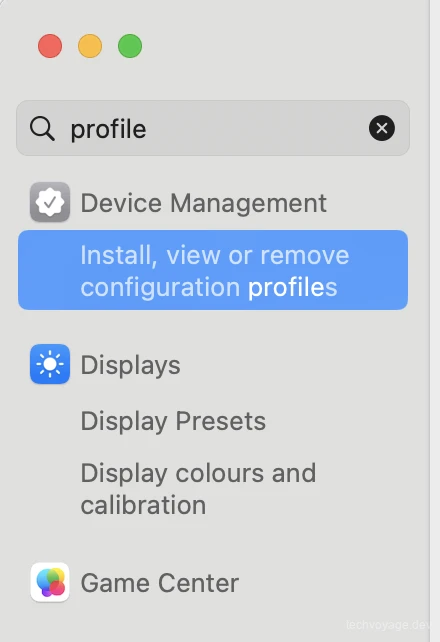
- Click on Install, view or remove... to begin adding your new configuration profile.

- Click the + (plus) icon in the bottom-left corner and select your saved
.mobileconfigfile.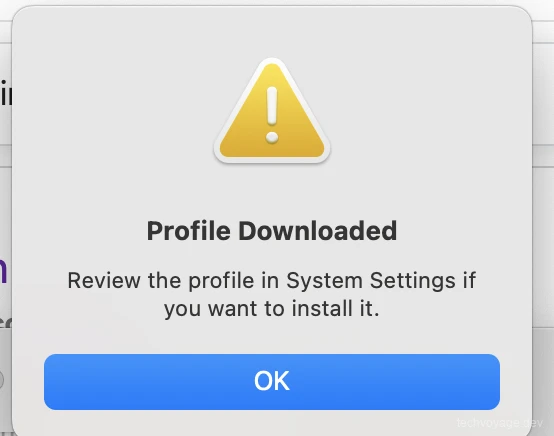
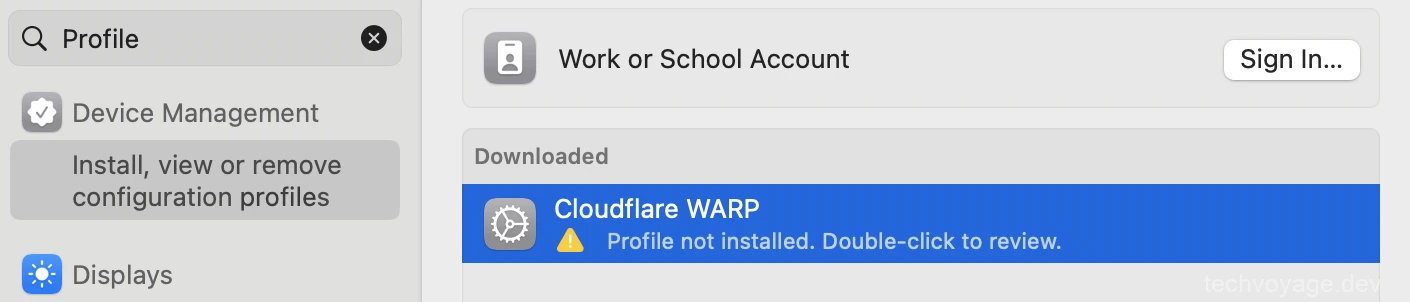
- Select Cloudflare WARP and click Install to apply the configuration.
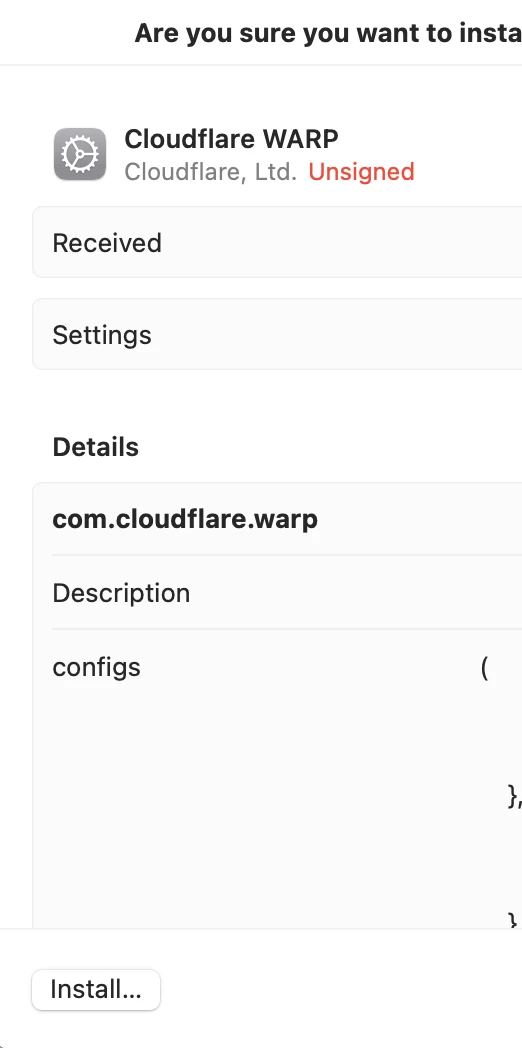
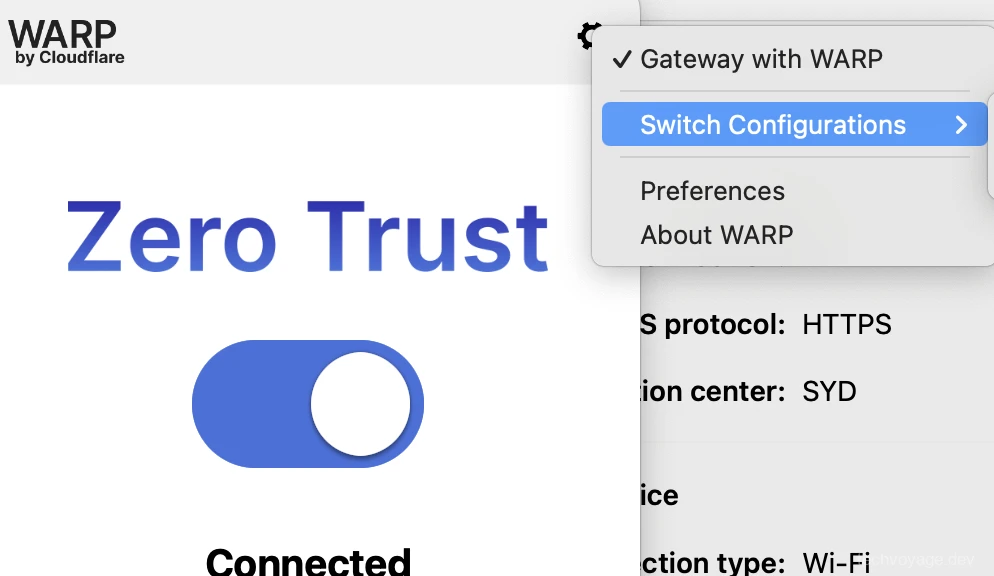
- Restart your Cloudflare WARP client. You should now see the multi-profile switcher in the user interface:
Conclusion
The Cloudflare WARP client acts as a critical security point on user devices, making Zero Trust Network Access both robust and highly practical. Keeping internal resources isolated from the public internet ensures that every connection attempt is securely authenticated, evaluated, and audited.
References
Related Articles

Security
Stop Exposing Your Vault: Secure NodeWarden with Cloudflare
The moment your NodeWarden is exposed to the public on the Internet, it starts attracting thousands of automated bots scrapping for vulnerabilities 24/7.
8 MIN READ
Security
How to Self-Host a BitWarden Compatible Server Nodewarden
Your passwords are your most critical digital property, and keeping them secure means keeping them in your own hands.
8 MIN READ
AI & Agents
How to Expose Hermes Agent Privately with Cloudflare WARP
Learn how to securely expose and access your Hermes Agent globally using Cloudflare WARP and Zero Trust without opening inbound firewall ports.
8 MIN READ
Previous
AI Agent Skills: What They Are & How to Create Them
Discover what AI agent skills are, how progressive disclosure works, and learn to build custom reusable skills.

Next
Build a Persistent AI Memory System on Cloudflare
Learn how to build a persistent, self-hosted AI memory system on Cloudflare using Second Brain and MCP. Share context across Claude, Gemini, and Obsidian.