How to Expose Hermes Agent Privately with Cloudflare WARP
Learn how to securely expose and access your Hermes Agent globally using Cloudflare WARP and Zero Trust without opening inbound firewall ports.
Table of contents
A common challenge arises when you want to access your Hermes Agent from other devices such as laptops, tablets, or phones without exposing it to the public internet. Utilizing Cloudflare WARP with Cloudflare Zero Trust allows you to expose the Hermes Agent globally without opening a single inbound port on your firewall.
If you followed our previous guide, 'How to Deploy Hermes Agent on a Linux VPS', a Hermes Agent is already up and running 24/7. Instead of dealing with the overhead of traditional VPNs, we will use the Cloudflare WARP client to expose the Hermes Agent to a private network over the internet.
Understanding the Architecture
The components at play:
- Cloudflare Zero Trust: The dashboard at Cloudflare where you define routing rules and access policies.
- Cloudflare WARP: The client application installed on your devices (VPS, laptops, phones). It intercepts traffic destined for your private network and routes it securely.
Prerequisites
- A running Hermes Agent on your VPS.
- A free Cloudflare account.
Step-by-Step Guide
Step 1: Set Up Cloudflare Zero Trust
- Log in to your Cloudflare Dashboard.
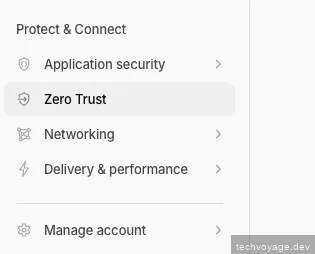
- Click on 'Zero Trust' from the left menu.
- If this is your first time, you will be prompted to choose a plan (the Free tier is perfectly fine for this setup) and name your team (e.g.,
ai-team).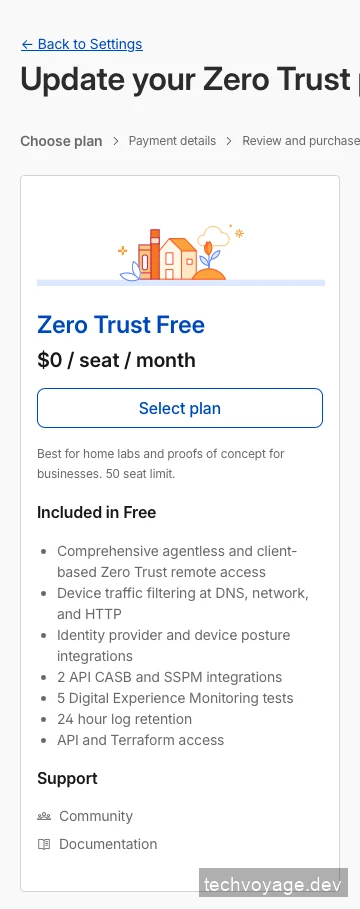
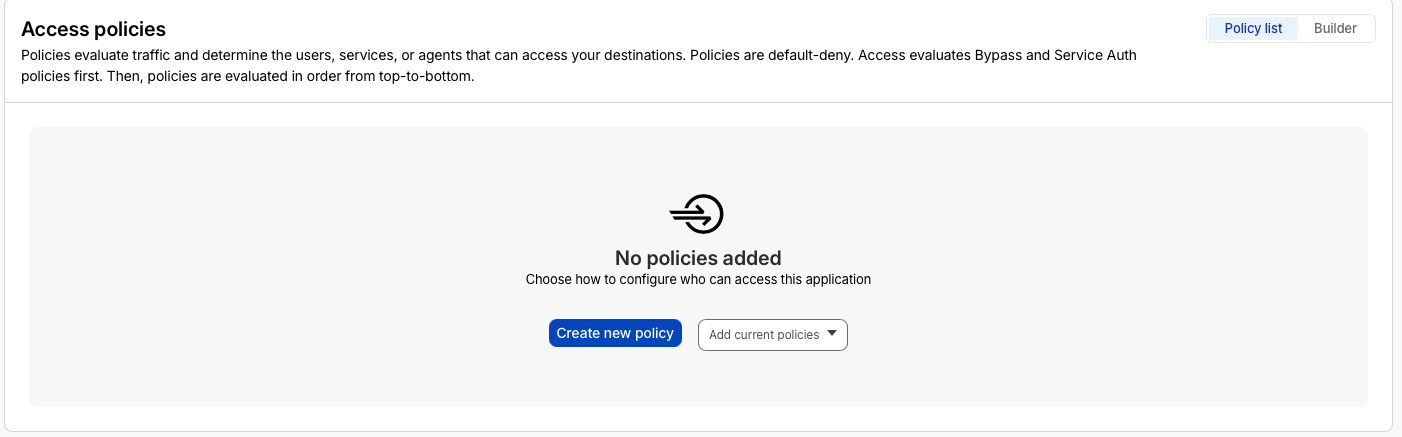
- Click on 'Access' then 'Policies' to create an access policy defining who has access to the network.
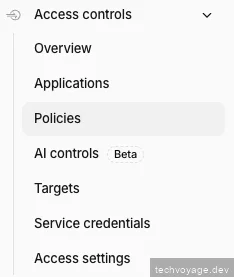
- Click on 'Create new policy'.
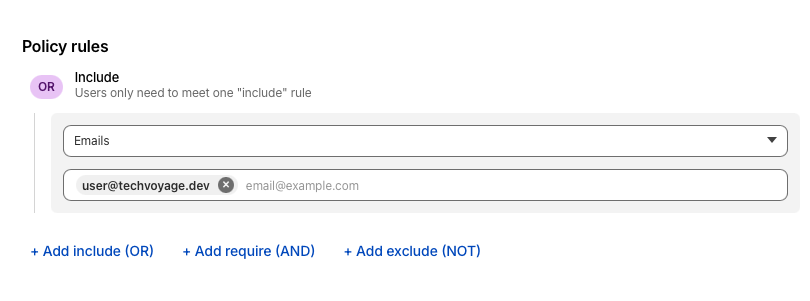
- Select 'Emails' and enter your email under 'Policy rules'.
Step 2: Set Up Cloudflare WARP Client on VPS
- Run
sudo apt updateandsudo apt install cloudflare-warpin the terminal on your VPS. - Run
warp-cli registration new <TEAM-NAME>in the terminal on your VPS, which will print out a URL. - Copy the printed URL, which will look like
https://<team>.cloudflareaccess.com/warp, and paste it in your browser for authentication. - Since email authentication is used in the policy rule setup above, enter your email to authenticate.
- On the 'Success' page in the browser, right-click and select 'Inspect' on the blue 'Open Cloudflare WARP' button.
- Copy the long token that is shown in the button's link.
- Run
warp-cli --accept-tos registration token "https://<team>.cloudflareaccess.com/auth?token=<copied_token>"in the terminal on your VPS to connect it to Cloudflare Zero Trust.
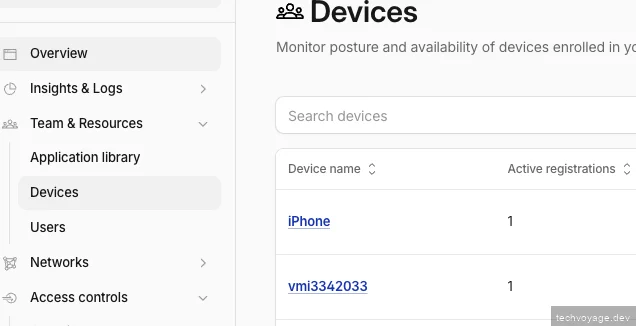
If the 'Error: Failed to communicate with the WARP API' is encounter on Ubuntu 26, run the following commands:sudo systemctl restart warp-svc.service # Check status sudo systemctl status warp-svc.service # Run the warp-cli registration token again warp-cli --accept-tos registration token "https://<team>.cloudflareaccess.com/auth?token=<copied_token>" - Head back to the Cloudflare Zero Trust dashboard, and click on 'Devices'. Your VPS device should now be displayed.
Step 3: Set Up Traffic Routing
- Click the profile for your VPS on the Devices dashboard.

- Scroll down to the 'Split Tunnels' section.
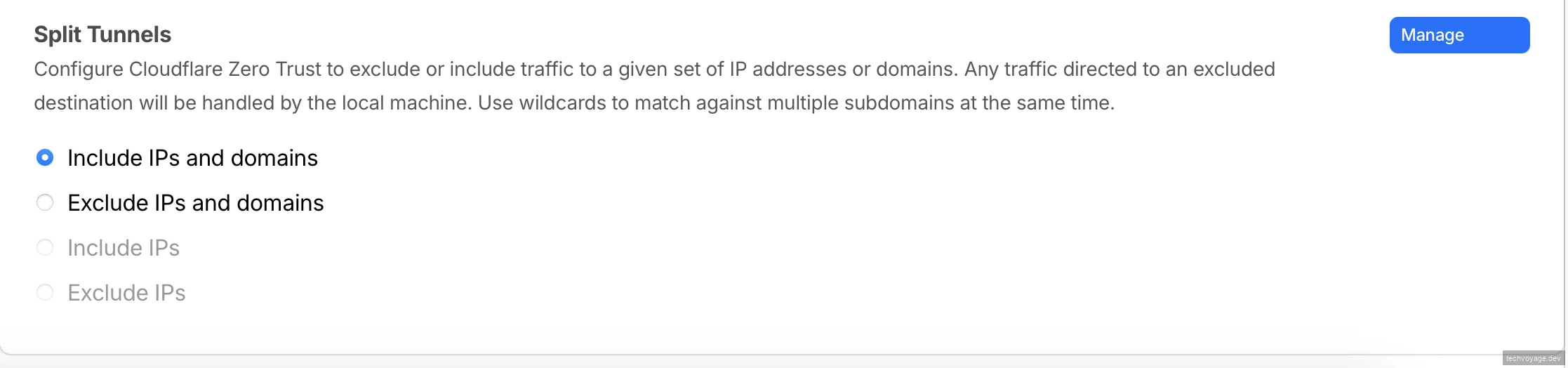
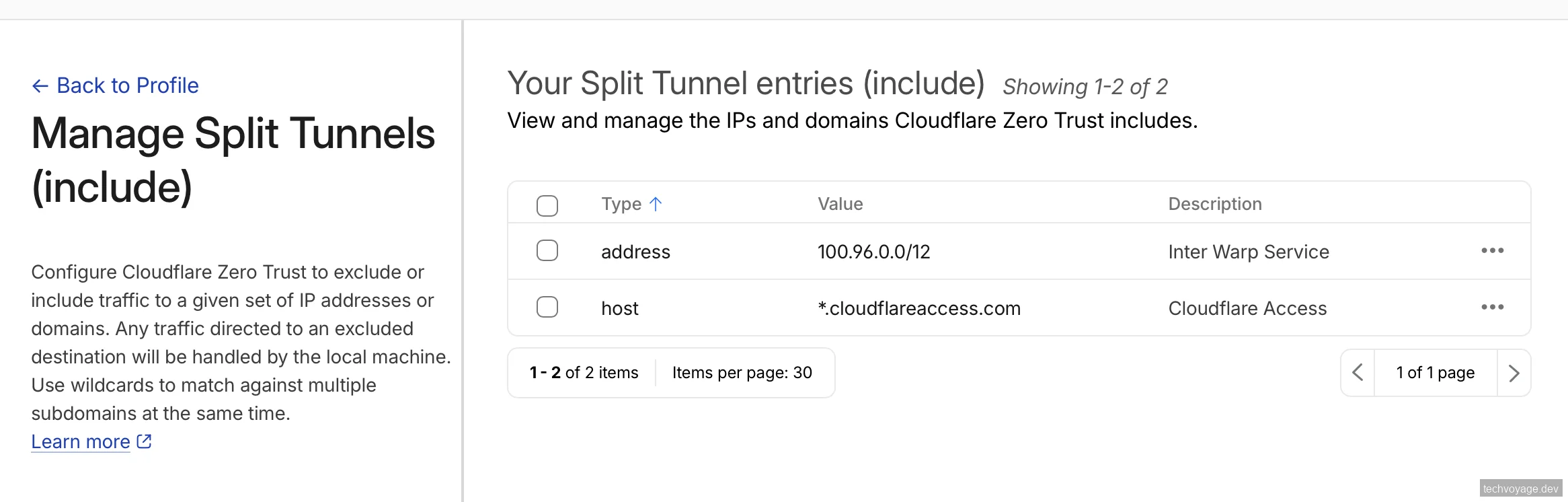
- Click the 'Manage' button and configure the settings as shown below. Replace the IP address if necessary.
- Exposing the
addressandhostwill route traffic to your services over the same private network.
Step 4: Configure Firewall on the VPS
Enable the firewall to allow the '100.96.0.0/12' subnet only, blocking all other public incoming access.
sudo ufw enable
sudo ufw default allow outgoing
sudo ufw default deny incoming
sudo ufw allow in from 100.96.0.0/12
Allow loopback traffic to avoid breaking local services:
sudo ufw allow in on lo
sudo ufw allow out on lo
Reload the firewall and verify status:
sudo ufw reload
sudo ufw status verbose
Step 5: Expose Hermes Agent to the Private Network
We will expose the Hermes Agent Web Dashboard to our private network and use the default authentication provider, Nous Research.
Set Up the Auth Provider
- Head to portal.nousresearch.com to register an account.
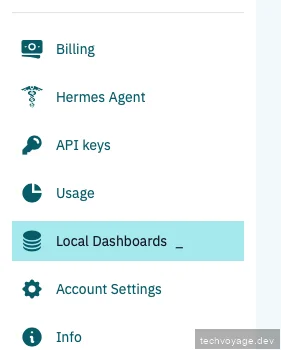
- Select 'Local Dashboards'.
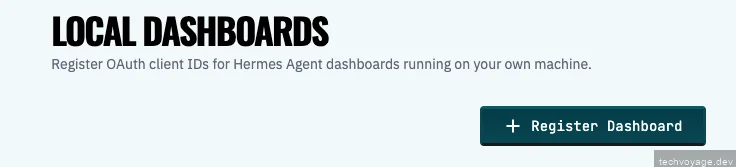
- Click 'Register Dashboard'.
- Enter the private network IP address of your VPS as the 'Dashboard redirect URI' and click 'Save'.
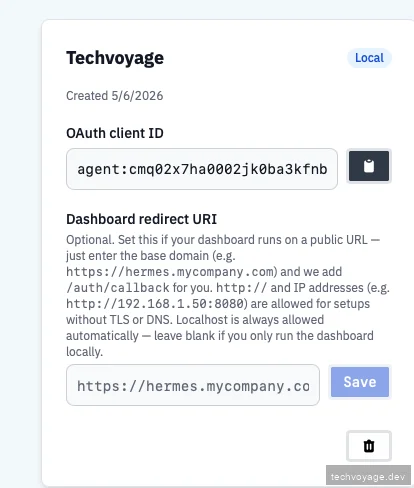
- Copy the 'OAuth client ID' and paste it in your
config.yamlfile:
dashboard:
  theme: default
  show_token_analytics: false
  oauth:
    client_id: agent:cmq02x7ha0002jk0ba3kfnb
    portal_url: https://portal.nousresearch.com
  basic_auth:
    username: ''
    password_hash: ''
Set Up Systemd to Autostart the Hermes Dashboard
- Create a service file:
sudo nano /etc/systemd/system/hermes-dashboard.service
- Paste the following configuration, ensuring
--host 0.0.0.0is part of the command:
[Unit]
Description=Hermes Dashboard
After=network.target

[Service]
User=hermes
WorkingDirectory=/home/hermes
ExecStart=/home/hermes/.local/bin/hermes dashboard --host 0.0.0.0
Restart=always
RestartSec=10
Environment=PATH=/home/hermes/.local/bin:/usr/local/bin:/usr/bin:/bin

[Install]
WantedBy=multi-user.target
- Enable and start the service:
sudo systemctl daemon-reload
sudo systemctl enable hermes-dashboard
sudo systemctl start hermes-dashboard
sudo systemctl status hermes-dashboard
Step 6: Install Cloudflare WARP Client on Desktop
- Download the Cloudflare WARP client from Cloudflare's portal.
- Open and launch the Cloudflare WARP client after installation.
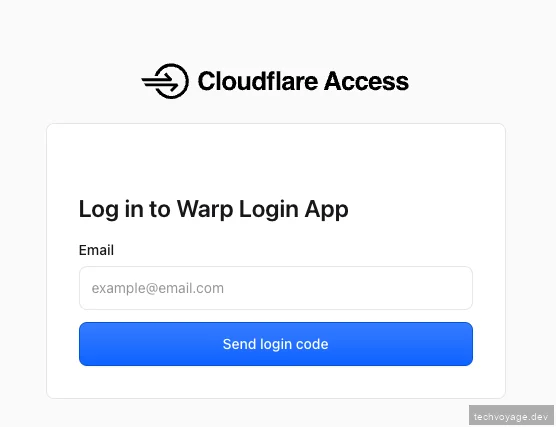
- Log in when prompted.
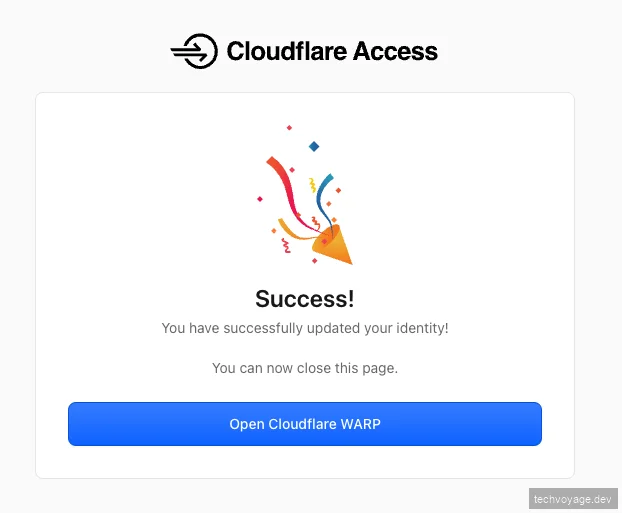
- A 'Success' page will be displayed after a successful login.
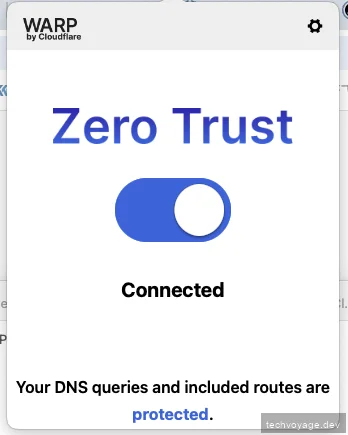
- The WARP client should now show it is connected to your Zero Trust team.
- Navigate to your web browser and enter your private IP (e.g.,
100.96.0.3). The Hermes Web Dashboard should load successfully.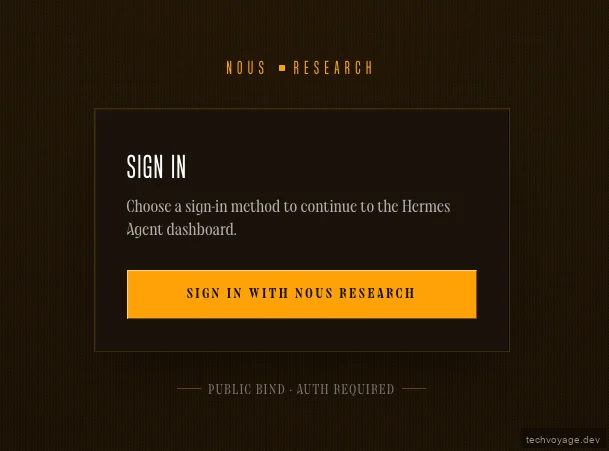
Pro Tip for macOS Users: If you are using the WARP client to access multiple Cloudflare accounts, check out our quick guide on Switch Between Multiple Cloudflare WARP Orgs on Mac to make switching between accounts seamless.
Step 7: Install Cloudflare WARP Client on iOS Devices
- Install Cloudflare One from the App Store.
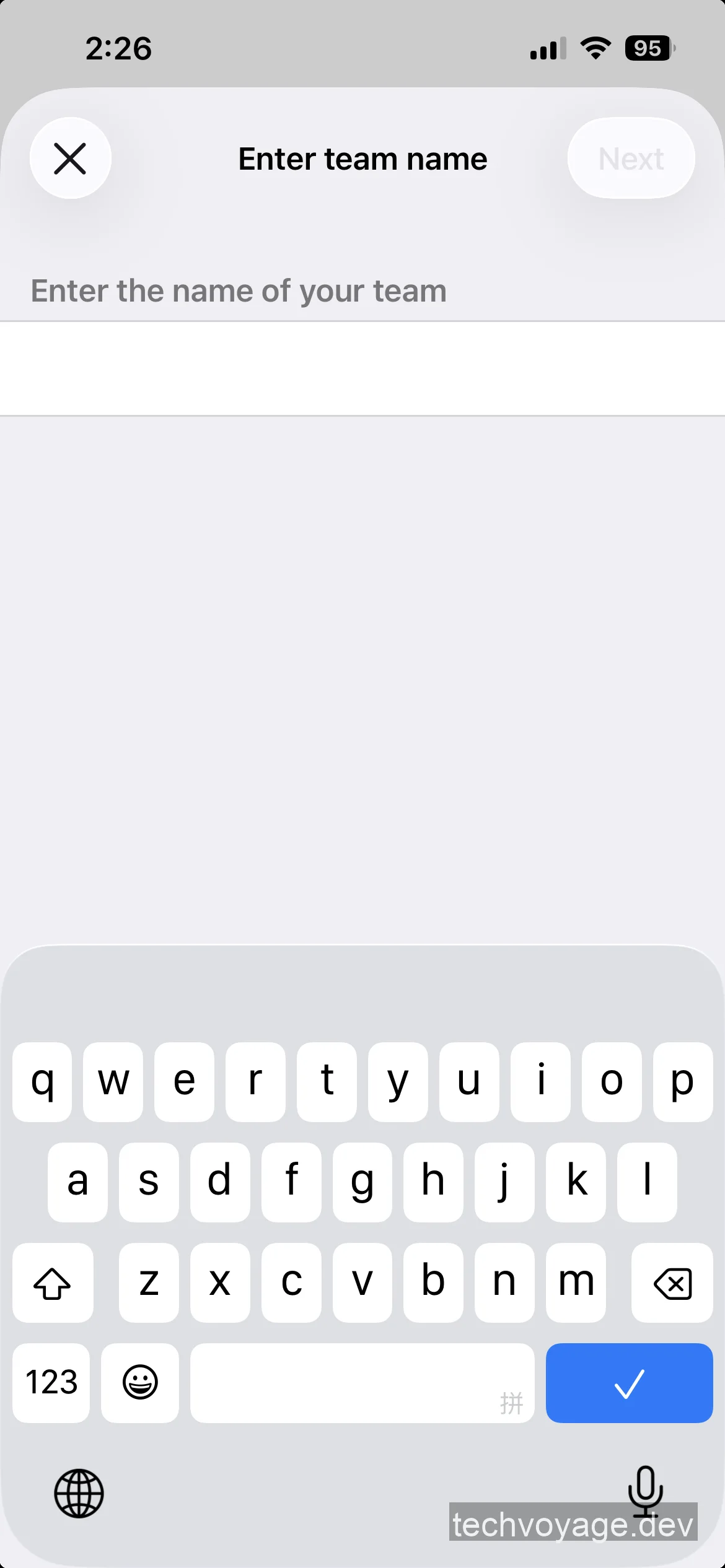
- Open the Cloudflare One app and enter your team name when prompted.
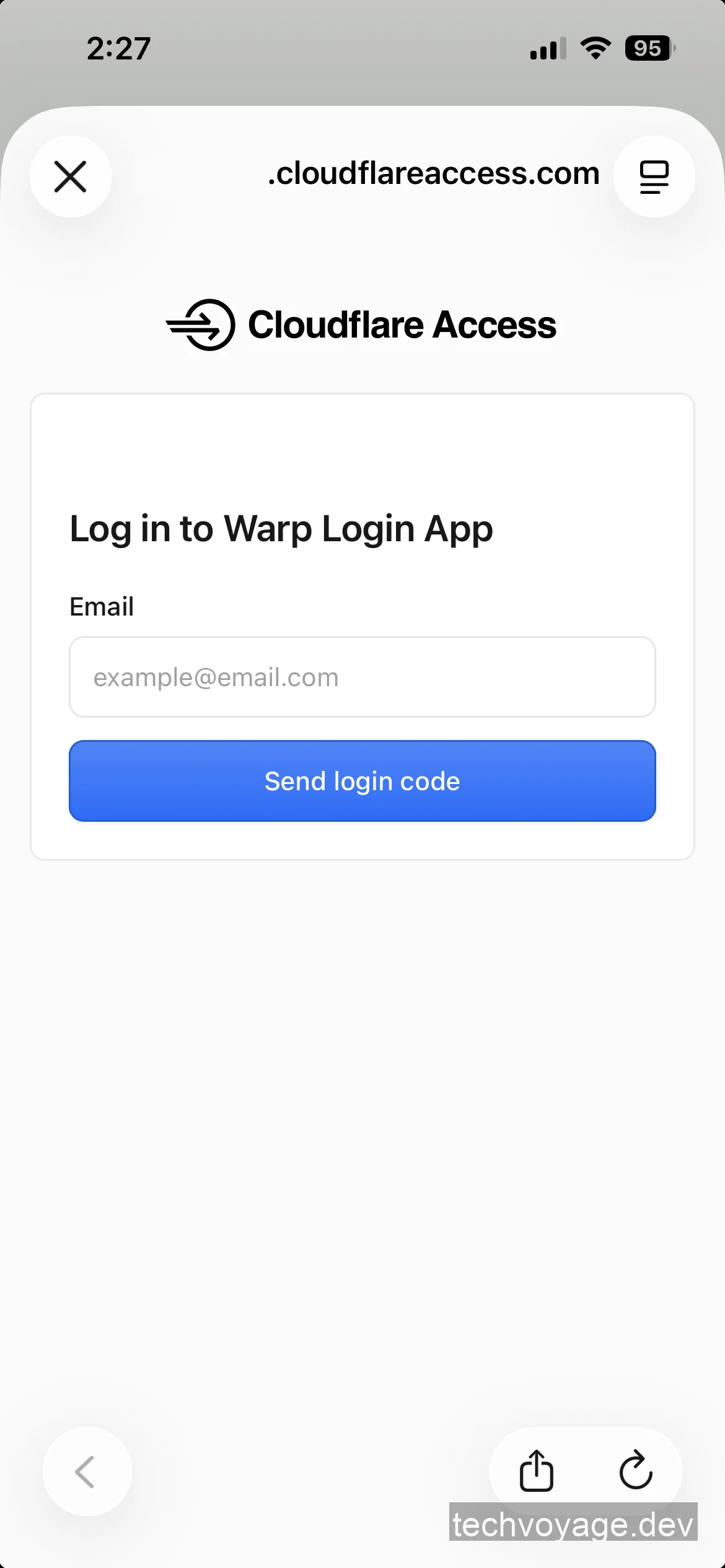
- Log in using the same email address that was configured in the policy rule above.
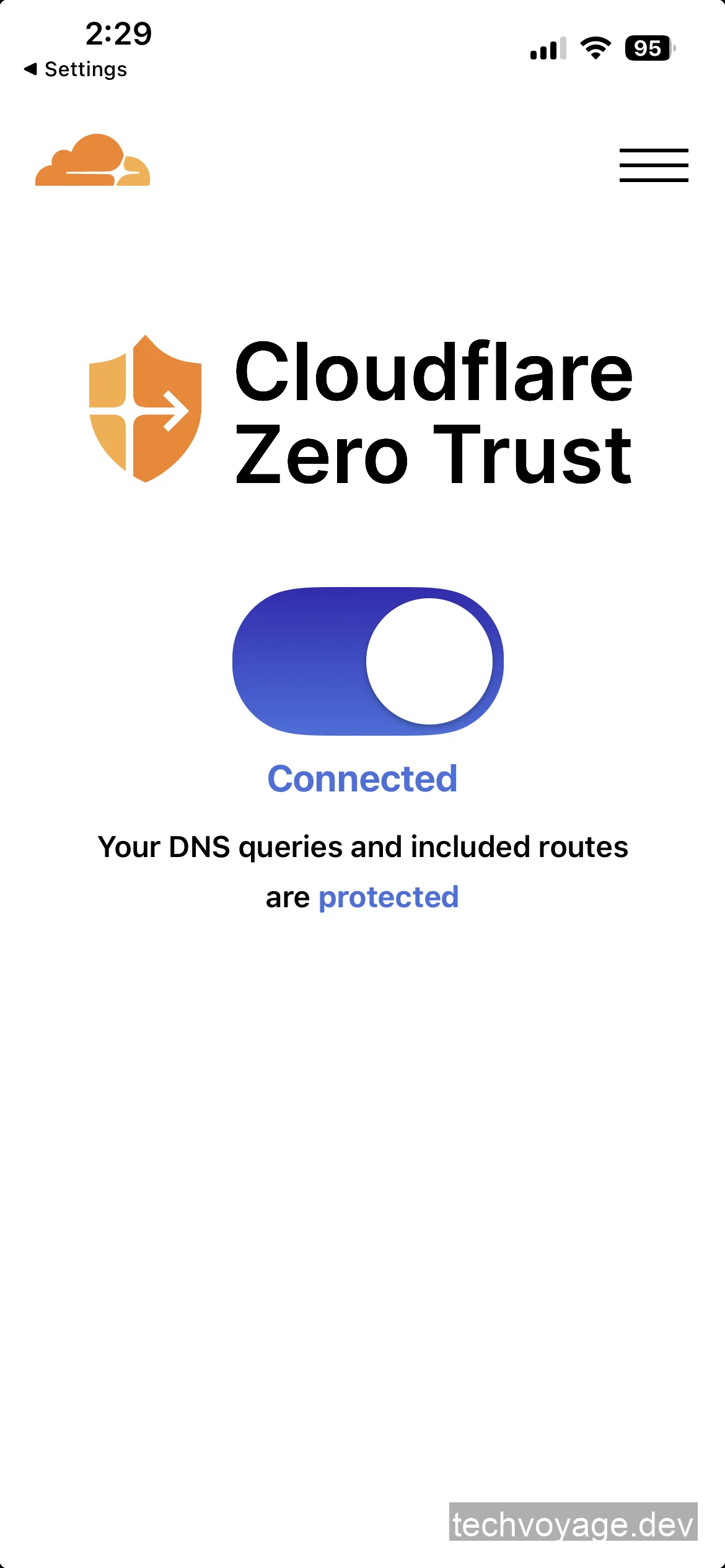
- Once it is connected, it should look like the following:
- Navigate to your web browser and enter the private IP
100.96.0.3to access the Hermes Web Dashboard on your mobile device.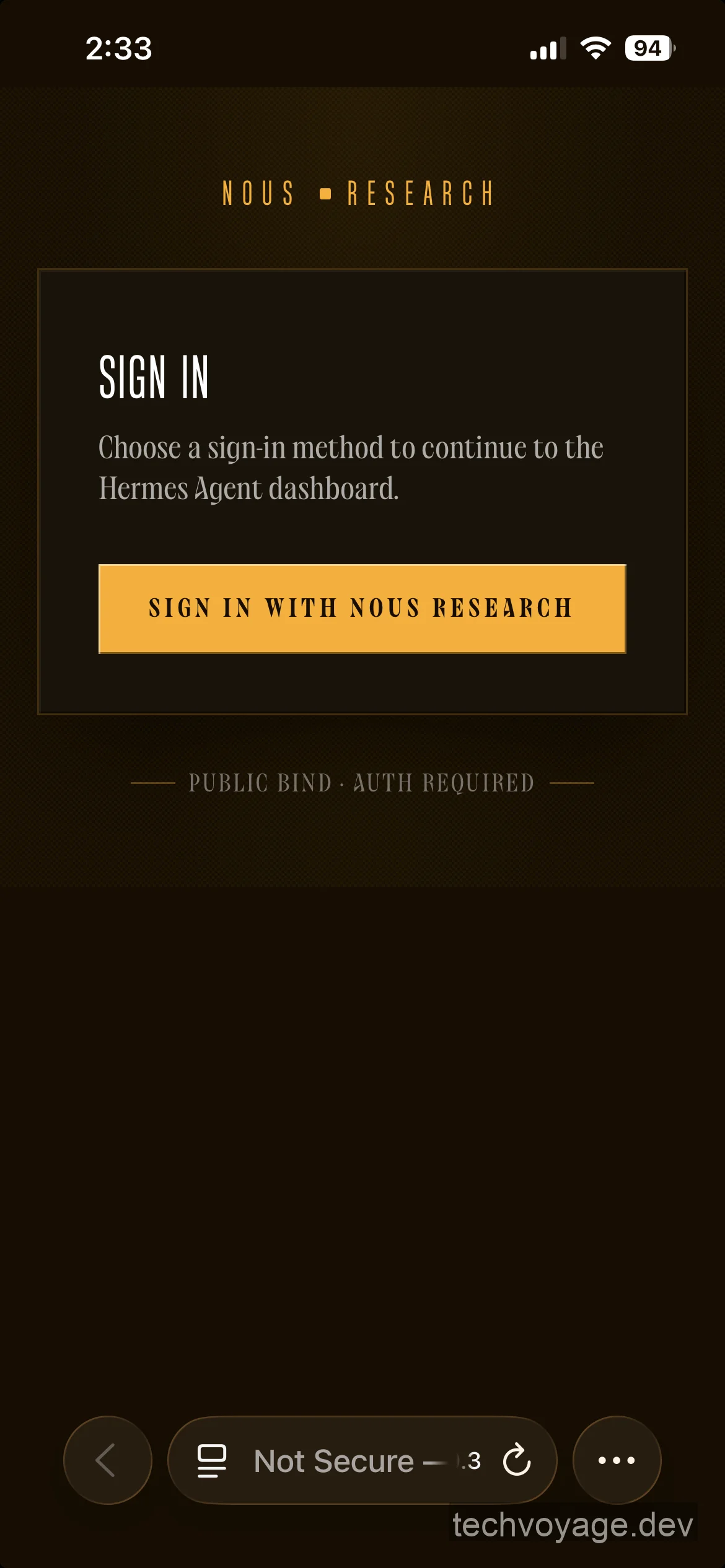
Conclusion
With Cloudflare Zero Trust handling identity policies and the WARP client routing traffic over an encrypted tunnel, your Hermes Agent is securely reachable from your devices globally. This setup lays a secure, robust foundation for building and accessing a fully remote, private AI infrastructure.
Related Articles
Security
Switch Between Multiple Cloudflare WARP Orgs on Mac
Configure and switch multiple Cloudflare WARP organisations on macOS using a .mobileconfig file. A complete MDM guide for IT admins.
4 MIN READ
AI & Agents
How to Deploy Hermes Agent on a Linux VPS
Deploy the Hermes Agent on a remote VPS for 24/7 uptime. Follow our step-by-step guide to integrate it with a custom Telegram bot.
5 MIN READ
AI & Agents
Bringing Buzz to DeepSeek Harness: Taught to Speak Nostr
Integrate DeepSeek Harness with Block Buzz using a Nostr bridge. Configure NIP-42 auth, in-place message streaming, and per-channel agent workspaces.
9 MIN READ
Previous
How to Sync Obsidian Vaults Across Devices Securely
Securely synchronise Obsidian vaults across your devices and access notes on the web using self-hosted Synch and Ignis within Cloudflare Zero Trust.
Next
Bringing Buzz to DeepSeek Harness: Taught to Speak Nostr
Integrate DeepSeek Harness with Block Buzz using a Nostr bridge. Configure NIP-42 auth, in-place message streaming, and per-channel agent workspaces.