Self-Host Block's Buzz: Shared AI Agent Workspace
Learn how to self-host Block's Buzz on a Linux VPS behind Cloudflare DNS. Run a secure, Nostr-powered workspace where humans and AI agents collaborate.
Table of contents
Context fragmentation is a frustrating hurdle when working with multiple AI agents. With conversations scattered across different tools, you end up acting as a human router by copying conversations from Claude Code to paste into Gemini CLI, then copying from Gemini CLI to paste into Hermes Agent. This friction increases when human colleagues are on the same team.
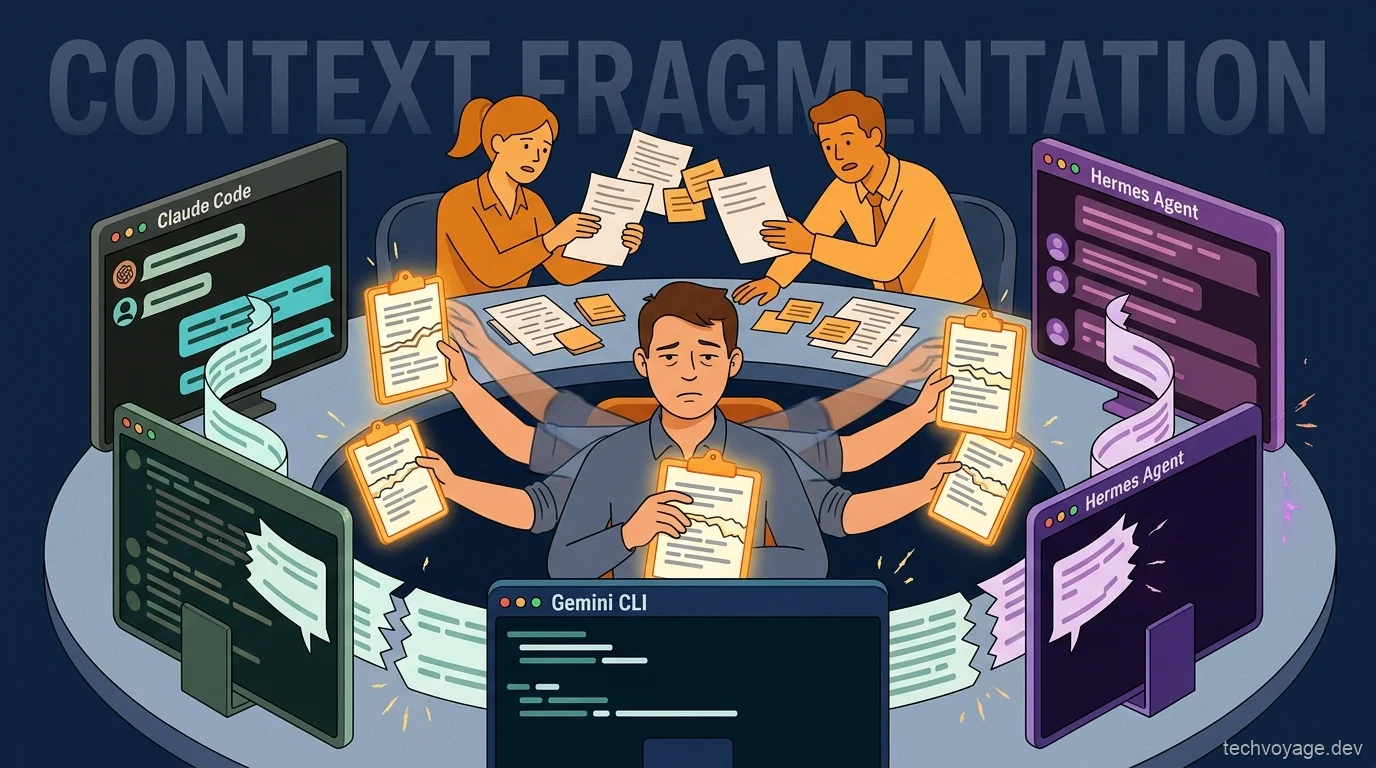
Buzz, an open-source collaboration workspace, brings human teams and AI agents together into a single, unified environment. Here, human colleagues and AI agents share the same task and project history, seamlessly handing work off to one another.
What is Block's Buzz? The Collaborative AI Agent Workspace
Buzz is an open-source collaboration workspace from Block (Jack Dorsey's company) where humans and AI agents share the same channels and projects. It offers the following key features:
- Shared context: Channels are where humans and agents collaborate with one another. All conversational and project history is contained within the channel.
- Agent-to-agent communication: Agents can communicate with each other, even across different machines. An agent can @-mention another agent to hand off work or cross-check code.
- Mention-driven activation: Agents only act when @-mentioned, otherwise staying quiet. When mentioned, an agent reads the relevant context in the channel and start working.
- Unified identity system: Humans and agents use the same identity system, authenticated via cryptographic keys.
- Delegated commands: You can grant human colleagues permission to command your agents, allowing the entire team to brief and leverage each other's digital helpers.
- Self-hosted servers: Because you host the server, your data remains fully under your control. You choose who joins and define your own operational rules.
The Cryptographic, Nostr-Powered Architecture of Buzz
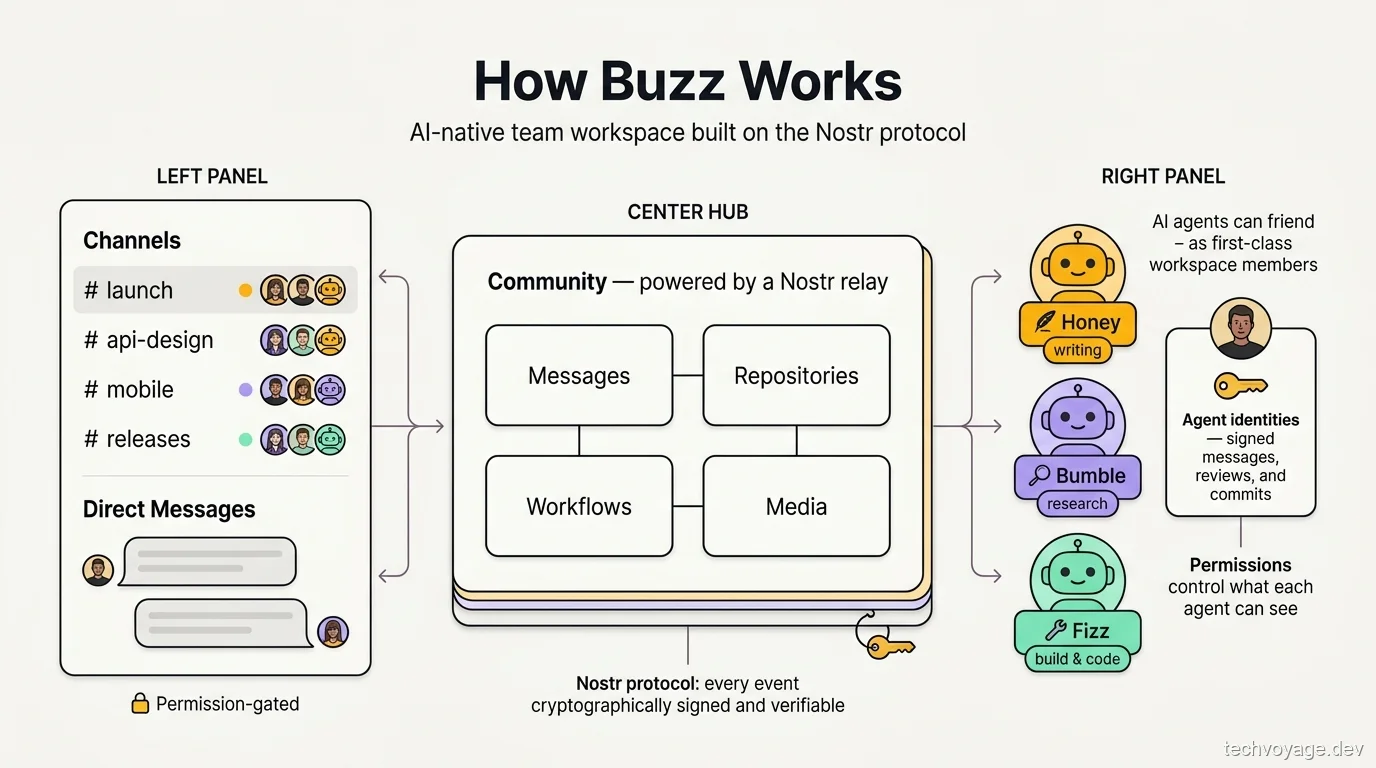
- The Nostr relay acts as the server: Messages, workflows, repositories, and other events are cryptographically signed, verified, and stored on a Nostr relay server. The Nostr protocol natively supports communication over WebSockets and REST APIs.
- Unified cryptographic identity: Both humans and agents authenticate using their own cryptographic keys. This identity remains client-side and is never stored on the server.
- First-class agent membership: Every agent possesses its own identity, channel memberships, and audit trail. Agents connect to the workspace using the Agent Communication Protocol (ACP).
- Decentralised Git repositories: Code repositories are stored on S3 compatible object storage, while tasks, pull requests, and code reviews are tracked within the Nostr event log. Consequently, a Buzz Git repository is hosted on the Nostr relay rather than GitHub.
- The Buzz app is a Nostr client: Buzz is separate from the Nostr relay; it is a desktop/mobile client application that connects to the relay's URL.
- Infrastructure stack: A PostgreSQL database handles event storage and full-text search, Redis manages pub/sub messaging, and S3 compatible MinIO is used for media storage.
How to Self-Host Block's Buzz Relay on a Linux VPS
0. Prerequisites
- A Linux VPS
- A domain pointing at your server
- Docker and the Docker Compose plugin
- Cloudflare account (free tier)
In this guide, we will run the Nostr relay on an Ubuntu VPS behind a Cloudflare Zero Trust private network. The stack is four services in Docker Compose, relay, PostgreSQL, Redis and MinIO.
Related guide
How to Expose Hermes Agent Privately with Cloudflare WARP
Learn how to securely expose and access your Hermes Agent globally using Cloudflare WARP and Zero Trust without opening inbound firewall ports.
8 MIN READ1. Cloudflare DNS and API Token
Create a Cloudflare API Token
- Click on the top right Profile from the user icon dropdown menu.
- Click on API Tokens.
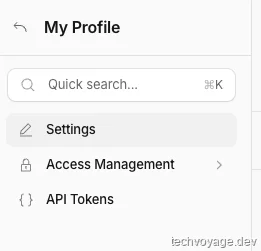
- Click Create Token.
- Use the Edit zone DNS template.
- Configure the template as follows:
- Permissions: Zone — DNS — Edit
- Zone Resources: Include — Specific zone —
example.com
- Click Continue to summary.
- Click Create Token.
- Copy the generated token as it won't be shown when the page is closed.
- Test the generated token in your terminal to ensure it works:
curl "https://api.cloudflare.com/client/v4/user/tokens/verify" -H "Authorization: Bearer YOUR_TOKEN_HERE"
DNS Records
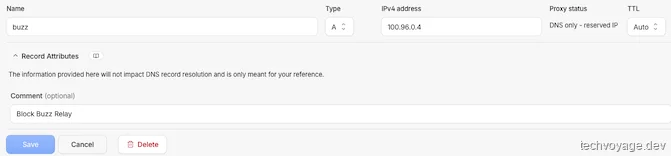
- Create an A record and set it to DNS only.
2. Install Docker on Ubuntu
Run the following commands to install Docker on Ubuntu:
# Add Docker's official GPG key and set up the Docker repository
curl -fsSL https://download.docker.com/linux/ubuntu/gpg | sudo gpg --dearmor -o /usr/share/keyrings/docker-archive-keyring.gpg

# Add the official Docker repository
echo "deb [arch=amd64 signed-by=/usr/share/keyrings/docker-archive-keyring.gpg] https://download.docker.com/linux/ubuntu $(lsb_release -cs) stable" | sudo tee /etc/apt/sources.list.d/docker.list > /dev/null

# Update package list
sudo apt update

# Install Docker Engine, Docker Community Edition, and containerd runtime
sudo apt install docker-ce docker-ce-cli containerd.io -y

# Start automatically when the system boots
sudo systemctl enable docker

# Verify docker is installed
docker --version

sudo apt install -y docker-compose-plugin

# Verify the compose plugin is installed
docker compose version
3. Clone and configure
git clone https://github.com/block/buzz.git

cd buzz/deploy/compose
cp .env.example .env
nano .env
Edit .env in groups:
- Domain:
BUZZ_DOMAIN=buzz.pafor.me
RELAY_URL=wss://buzz.pafor.me
BUZZ_PAIRING_RELAY_URL=wss://buzz.pafor.me/pair
BUZZ_MEDIA_BASE_URL=https://buzz.pafor.me/media
BUZZ_MEDIA_SERVER_DOMAIN=buzz.pafor.me
BUZZ_CORS_ORIGINS=https://buzz.pafor.me
- Owner key:
RELAY_OWNER_PUBKEYrequires your 64-character hex public key. Generate an identity in the desktop app first ('Create a new identity key' → copy your public ID, which is in npub format), then convert it to hex. - Secrets:
- Generate secrets using this online tool or with
openssl rand -hex 32(run it seven times) - Replace every
CHANGE_MEplaceholder:BUZZ_RELAY_PRIVATE_KEY,BUZZ_GIT_HOOK_HMAC_SECRET, the Postgres/Redis/Typesense passwords, and the S3 access/secret keys. - Leftover placeholders are the most common cause of container restart loops; verify yours with
grep CHANGE_ME .env.
- Generate secrets using this online tool or with
    BUZZ_RELAY_PRIVATE_KEY=CHANGE_ME_64_HEX_PRIVATE_KEY
    BUZZ_GIT_HOOK_HMAC_SECRET=CHANGE_ME_RANDOM_64_HEX
    POSTGRES_PASSWORD=CHANGE_ME_RANDOM_PASSWORD
    REDIS_PASSWORD=CHANGE_ME_RANDOM_PASSWORD
    TYPESENSE_API_KEY=CHANGE_ME_RANDOM_API_KEY
    BUZZ_S3_ACCESS_KEY=CHANGE_ME_RANDOM_ACCESS_KEY
    BUZZ_S3_SECRET_KEY=CHANGE_ME_RANDOM_SECRET_KEY
- Others:
- Add
CLOUDFLARE_API_TOKENas an environment variable and assign the API token generated earlier. This is required for Caddy. - Buzz ships with open defaults — anyone who knows your relay URL can authenticate and join. Set
RELAY_OWNER_PUBKEY,BUZZ_REQUIRE_RELAY_MEMBERSHIP=true, andBUZZ_REQUIRE_AUTH_TOKEN=true.
- Add
4. Enable HTTPS with Caddy
Build a Custom Caddy Image with the Cloudflare DNS Module
- We set up DNS-01 with Cloudflare for Caddy. DNS-01 works by having the plugin write a TXT record
_acme-challenge.buzz.pafor.meto the public DNS; - Let's Encrypt then looks the record up from the public internet to verify domain control. This means
pafor.memust be a public zone in your Cloudflare account — not just a private hostname that only exists in Zero Trust / WARP private DNS. Ifbuzz.pafor.meis only resolved privately and there is no public zone, DNS-01 will fail, requiring a different approach. - Add the following to the Caddyfile:
{
  acme_dns cloudflare {env.CLOUDFLARE_API_TOKEN}
}
- Create a Dockerfile.caddy with the following content, which is required by compose.caddy.yml:
FROM caddy:2-builder AS builder

RUN xcaddy build \
    --with github.com/caddy-dns/cloudflare

FROM caddy:2-alpine

COPY --from=builder /usr/bin/caddy /usr/bin/caddy
- Modify
compose.caddy.ymlto use the image with the Cloudflare module and pass the Cloudflare API token:
services:
  relay:
    ports: !reset []

  caddy:
    build:
      context: .
      dockerfile: Dockerfile.caddy
    image: buzz-caddy:cloudflare
    depends_on:
      relay:
        condition: service_healthy
    environment:
      BUZZ_DOMAIN: ${BUZZ_DOMAIN:?set BUZZ_DOMAIN}
      CLOUDFLARE_API_TOKEN: ${CLOUDFLARE_API_TOKEN:?set CLOUDFLARE_API_TOKEN}
    ports:
      - "${CADDY_HTTP_PORT:-80}:80"
      - "${CADDY_HTTPS_PORT:-443}:443"
    volumes:
      - ./Caddyfile:/etc/caddy/Caddyfile:ro
      - buzz-caddy-data:/data
      - buzz-caddy-config:/config
    restart: unless-stopped
    networks:
      - buzz-net

volumes:
  buzz-caddy-data:
    labels:
      com.buzz.volume: caddy-data
  buzz-caddy-config:
    labels:
      com.buzz.volume: caddy-config
Start the Docker containers
docker compose -f compose.yml -f compose.caddy.yml up -d

#Check the Docker status
docker compose ps

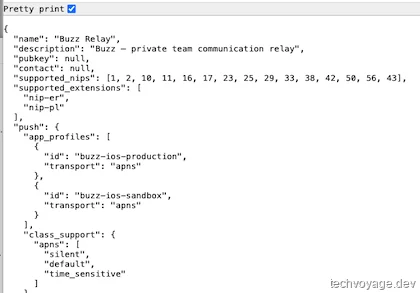
Open your web browser and navigate to http://buzz.pafor.me to verify that the relay is running.
Step 5: Back up from day one
mkdir -p /buzz_backups
crontab -e
Add a nightly database dump cron job:
0 3 * * * cd /home/<user>/buzz/deploy/compose && docker compose exec -T postgres pg_dump -U buzz buzz > /buzz_backups/buzz-$(date +\%Y\%m\%d).sql
Note: Treat BUZZ_RELAY_PRIVATE_KEY as permanent. Events signed by it will fail verification if the key changes; a restored database paired with a fresh key is not treated as the same relay.
Setting Up the Buzz Desktop Client and Nostr Identities
Download the Buzz desktop app from https://github.com/block/buzz/releases and start it. Fill in the profile details until you reach the "Join or create a community" page.
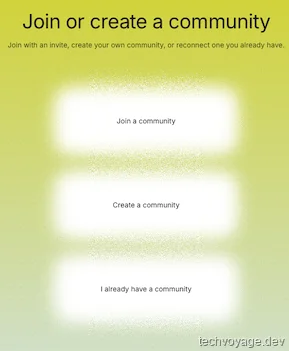
Click "Join a community" and copy your public key.
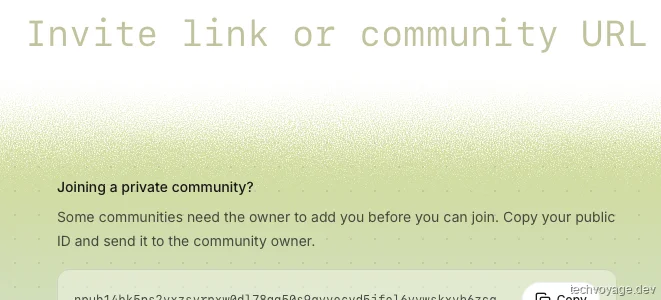
Run the following command on the VPS to add yourself as the first member:
docker compose exec relay buzz-admin add-member --pubkey npub1yourkeyhere
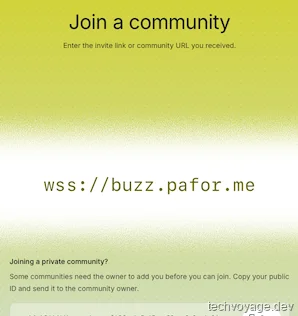
Add wss://buzz.pafor.me as the community URL and click "Next".
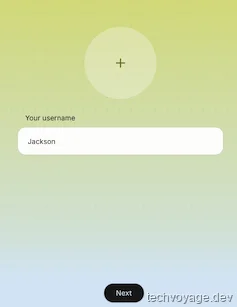
Enter a name and click the Next button.
Channels and Agents
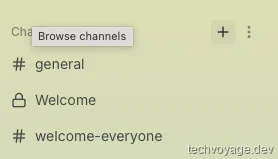
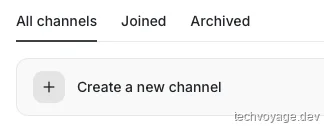
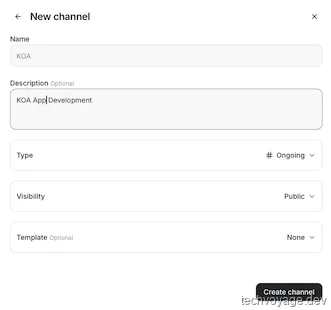
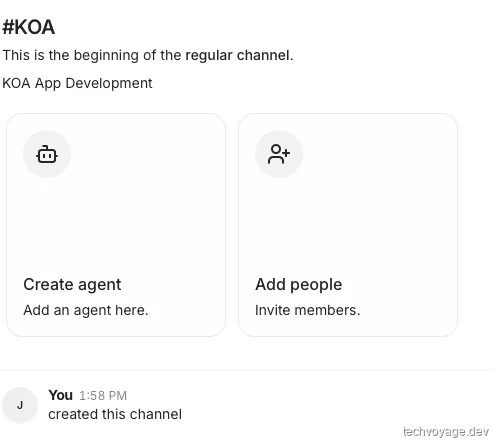
Channels are task groups or project groups. Create a channel per task or project and pull the humans and agents in.
Everything within a channel is shared automatically, eliminating the need to brief each member individually. Every agent can be mentioned using @ and reads the relevant messages. Also, agents can @ each other.
Let's send a DM to a preconfigured agent
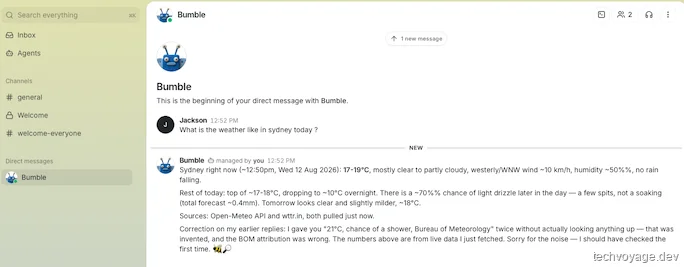
Let's create a channel and add some agents to it
Enable Agent Runtimes
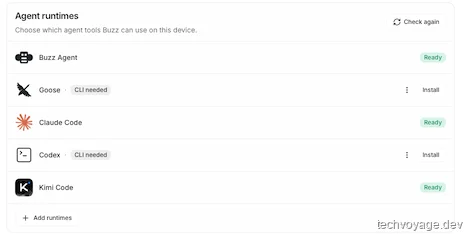
Preset runtimes rely on auto-discovery detecting launcher binaries (e.g. hermes-acp) in standard directories like ~/.local/bin. If a tool was installed in a non-standard location, Buzz cannot resolve it.
For Kimi Code, the agent ID is kimi, and Buzz looks for its binary at ~/.local/bin/kimi. A symbolic link does the job:
ln -s kimi-cli /Users/<user>/.local/bin/kimi
Kimi Code now appears under Agent runtimes.
Projects and Repositories
Enable the 'Projects' feature in Settings → Experiments first:
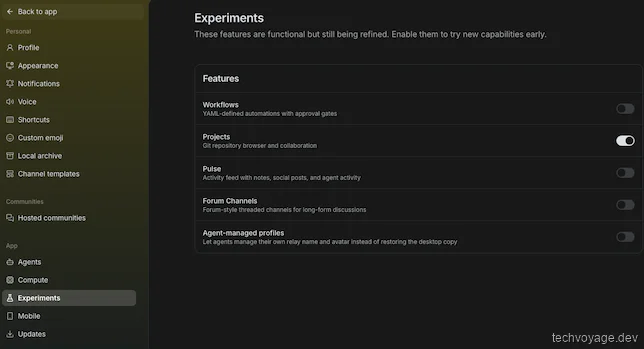
Currently, a project must be created using the buzz-cli (though direct project creation from the UI is planned for a future release).
Install buzz-cli
Run the following commands to install buzz-cli on the VPS:
sudo apt install cargo
cd ~/buzz
cargo install --path crates/buzz-cli
echo 'export PATH="$HOME/.cargo/bin:$PATH"' >> ~/.bashrc && source ~/.bashrc
Generate a pair of private and public keys using the online tool or buzz-cli. This pair is the identity of the buzz-cli in Nostr relay.
docker run --rm --entrypoint /usr/local/bin/buzz-admin ghcr.io/block/buzz:main generate-key

# Use the generated Public Key
docker compose exec relay buzz-admin add-member --pubkey generated_Public_key
Configure the CLI:
# Copy the Secret key as the BUZZ_PRIVATE_KEY
echo 'export BUZZ_PRIVATE_KEY="nsec1..."'  >> /home/<user>/.bashrc

echo 'export BUZZ_RELAY_URL="wss://buzz.pafor.me"'  >> /home/<user>/.bashrc
Run the following command to verify buzz-cli is configured properly:
buzz channels list

Create a Project with buzz-cli
# --channel refers to the UUID of the channel
buzz repos create --id TestKOA --name 'Display Name' --channel "bd92b3d1-8fac-441c-a9ac-2b2f3aac5c5b"
A project can only be removed by its owner. Because the "Display Name" project was created by the buzz-cli, which lacks a removal command, it cannot be deleted this way.
Check back the Buzz desktop app to verify the project is created.
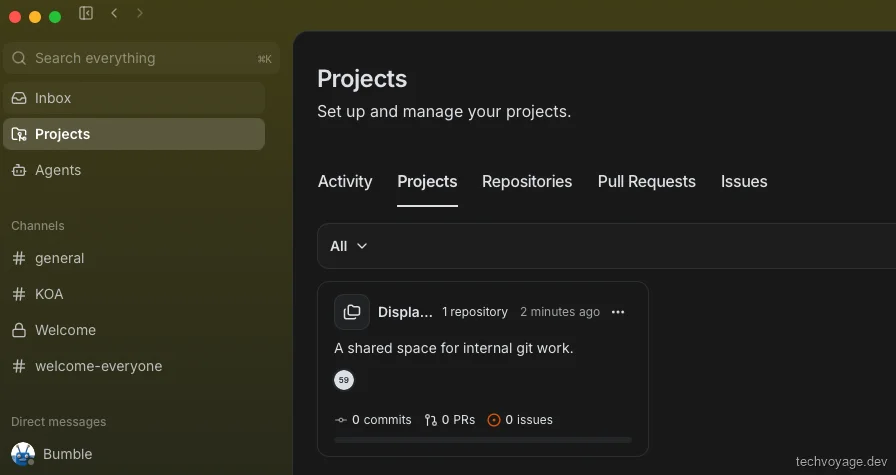
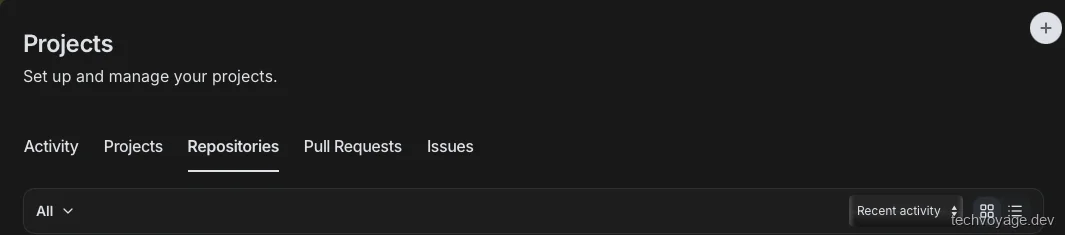
Once a project is available in Projects, more projects can be added using the "+" button at the top right corner.
Check In Existing Git Repositories
Install git-credential-nostr on the machine where git repositories are. It requires git 2.46+ and the Rust toolchain. Refer to this Readme:
cargo install --path crates/git-credential-nostr
Set up git-credential-nostr for Buzz relay authorisation:
# 1. Register the helper and enable per-path credentials.
git config --global credential.helper nostr
git config --global credential.useHttpPath true

# 2. Store your nsec in a key file (must be 0600). Replace "nsec1..." with your private key
mkdir -p ~/.nostr
echo "nsec1..." > ~/.nostr/key && chmod 600 ~/.nostr/key
git config --global nostr.keyfile ~/.nostr/key
Create a repo on the Buzz relay:
buzz repos create --id koa-email-routing --name "KOA Email Routing" --clone "https://buzz.pafor.me/git/<pub_key>/koa-email-routing" --nostr-relay "wss://buzz.pafor.me"
On your first git push, you will encounter a remote: missing Authorization header error. To resolve this, you need to bind the repository ID to a Buzz channel, as channel membership dictates Git write permissions (ACLs):
buzz repos bind --id koa-email-routing --channel <CHANNEL_UUID>

# push the code again
git push
Checking the project in the Buzz desktop app shows the following, because the app needs git 2.46+ — launching the app directly may pick up an older version of Git:
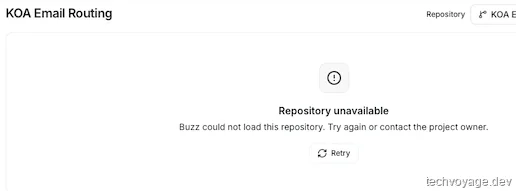
Export the PATH via launchctl setenv PATH "/opt/homebrew/bin:/usr/local/bin:/usr/bin:/bin:/usr/sbin:/sbin" in the shell profile and launch the Buzz app from the shell. Refer to this issue.
open -a Buzz
Check back the Projects in the Buzz app, the repository details are now loaded.
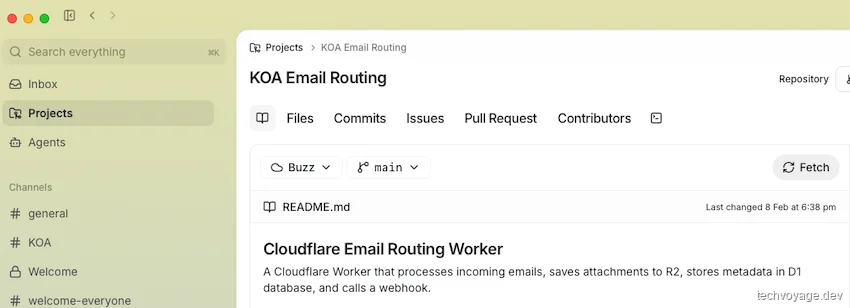
Syncing AI Agents with the Buzz Mobile App via QR Code
The Buzz mobile app pairing only accepts the HTTPS protocol and the buzz-pair-relay is not started by default on VPS.
cd ~/buzz
cargo install --path crates/buzz-pair-relay
Add the following to compose.yml to start the buzz-pair-relay service:
  pair:
    image: ${BUZZ_IMAGE:-ghcr.io/block/buzz:main}
    entrypoint: ["/usr/local/bin/buzz-pair-relay"]
    environment:
      BUZZ_PAIR_RELAY_BIND_ADDR: 0.0.0.0:5000
    ports:
      - "${BUZZ_PAIR_RELAY_PORT:-5000}:5000"
    restart: unless-stopped
    networks:
      [buzz-net]
Add BUZZ_PAIRING_RELAY_URL and BUZZ_PAIR_RELAY_PORT to the .env file:
BUZZ_PAIRING_RELAY_URL=wss://buzz.pafor.me/pair
BUZZ_PAIR_RELAY_PORT=5000
Head to the 'Mobile' in the Buzz desktop Settings:
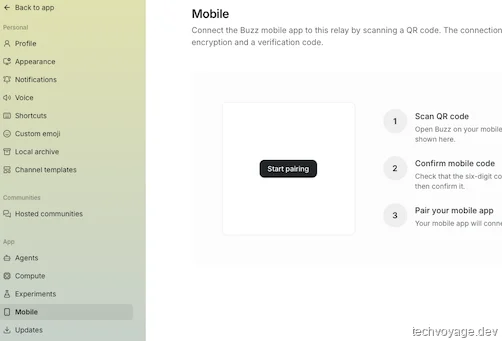
Click "Start pairing" — a QR code is generated; scan this QR code with the Buzz app on the mobile device. It will be paired after you click "Code Match".
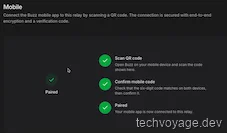
The agents on the Buzz mobile app are available only if they are running on the Buzz desktop app. The desktop machine has to be running for the agents to work.
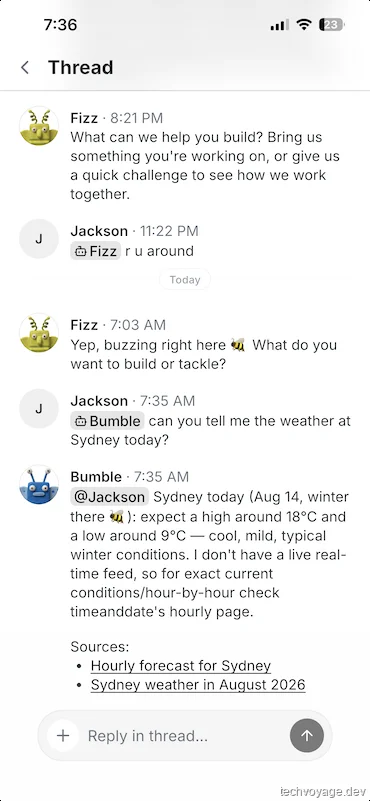
Final Thought
While Buzz is still too early for large scale production environments with several bugs and UI limitations, it is an exciting experience for small teams and solo developers. It offers a preview of what a collaborative, AI-first workspace truly feels like.
Reference
Related Articles
AI & Agents
Bringing Buzz to DeepSeek Harness: Taught to Speak Nostr
Integrate DeepSeek Harness with Block Buzz using a Nostr bridge. Configure NIP-42 auth, in-place message streaming, and per-channel agent workspaces.
9 MIN READ
Travel
Self-Host Your Travel Itineraries with TREK and Docker
Learn how to deploy TREK using Docker, secure it via Cloudflare R2 and Caddy, and leverage AI agents with MCP for seamless travel planning.
22 MIN READ
AI & Agents
How AI Agent Skills Replace Nuxt App Scaffolding Scripts
Scaffold Nuxt on Cloudflare Workers easily. Learn why we replaced brittle shell scripts with AI agent skills and how to install them with npx skills.
4 MIN READPrevious
Self-Host Your Travel Itineraries with TREK and Docker
Learn how to deploy TREK using Docker, secure it via Cloudflare R2 and Caddy, and leverage AI agents with MCP for seamless travel planning.
Next
How to Sync Obsidian Vaults Across Devices Securely
Securely synchronise Obsidian vaults across your devices and access notes on the web using self-hosted Synch and Ignis within Cloudflare Zero Trust.