---
title: "How to Sync Obsidian Vaults Across Devices Securely"
canonical_url: "https://techvoyage.dev/article/sync-obsidian-across-devices"
last_updated: "2026-10-20T09:53:41.660Z"
meta:
description: "Securely synchronise Obsidian vaults across your devices and access notes on the web using self-hosted Synch and Ignis within Cloudflare Zero Trust."
"og:description": "Securely synchronise Obsidian vaults across your devices and access notes on the web using self-hosted Synch and Ignis within Cloudflare Zero Trust."
"og:title": "How to Sync Obsidian Vaults Across Devices Securely"
"twitter:description": "Securely synchronise Obsidian vaults across your devices and access notes on the web using self-hosted Synch and Ignis within Cloudflare Zero Trust."
"twitter:title": "How to Sync Obsidian Vaults Across Devices Securely"
---
[Home](https://techvoyage.dev/)
 # **How to Sync Obsidian Vaults Across Devices Securely**
Securely synchronise Obsidian vaults across your devices and access notes on the web using self-hosted Synch and Ignis within Cloudflare Zero Trust.
Sep 15, 2026 -14 MIN READ
[**Productivity**](https://techvoyage.dev/category/productivity)
Table of contents
Obsidian is a local-first knowledge management app. Every note is a markdown file on your device and remains entirely under your control. However, we often want the same vault across our laptop, phone, and other devices, or to be able to access it through a web browser remotely.
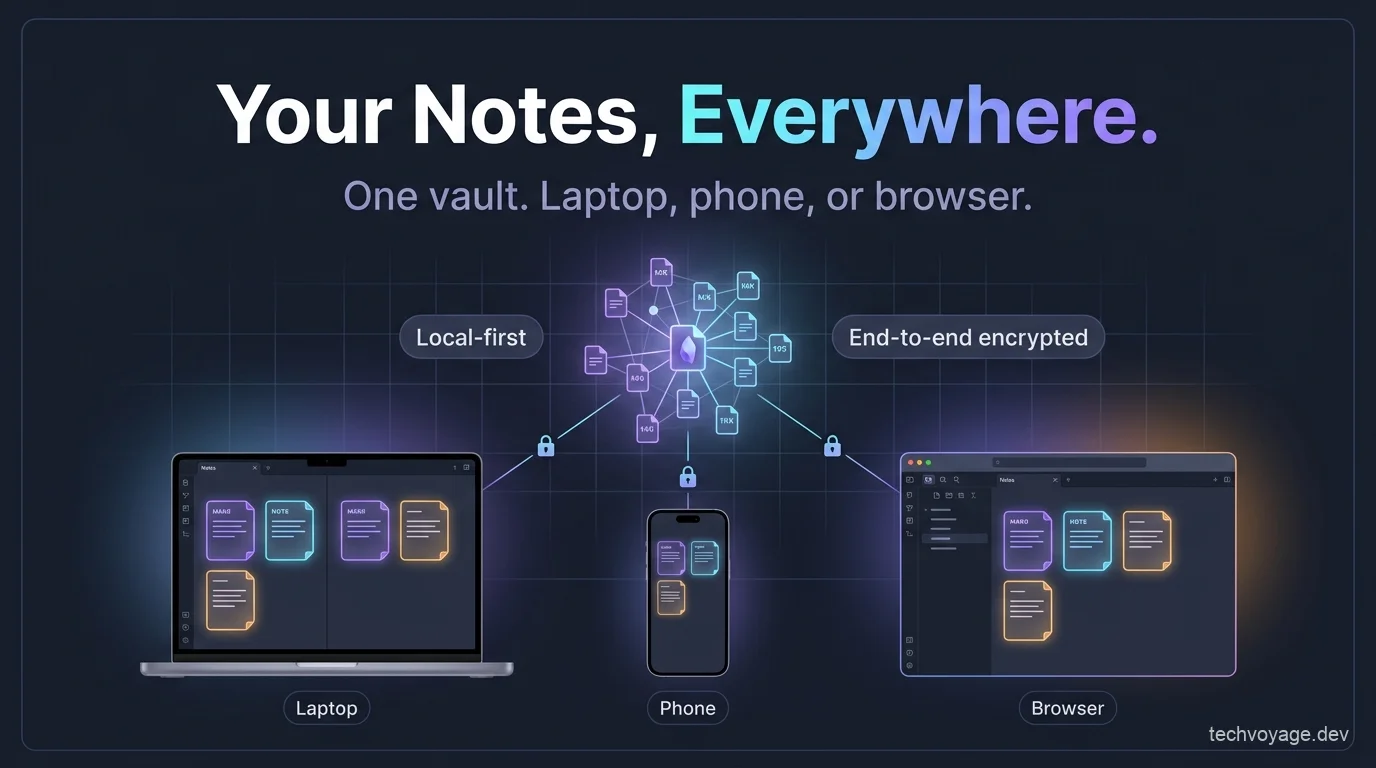
A number of synchronisation solutions are available for Obsidian, but they all make trade-offs regarding conflict handling, encryption, or data sovereignty. [**Synch**](https://github.com/hjinco/synch) is an open-source application that synchronises your Obsidian vault with end-to-end encryption and automatic conflict handling on a self-hosted server.
While Obsidian's local-first approach works perfectly most of the time, we may still need to access our vault through a web browser remotely on some occasions. [**Ignis**](https://github.com/Nystik-gh/ignis) is an open-source application that runs Obsidian inside a web browser in a close-to-native format, allowing you to read and edit your vault from anywhere.
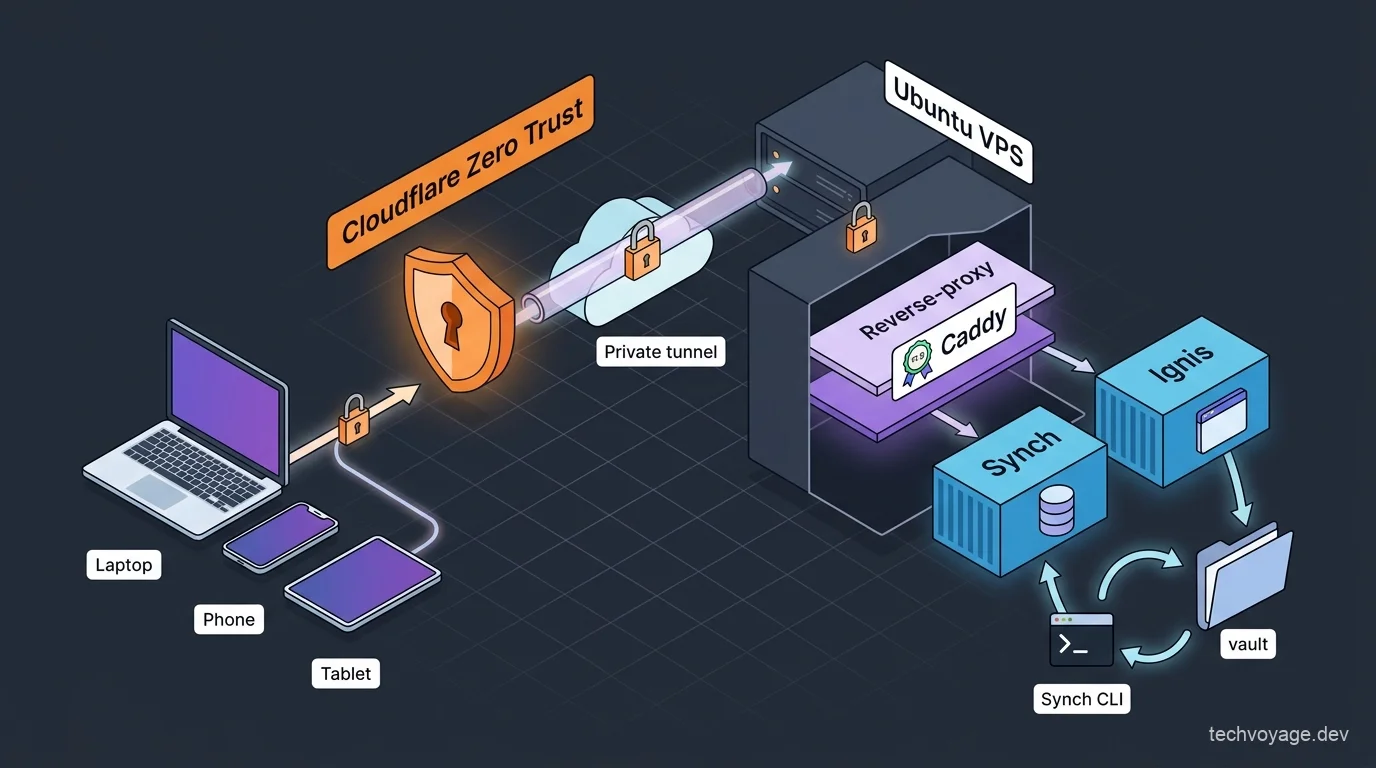
In this guide, we will set up **Synch** and **Ignis** on a **VPS** (Virtual Private Server), hosting them securely inside a **[**Cloudflare Zero Trust**](https://techvoyage.dev/article/exposing-hermes-agent-to-private-network-using-cloudflare-warp)** private network rather than exposing them to the open internet.
 [**Related guide****How to Expose Hermes Agent Privately with Cloudflare WARP**
Learn how to securely expose and access your Hermes Agent globally using Cloudflare WARP and Zero Trust without opening inbound firewall ports.**8 MIN READ **](https://techvoyage.dev/article/exposing-hermes-agent-to-private-network-using-cloudflare-warp) ## Secure Obsidian Vault Synchronisation with Synch
**Synch** provides the following features: - Syncs your vault as soon as changes are detected - Encrypts vault data before upload - Allows restoration from version history - Includes automatic conflict handling
**Synch** generates a random 32-byte **vault key** on your device, which is used to encrypt your vault data. When you create a remote vault, you choose a **vault password**; this password is used to protect the **vault key** so that the key can be stored securely on the server and unlocked on other devices.
Note conflict resolution is handled on your client devices rather than on the server. If two devices edit the same note simultaneously, the server keeps whichever version arrives first and flags the other device as out of date. The out-of-date device then automatically merges the newer version with its local changes before uploading the final merged note.
### Set Up Synch on Your VPS
#### Create a Domain Name
Create an A record in Cloudflare and set its proxy status to **DNS only** (bypassing the Cloudflare CDN).
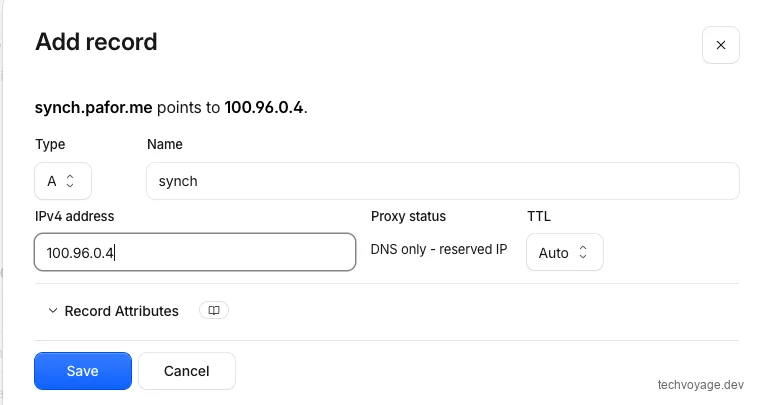 #### Install Synch Docker on Ubuntu
##### Clone the Repository
```
git clone https://github.com/hjinco/synch.git
# Navigate to the API folder
cd synch/apps/api
# Copy the example environment file:
cp .env.example .env
```##### Edit `**.env**` Values - `**PUBLIC_URL=synch.pafor.me**`: Enter the public domain name of your Synch server (the domain name created in the previous step). - `**BETTER_AUTH_SECRET**` and `**SYNC_TOKEN_SECRET**`: Generate secure keys using this [**online secret-key tool**](https://techvoyage.dev/tools/secret-key-hex) or by running `**openssl rand -hex 32**` twice in your terminal. - `**AUTH_ALLOWED_EMAILS**`: A comma-separated list of the email addresses permitted to sign up and create accounts. ##### Add the Domain to Caddyfile The details of how the Cloudflare DNS module is integrated with Caddy and started within a container can be found in our [**self-hosting Buzz article**](https://techvoyage.dev/article/self-hosting-buzz-as-the-workspace-where-ai-agents-become-colleagues#_4-enable-https-with-caddy). [**Self-hosting guide****How to Enable HTTPS with Caddy and Cloudflare DNS**
Learn how to configure Caddy to automatically provision SSL/TLS certificates using Cloudflare DNS challenges in Docker containers.**12 MIN READ **](https://techvoyage.dev/article/self-hosting-buzz-as-the-workspace-where-ai-agents-become-colleagues#_4-enable-https-with-caddy) Include the `**SYNCH_DOMAIN**` directive in your Caddyfile, pointing to port 8787 (the port used by the Synch container):```
{
acme_dns cloudflare {env.CLOUDFLARE_API_TOKEN}
}
{$SYNCH_DOMAIN} {
encode zstd gzip
reverse_proxy host.docker.internal:8787
}
``` Start the container:```
docker compose up -d
``` Run the following `**curl**` command to check its availability:```
curl https://synch.pafor.me/health
```### Connecting Obsidian to Your Synch Server #### Install the Synch Plugin on Obsidian Open Obsidian Settings, navigate to **Community plugins**, and click the **'Browse'** button: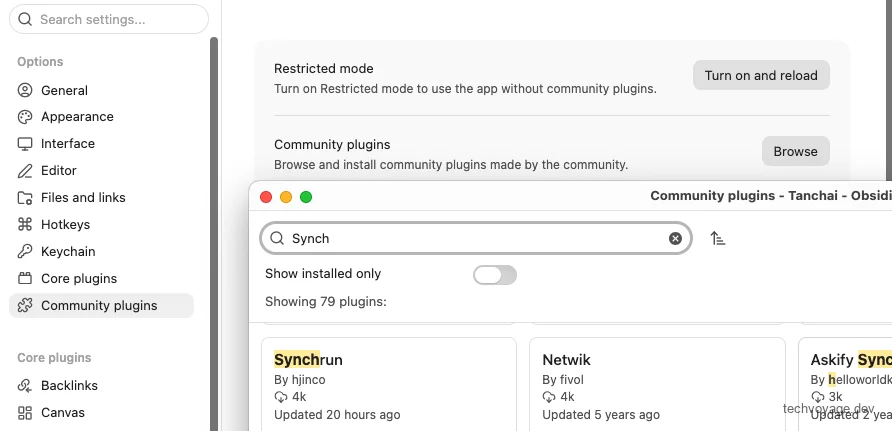 Search for and install **'Synchrun'**: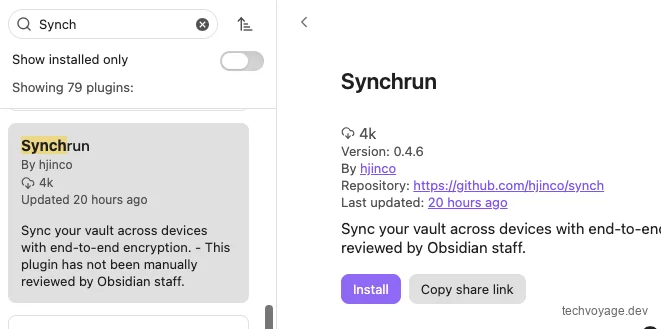 Once **'Synchrun'** is installed, open the plugin settings and enable **'Use a self-hosted server'**. Then, enter `**https://synch.pafor.me**` in the **'Server URL'** field and click **'Save'**.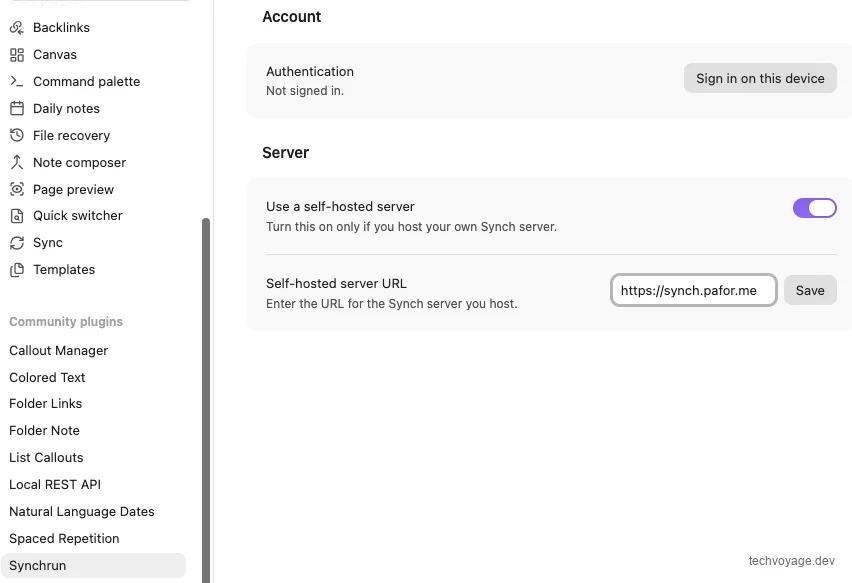 Click the **'Sign in on this device'** button under **'Account'**. Next, sign up for an account using the email address you specified in your `**AUTH_ALLOWED_EMAILS**` list; you will then be redirected to the following authorization page: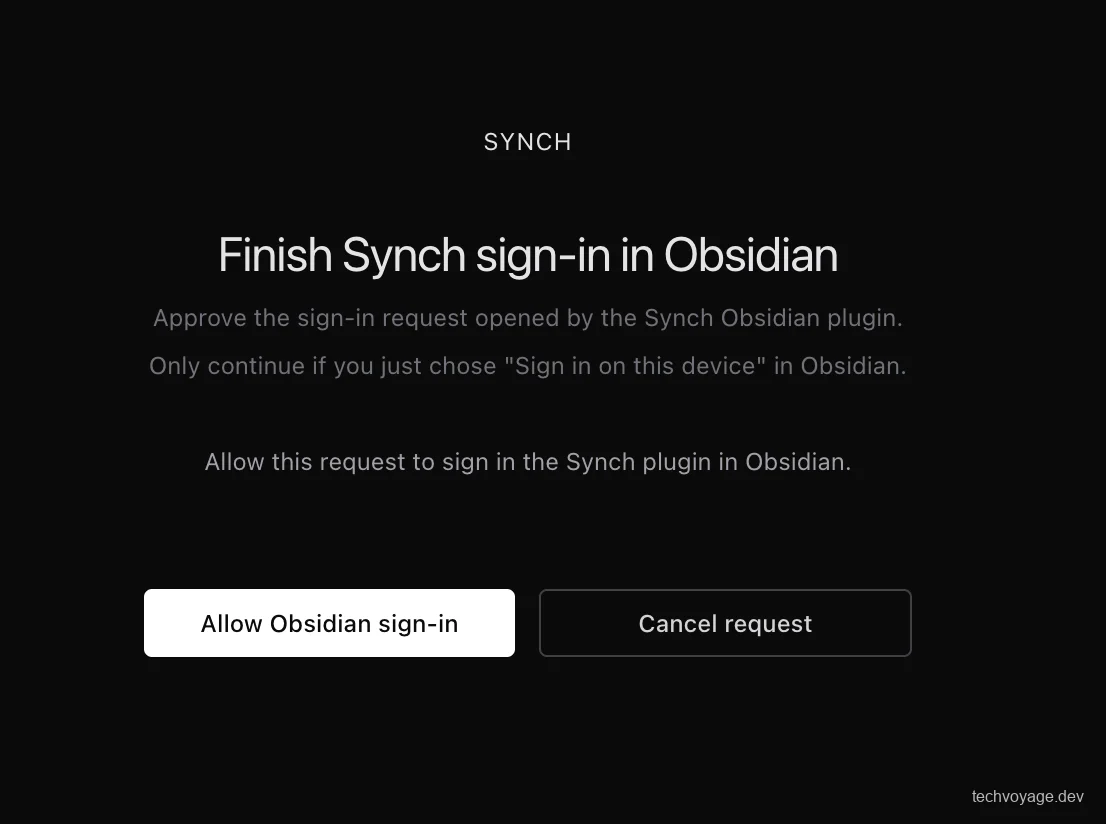 Click the **'Allow Obsidian sign-in'** button: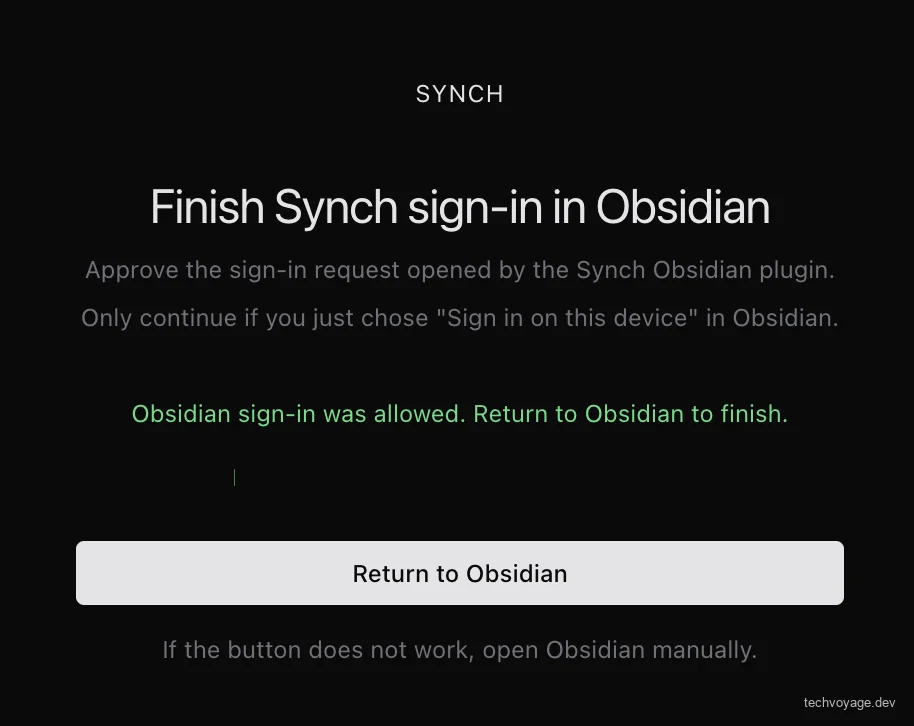 Click the **'Return to Obsidian'** button, and then click **'Create vault'**: 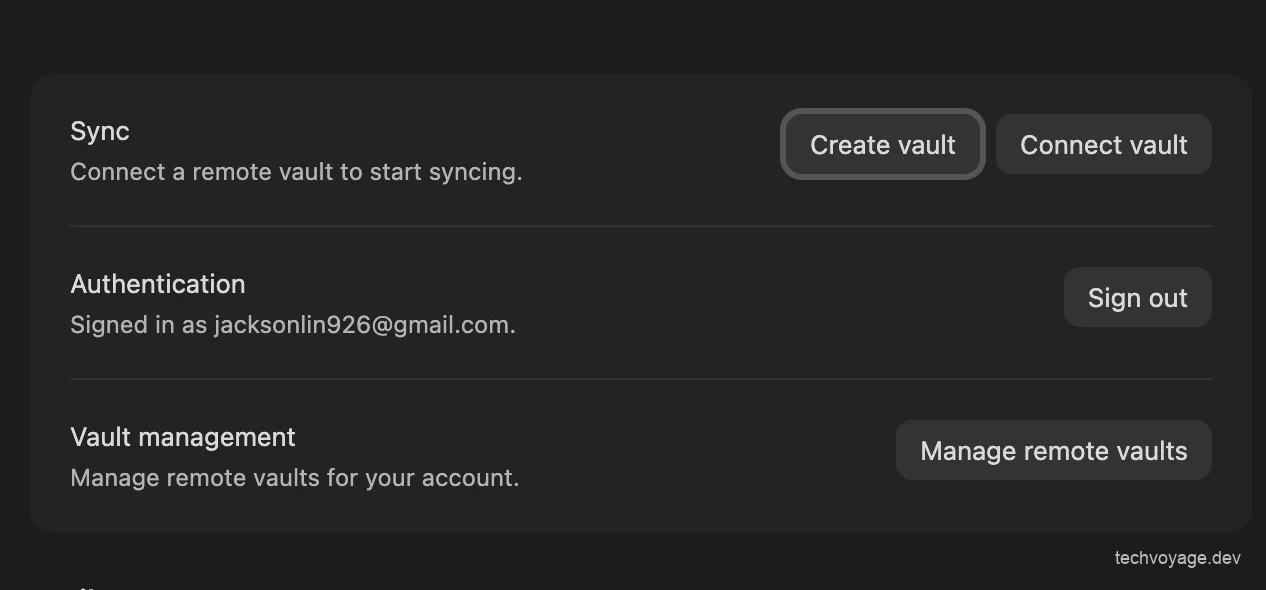 Enter a name and secure password to create your remote vault.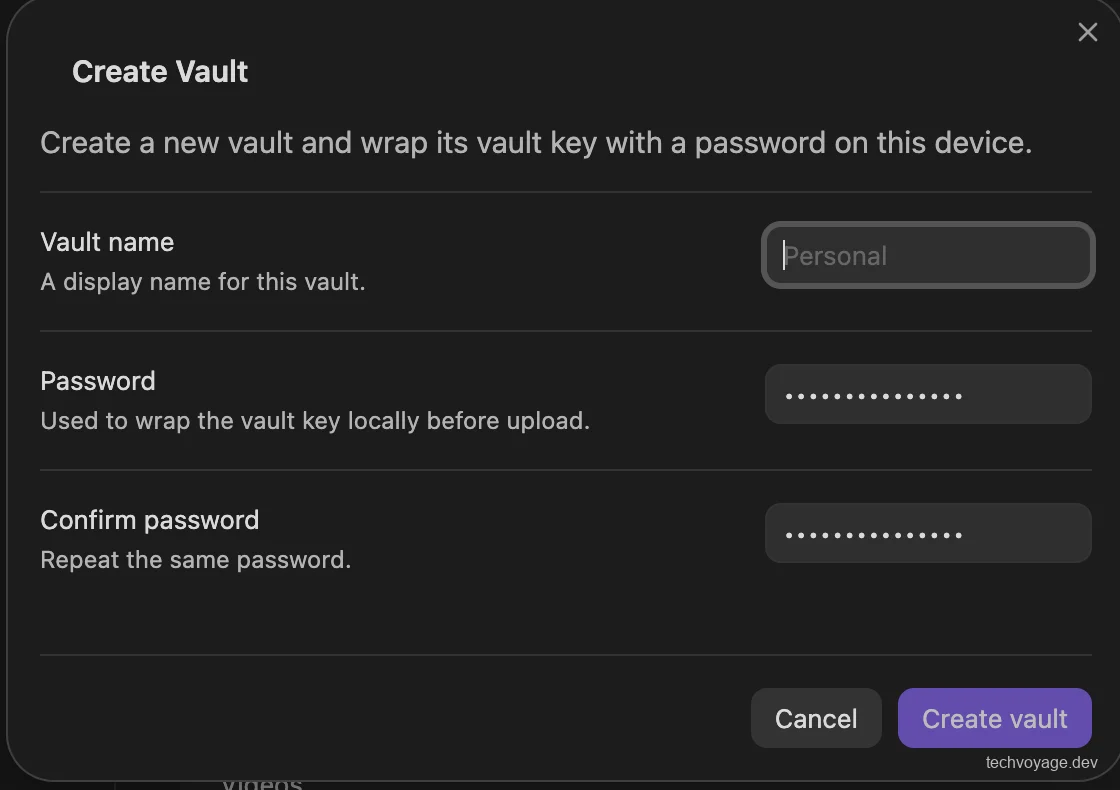 The synchronisation process will begin immediately and may take a while depending on the size of your vault. Once completed, your total storage usage will be displayed.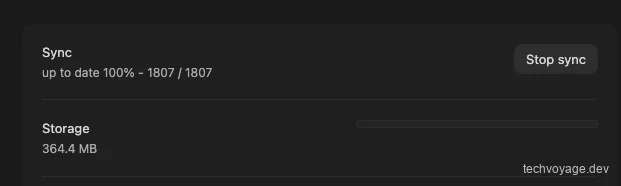 ## Browser-Based Obsidian Access with Ignis**Ignis** replaces Obsidian's Electron APIs with Web APIs, which allows Obsidian's JavaScript code to be executed directly in a standard web browser. All your markdown files and attachments are stored directly in the host server's file system. However, there are a few limitations compared to the standalone Obsidian desktop application. Certain features or plugins that require Electron or Node.js APIs—which have no direct equivalent in a browser environment—will not work. Please refer to the Ignis [**Limitations**](https://ignis.thiefling.com/docs/using/limitations/) and [**Plugin compatibility**](https://ignis.thiefling.com/docs/using/plugin-compatibility/) guides for detailed compatibility listings. ### Ignis Setup We will install **Ignis** on our VPS using Docker, mounting it to the local `**./vaults**` folder. This vault directory will be synchronised using the **Synch CLI** to pull note updates from the remote vault we set up earlier. Since **Ignis** does not have built-in authentication, it must be secured behind a **[**Cloudflare Zero Trust**](https://techvoyage.dev/article/exposing-hermes-agent-to-private-network-using-cloudflare-warp)** private network. #### Create DNS Record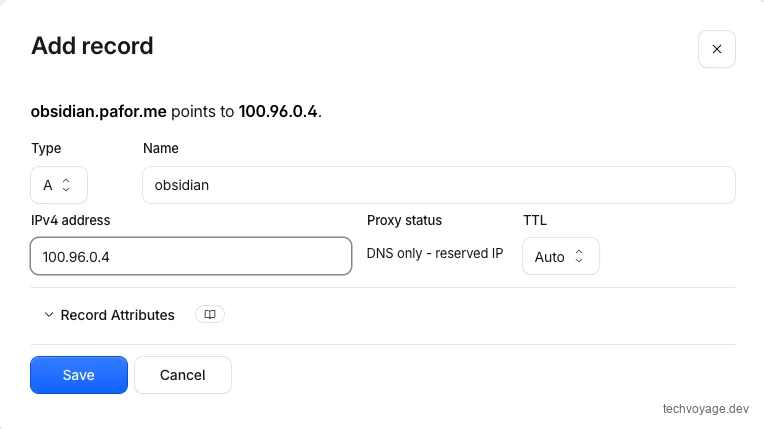 #### Add the Domain to Caddyfile Add `**obsidian.pafor.me**` to your Caddyfile in the same way as `**synch.pafor.me**`:```
{$OBSIDIAN_DOMAIN} {
encode zstd gzip
reverse_proxy host.docker.internal:9898
}
```#### Start Ignis using Docker Save the following docker compose yml as ignis-docker-compose.yml on VPS:```
services:
ignis:
image: nobbe/ignis:latest
ports:
- "9898:8080"
environment:
# match these to your host user (run: id)
- PUID=1000
- PGID=1000
- WS_ORIGINS=https://obsidian.pafor.me
volumes:
- ./vaults:/vaults
- ./data:/app/data
- obsidian-app:/app/obsidian-app
restart: unless-stopped
volumes:
obsidian-app:
```- Use port `**9898**` on the host, as `**8080**` is commonly used by other services. - Run the `**id**` command on your VPS to verify your host user's `**UID**` and `**GID**` to ensure correct file system permissions. - Set `**WS_ORIGINS**` to only allow WebSocket connections originating from your specific domain name. Start the **Ignis** docker:```
docker compose -f ignis-docker-compose.yml up -d
``` When you navigate to your domain in a web browser, the **'Vault Manager'** will appear. It will be empty as no vaults are configured yet. We will set up the **'Synch CLI'** in the next section to synchronise contents from our remote vault.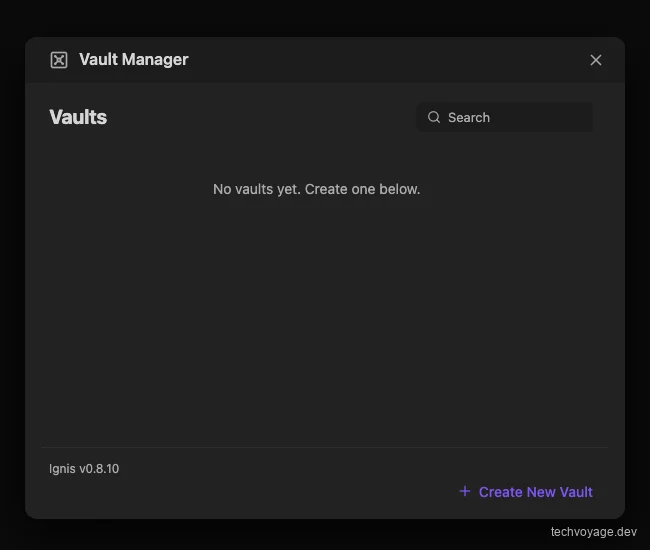 #### Firewall Issue By default, Docker automatically inserts its own DNAT and FORWARD rules, which route public traffic directly to active containers. This bypasses the standard Ubuntu UFW/iptables `**INPUT**` chain. To block external public traffic and keep the containers private, manually add the following rules to `**iptables**`:```
# Block all external public traffic
sudo iptables -I DOCKER-USER -i ext_if -j DROP
# Allow traffic only from your Cloudflare WARP client private IP
sudo iptables -I DOCKER-USER -i ext_if -s 100.96.0.10 -j ACCEPT
```#### Synch CLI Configuration The **Synch CLI** is a headless tool that allows an Obsidian vault directory to be synchronised directly on remote servers without requiring the full desktop application to be installed. Build the **Synch CLI** from your cloned `**synch**` repository. Building requires **Node.js >= 22.5** (as the CLI depends on `**node:sqlite**` and global browser APIs such as `**fetch**`, `**WebSocket**`, and `**WebCrypto**`) and **pnpm** (since the repository is structured as a pnpm workspace using version `**10.33.0**`):```
# Check versions
node --version # must be >= 22.5
pnpm --version
# In the repos root
pnpm install
# Build the CLI bundle
pnpm -C apps/cli build
# After a successful build you have \`apps/cli/dist/synch.js\`. Make it executable and put it on your PATH
chmod +x apps/cli/dist/synch.js
ln -sf "$PWD/apps/cli/dist/synch.js" "$HOME/.local/bin/synch"
# Verification
synch --help
``` Since the Synch CLI is running on the same VPS as your Synch remote vault, it can connect to the local API server directly. If you are configuring a different server, run `**synch login --api-url **` to define your target API endpoint. Run `**synch login**` in your terminal, and you will receive an authentication URL: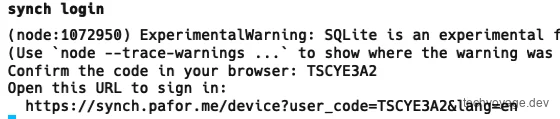 Log in via the web page using the same email address registered with your Obsidian desktop Synchrun plugin. Run `**synch vault connect --vault ~/vaults/ --vault-id asadqe-7b29-4677-fsad-234asdafasd**` to link your local vault directory on the VPS to the remote vault. The remote vault ID can be found inside the **Synchrun** plugin settings by clicking **'Manage remote vaults'**. This will display a web page showing a list of your remote vaults, each identified by a unique GUID (e.g., `**123e4567-e89b-12d3-a456-426614174000**`):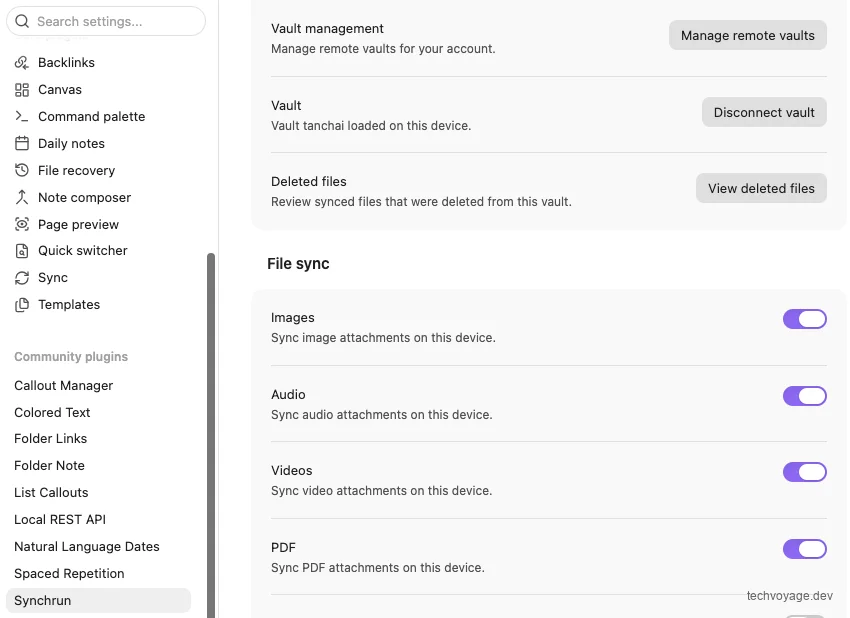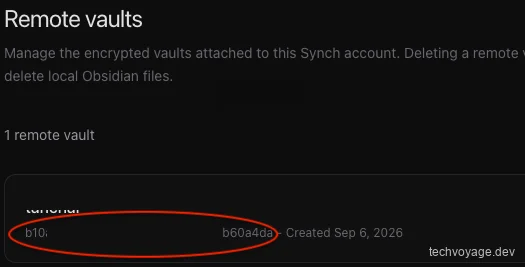 Enter your vault password when prompted to establish the link. Once connected, run `**synch sync --vault ~/vaults/**` to perform your initial synchronisation. This first run may take some time depending on your vault size. To automate this, set up and enable a systemd service to run `**synch watch**` continuously, ensuring changes are synchronised instantly on boot:```
sudo tee /etc/systemd/system/synch-watch.service <<'EOF'
[Unit]
Description=Synch vault watcher
After=network-online.target
Wants=network-online.target
[Service]
Type=simple
User=
ExecStart=/home//.local/bin/synch watch --vault /home//vaults/
WorkingDirectory=/home//vaults
Environment="PATH=/home//.local/bin:/home//.cargo/bin:/usr/local/sbin:/usr/local/bin:/usr/sbin:/usr/bin:/sbin:/bin"
Environment="HOME=/home/"
Restart=always
RestartSec=5
[Install]
WantedBy=multi-user.target
EOF
sudo systemctl daemon-reload
sudo systemctl enable --now synch-watch.service
``` Open `**obsidian.pafor.me**` in your web browser. You will find that the user interface and layout are virtually identical to the desktop app: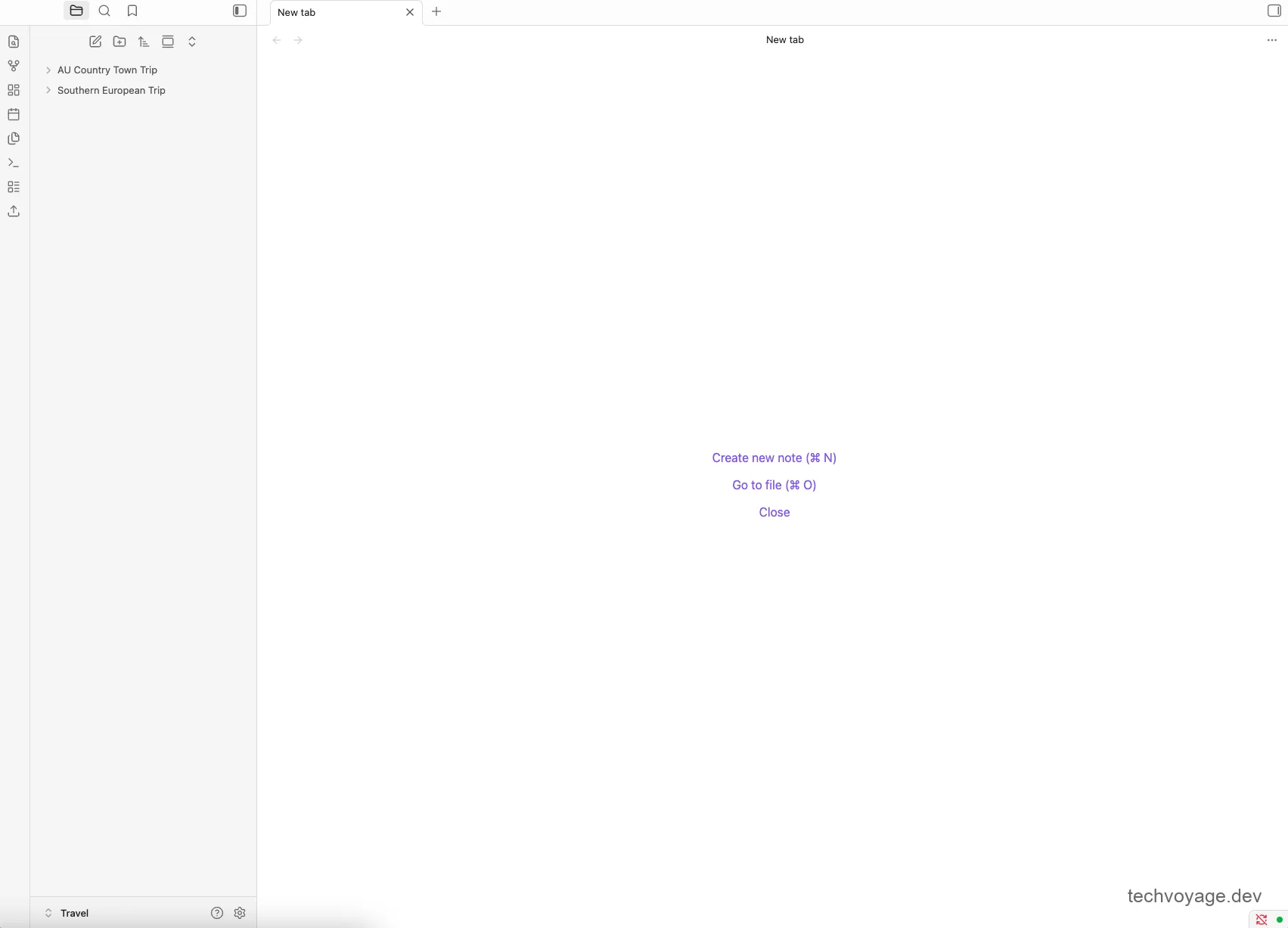 Clicking the settings icon reveals that almost all core configurations are intact, though your community plugins will need to be reinstalled: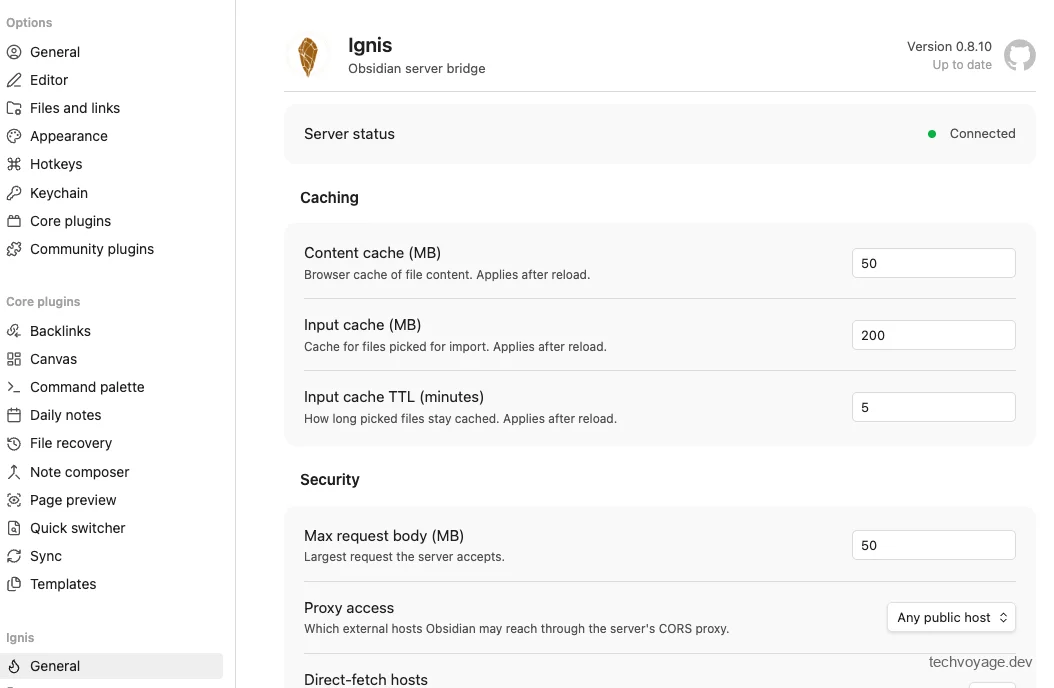 To test the setup, you can add a new note via the web interface: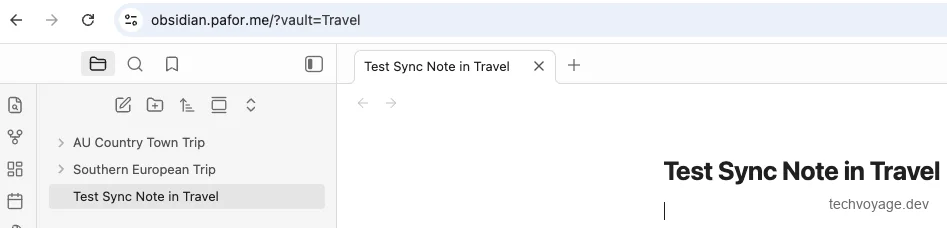 The note is immediately synchronised back to your Obsidian desktop app. Note that empty folders do not appear in **Ignis**.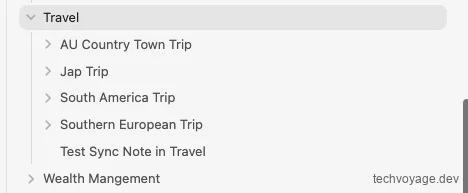 Viewing `**obsidian.pafor.me**` on a mobile web browser: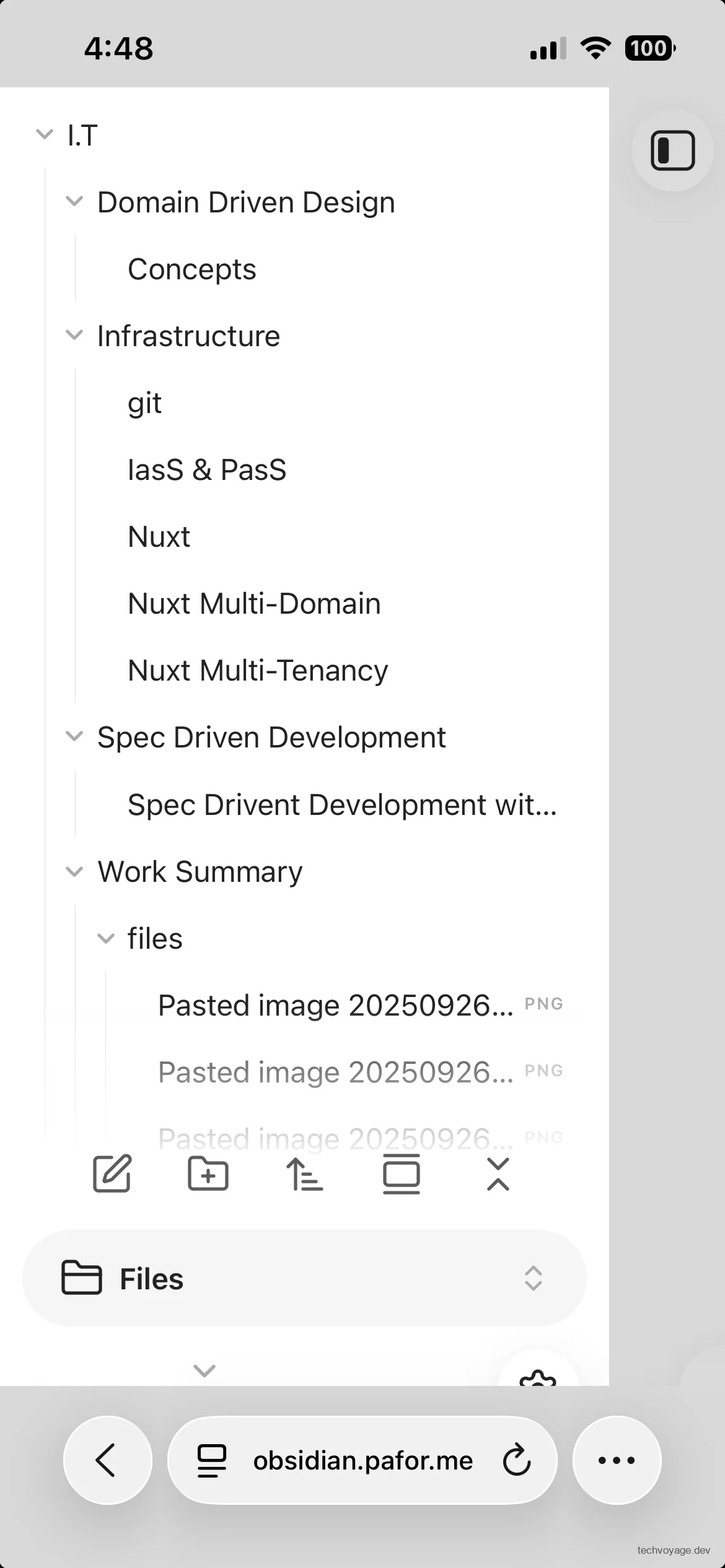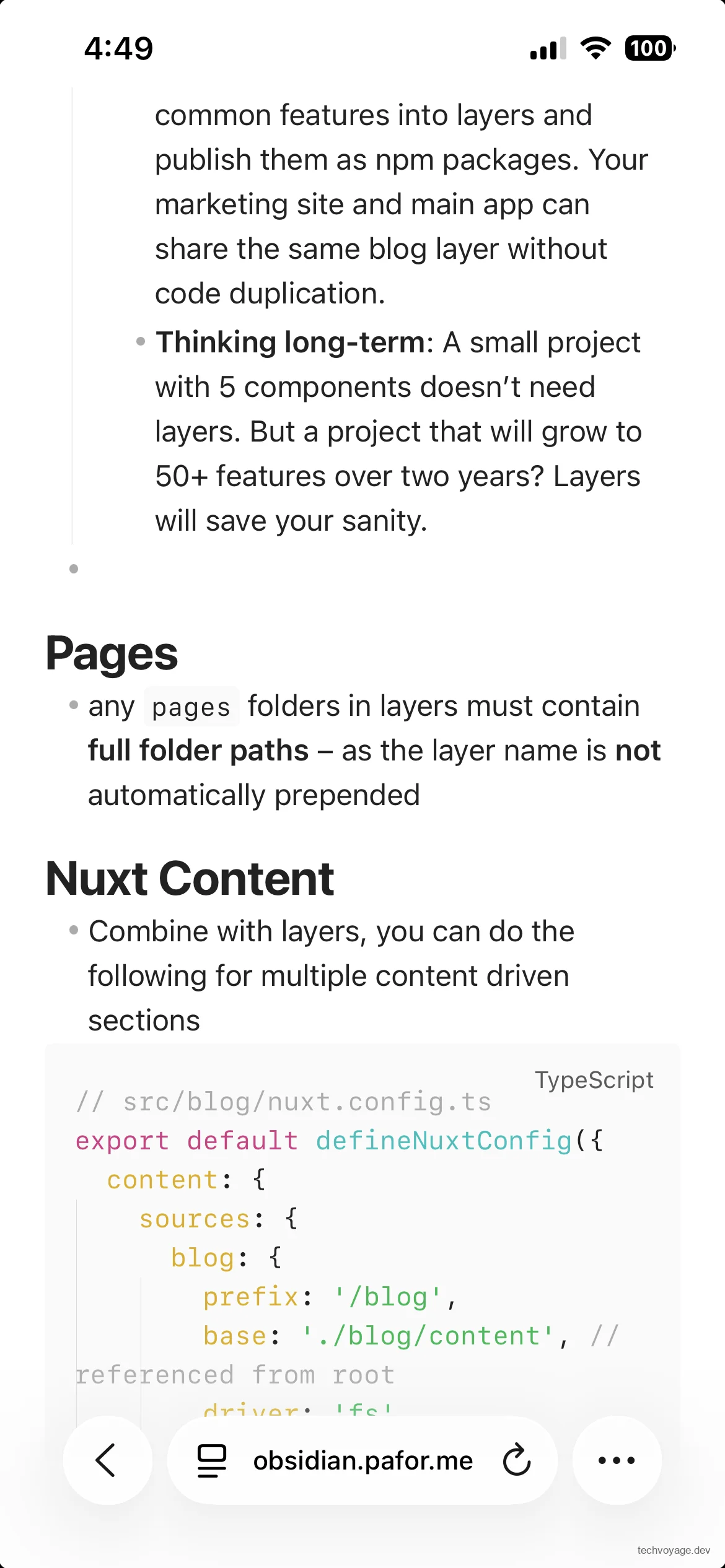 When you delete a note on **Ignis**, it is safely moved to your local vault's `**~/vaults//.trash**` folder. ## Final Thoughts on Self-Hosted Vaults Together, **Synch** and **Ignis** make your primary Obsidian vault seamlessly available across all of your devices, completely hosted on infrastructure under your direct control. Positioning these services inside a **Cloudflare Zero Trust** private network ensures that your personal notes are entirely shielded from the public internet.**Ignis** is not intended to fully replace the native Obsidian desktop app. Instead, it serves as a lightweight, temporary web client for accessing and editing your vault when you are away from your main computer. For day-to-day writing and extensive vault management, the native Obsidian application remains the most comfortable choice. Because Synch uses end-to-end encryption, your remote vault password must be highly secure to protect against brute-force guessing attacks. It is critical that you never lose this password—the server does not store the unencrypted **vault key**, and if forgotten, your data will be completely unrecoverable. Additionally, ensure that your VPS instance, alongside any automated snapshots or backups, is properly secured and maintained. While **Synch**'s encrypted version history and deleted-file recovery tools cover most accidental losses, keeping a separate, independent backup of your Obsidian vault is still highly recommended. ## References - [**Synch Deploy with Docker Compose**](https://synch.run/self-hosting-docker/) - [**Ignis Deploy with Docker**](https://ignis.thiefling.com/docs/server/deploy/) - [**How does end-to-end encryption work in Synch?**](https://synch.run/blog/encryption-and-decryption/) [Share](https://api.whatsapp.com/send?text=https%3A%2F%2Ftechvoyage.dev%2Farticle%2Fsync-obsidian-across-devices) [Share](https://www.reddit.com/submit?url=https%3A%2F%2Ftechvoyage.dev%2Farticle%2Fsync-obsidian-across-devices) [Share](https://www.facebook.com/sharer/sharer.php?u=https%3A%2F%2Ftechvoyage.dev%2Farticle%2Fsync-obsidian-across-devices) [Share](https://www.linkedin.com/sharing/share-offsite/?url=https%3A%2F%2Ftechvoyage.dev%2Farticle%2Fsync-obsidian-across-devices) [Share](https://x.com/intent/post?url=https%3A%2F%2Ftechvoyage.dev%2Farticle%2Fsync-obsidian-across-devices) ## **Related Articles**[**AI & Agents****How to Expose Hermes Agent Privately with Cloudflare WARP**
Learn how to securely expose and access your Hermes Agent globally using Cloudflare WARP and Zero Trust without opening inbound firewall ports.**8 MIN READ **](https://techvoyage.dev/article/exposing-hermes-agent-to-private-network-using-cloudflare-warp) [**Cloudflare****Build a Persistent AI Memory System on Cloudflare**
Learn how to build a persistent, self-hosted AI memory system on Cloudflare using Second Brain and MCP. Share context across Claude, Gemini, and Obsidian.**7 MIN READ **](https://techvoyage.dev/article/use-cloudflare-as-ai-memory) [**Security****Switch Between Multiple Cloudflare WARP Orgs on Mac**
Configure and switch multiple Cloudflare WARP organisations on macOS using a .mobileconfig file. A complete MDM guide for IT admins.**4 MIN READ **](https://techvoyage.dev/article/switch-between-multiple-cloudflare-warp-orgs-on-mac) [](https://techvoyage.dev/article/self-hosting-buzz-as-the-workspace-where-ai-agents-become-colleagues) [](https://techvoyage.dev/article/exposing-hermes-agent-to-private-network-using-cloudflare-warp)