---
title: "Self-Host Your Travel Itineraries with TREK and Docker"
canonical_url: "https://techvoyage.dev/article/self-hosted-travel-planner-trek"
last_updated: "2026-10-20T09:53:39.562Z"
meta:
description: "Learn how to deploy TREK using Docker, secure it via Cloudflare R2 and Caddy, and leverage AI agents with MCP for seamless travel planning."
"og:description": "Learn how to deploy TREK using Docker, secure it via Cloudflare R2 and Caddy, and leverage AI agents with MCP for seamless travel planning."
"og:title": "Self-Host Your Travel Itineraries with TREK and Docker"
"twitter:description": "Learn how to deploy TREK using Docker, secure it via Cloudflare R2 and Caddy, and leverage AI agents with MCP for seamless travel planning."
"twitter:title": "Self-Host Your Travel Itineraries with TREK and Docker"
---
[Home](https://techvoyage.dev/)
 # **Self-Host Your Travel Itineraries with TREK and Docker**
Learn how to deploy TREK using Docker, secure it via Cloudflare R2 and Caddy, and leverage AI agents with MCP for seamless travel planning.
Sep 1, 2026 -Updated Sep 3, 2026 -22 MIN READ
[**Travel**](https://techvoyage.dev/category/travel) [**AI & Agents**](https://techvoyage.dev/category/ai-agents)
Table of contents
The tedious part of travel planning is that flight booking PDFs, hotel confirmations, conversations with travel companions, and lists of places to visit are scattered in different locations. When it is time to work out total spending and split the bills, huge effort is needed to scroll through all that travel data.
TREK is an open-source travel planner that can be self-hosted, packing your itinerary, bookings, budget, and packing lists all into one place. The built-in MCP server enables AI agents (such as Claude Desktop) to directly manipulate travel data.
This guide will walk you through everything from deployment to fully managing a real trip from start to finish.
### 1. How to Deploy TREK Travel Planner Using Docker
#### Install Docker on the Ubuntu VPS
```
# Add Docker's official GPG key and set up the Docker repository
curl -fsSL https://download.docker.com/linux/ubuntu/gpg | sudo gpg --dearmor -o /usr/share/keyrings/docker-archive-keyring.gpg
# Add the official Docker repository
echo "deb [arch=amd64 signed-by=/usr/share/keyrings/docker-archive-keyring.gpg] https://download.docker.com/linux/ubuntu $(lsb_release -cs) stable" | sudo tee /etc/apt/sources.list.d/docker.list > /dev/null
# Update package list
sudo apt update
# Install Docker Engine, Docker Community Edition, and containerd runtime
sudo apt install docker-ce docker-ce-cli containerd.io -y
# Verify docker is installed
docker --version
# Starts automatically when your system boots
sudo systemctl enable docker
```#### Generate the encryption key TREK uses a key to encrypt sensitive data. Use the following command or this [**online tool**](https://techvoyage.dev/tools/secret-key-hex) to generate the encryption key:```
openssl rand -hex 32
``` Save it somewhere safe; losing it means losing access to encrypted data. #### Start the container```
docker run -d \
--name trek \
-p 3000:3000 \
-e ENCRYPTION_KEY="" \
-e APP_URL="https://trek.pafor.me" \
-v ./data:/app/data \
-v ./uploads:/app/uploads \
--restart unless-stopped \
mauriceboe/trek:latest
```- **`**APP_URL**` must be set correctly** — the MCP server's OAuth discovery flow depends on it. Set it to your final public HTTPS address from the start. The first run takes a while to pull the image: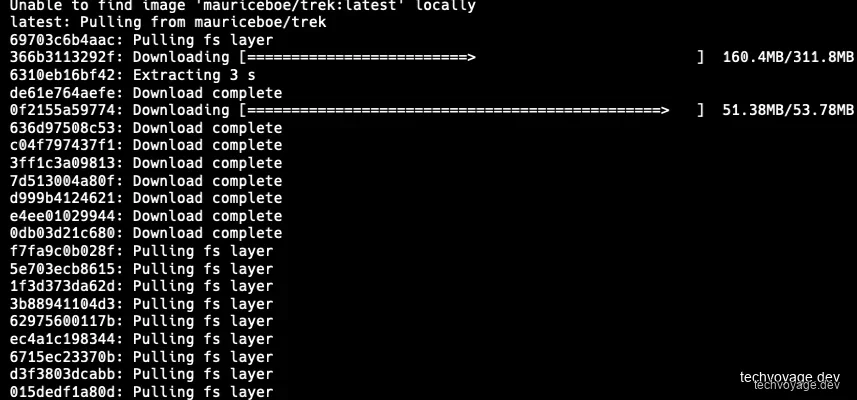 Verify it's running:```
docker ps
``` ### 2. Setting Up Domain Routing & SSL with Caddy Reverse Proxy HTTPS is required for passkeys, and OAuth for MCP. The domain name is hosted on Cloudflare which comes with free SSL certificate and DDoS protection. Caddy is set up as the secure reverse server to point to point 3000. An example of Caddyfile as follow:```
{$TREK_DOMAIN} {
encode zstd gzip
reverse_proxy host.docker.internal:3000
}
```### 3. Initial Configuration & Secure Admin Setup There are two ways of creating the admin account: - **`**ADMIN_EMAIL**` and `**ADMIN_PASSWORD**`** are set as environment variables; those values are used directly. - TREK creates email `**admin@trek.local**`, username `**admin**`, and a **randomly generated password printed to the container log**. Run `**docker logs trek**` to retrieve it. If the password can't be found from the log, reset it:```
docker exec -it -e RESET_ADMIN_EMAIL=admin@trek.local -e RESET_ADMIN_PASSWORD='YourNewPassword' trek node server/reset-admin.js
``` You will be prompted to change the password on first login.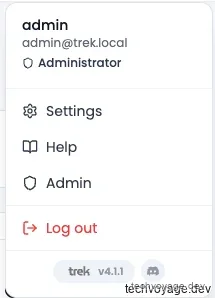 Click on **Admin** and update the email: #### 3.1 Backups Configure the automatic backups with a retention policy in the admin panel:  #### 3.2 Store Uploaded Files to Cloudflare R2 Storing uploaded files, photos, and backups in Cloudflare R2 keeps the VPS disk clean and light. TREK supports S3-compatible backends, and Cloudflare R2 fits this perfectly. 1. Create an R2 bucket called `**trek**`. 2. In the **Account Details** section, find your account ID: 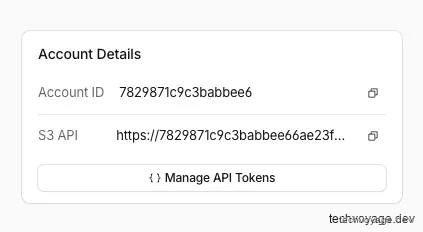 3. Click **Manage API Tokens**: 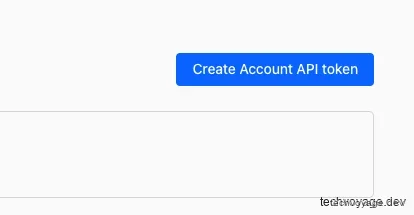 4. Click **Create Account API token** with read/write permissions for the bucket: 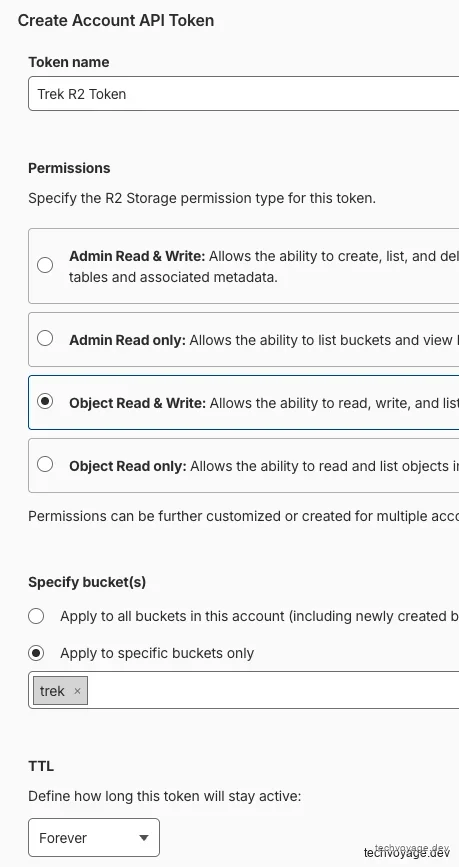 5. Click **Storage** on **ADMINISTRATION** panel: 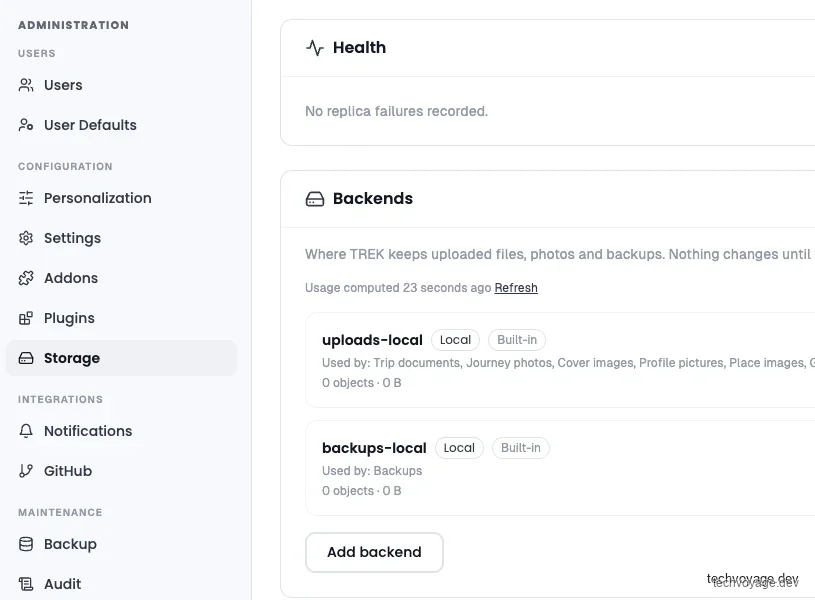 6. Click **Add Backend** button and fill in the endpoint, bucket, and credentials: 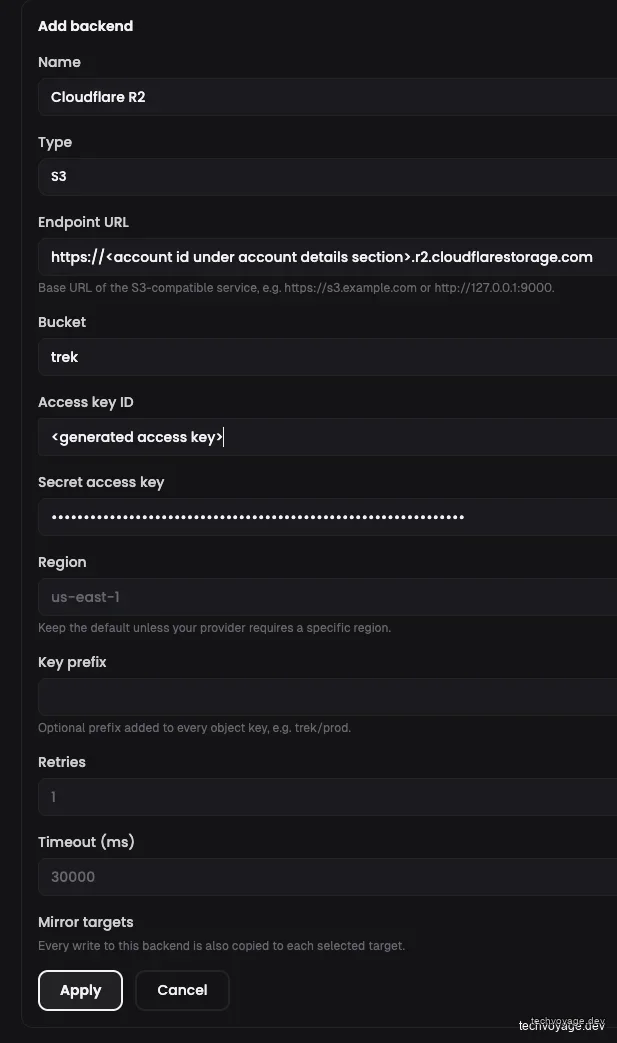 7. Click **Apply**, then the **Test** link button. You want to see "Connection OK":  8. Switch all storage categories to Cloudflare R2 and click **Save changes**: 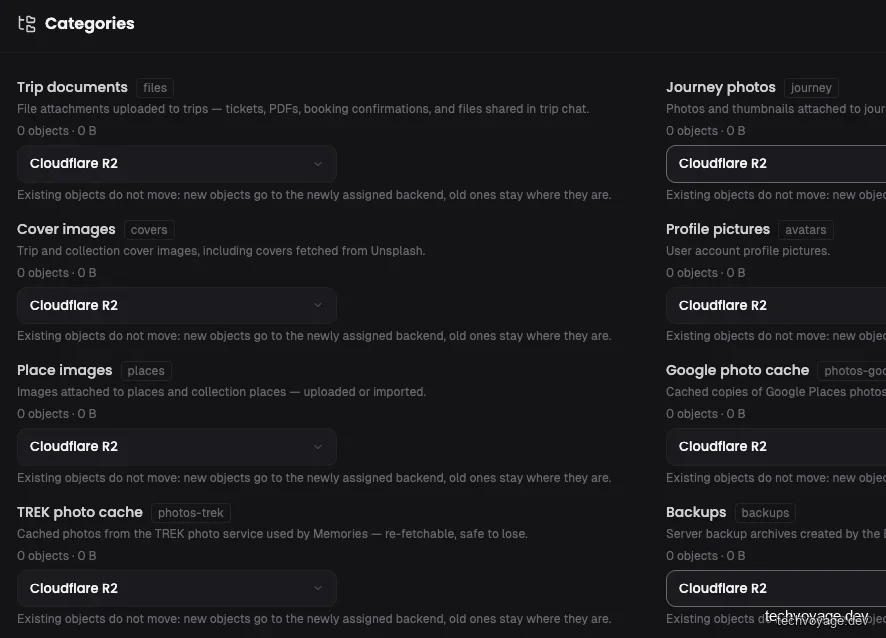 #### 3.3 Passkey Login TREK supports passkeys, two-factor authentication, and OIDC single sign-on. For passkeys, enter your domain name and allowed origins in settings, then click **Save**: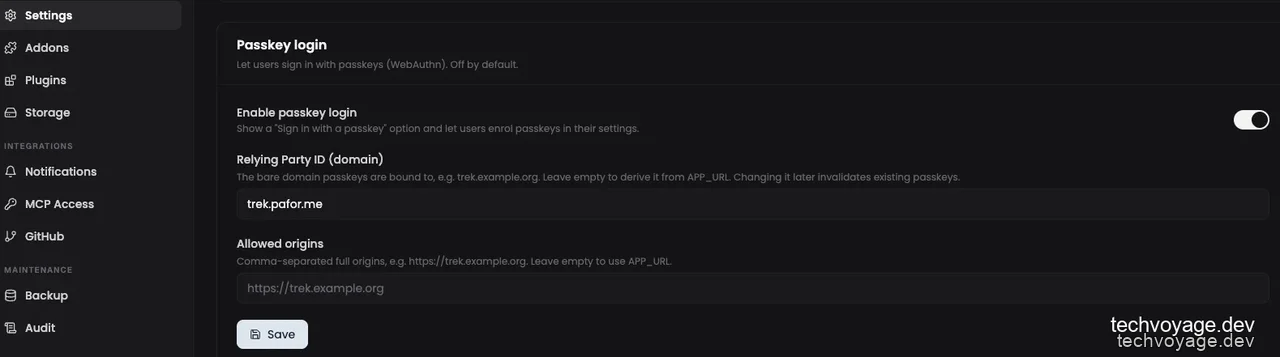 Without the **allowed origins** configured, passkey registration will fail. #### 3.4 Google Maps API Key A Google Maps key enriches place search with ratings, opening hours, and photos. TREK automatically falls back to OpenStreetMap with no key required, just without ratings and photos. Follow this [**link**](https://mapsplatform.google.com/maps-demo-key/) and click **Get demo key** to request one: 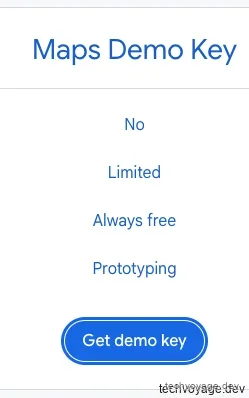 Paste the key in settings and click **Test** to confirm the connection: 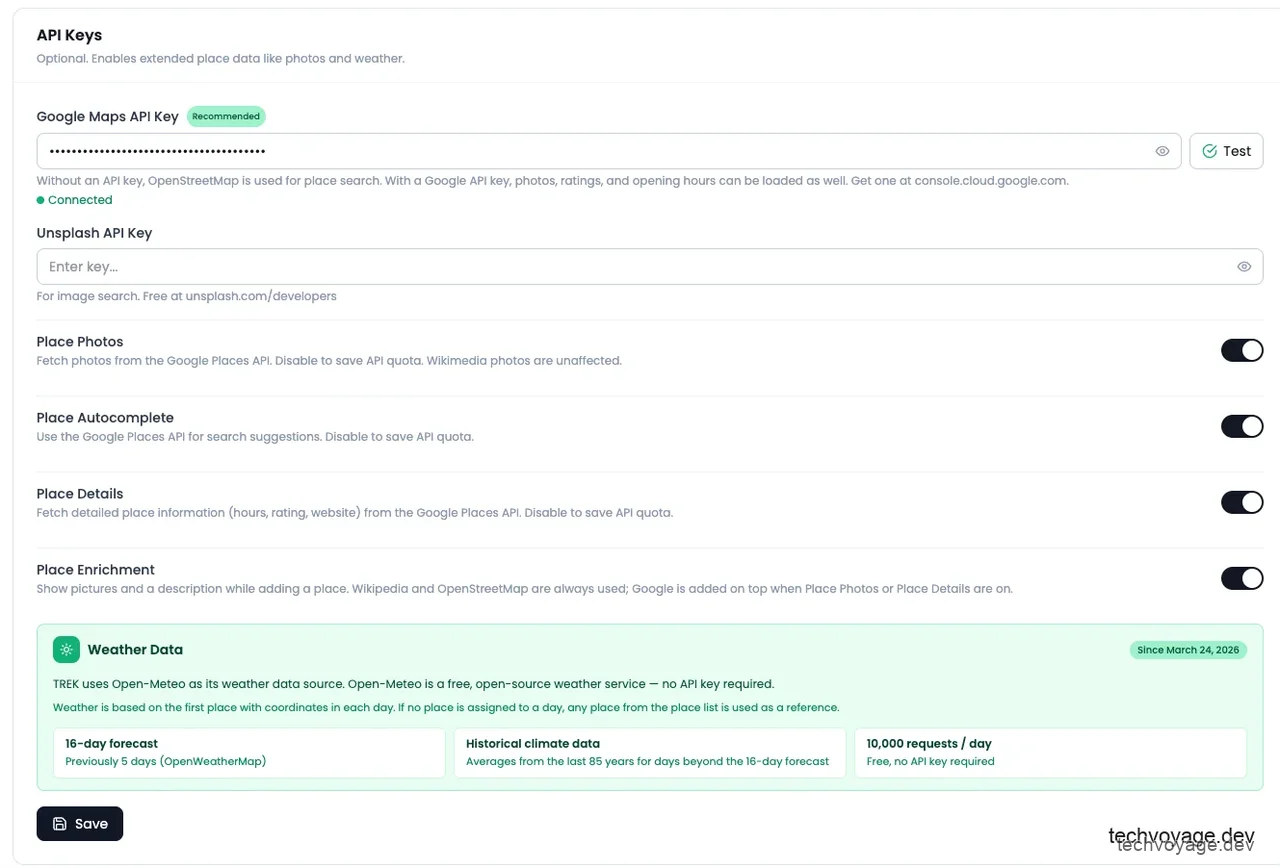 #### 3.5 AI Integration The AI model is used to parse booking confirmation emails and PDFs into structured reservations. Click **Addons** in the left menu and enable **AI Parsing**. Select "OpenAI" (or another compatible provider) and fill in the provider details: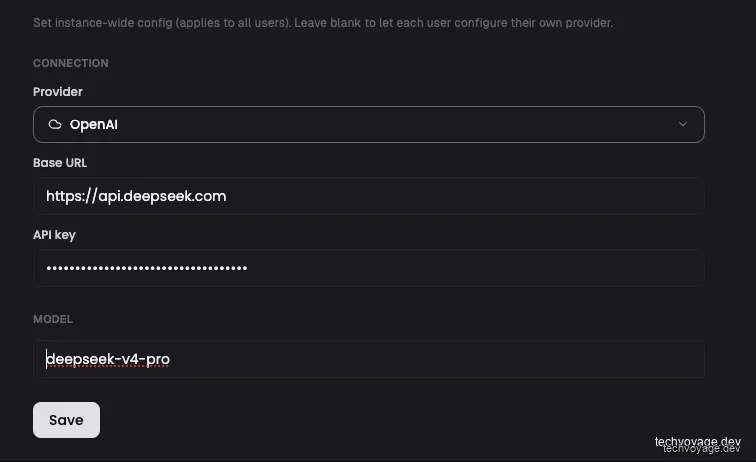 #### 3.6 MCP Access Under **Addons**, enable **MCP**: #### 3.7 Plugins The following plugins are recommended and worth activating: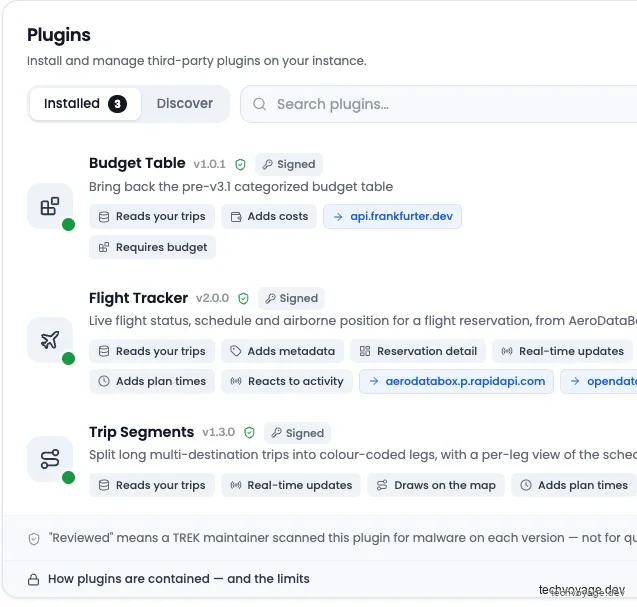 #### 3.8 Create Your Everyday User Plan trips as a normal user, not as an admin. Create a regular user and log in with it: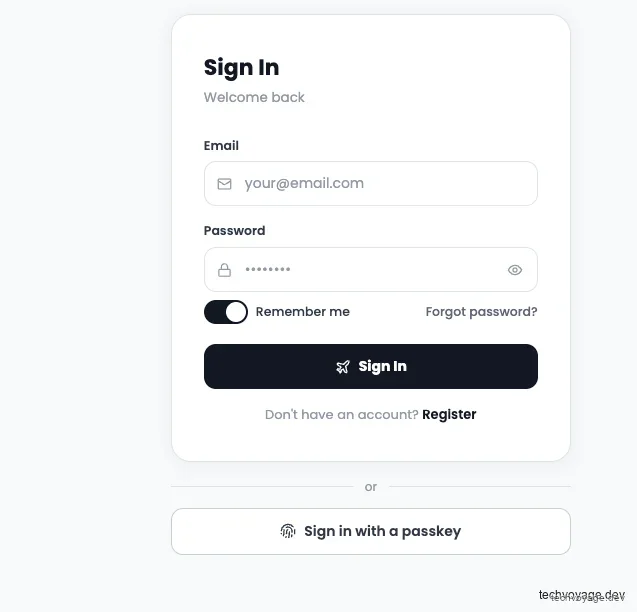 Once logged in, add a passkey or set up 2FA to harden the account: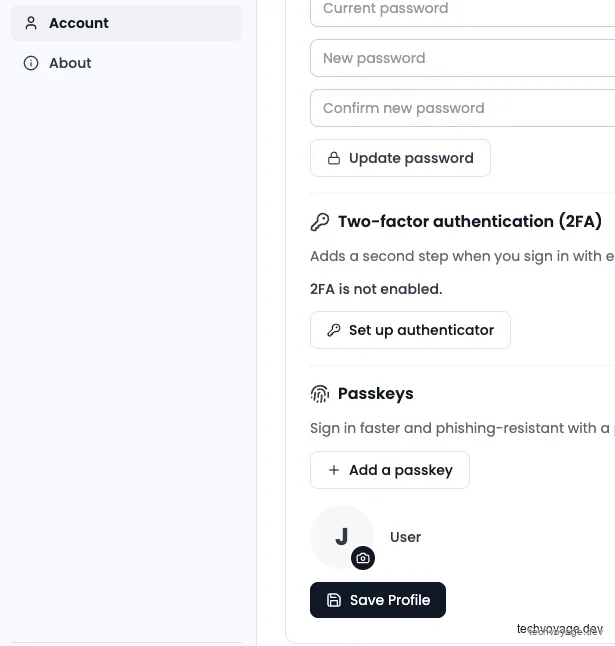 Click **+ Add a passkey**, enter the current password, and confirm: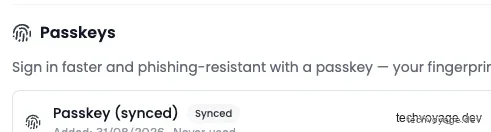 ### 4. Testing Your Deployment: Importing Historical Travel Data A good way to learn TREK is to build up your travel history. #### 4.1 Create the trip Click **+ New Trip** and set the **Start Date** and **End Date** to the past dates of the trip: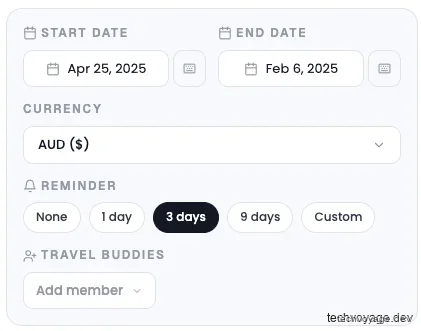 Add a cover image (drag one in, or paste from the clipboard) and click **Create New Trip**: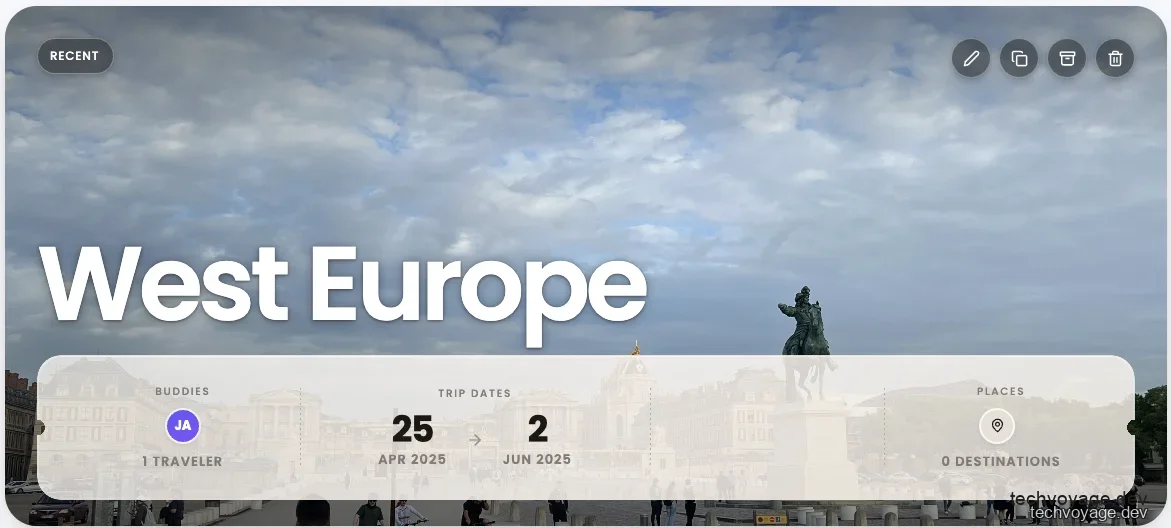 #### 4.2 Import the bookings Drop all the flight, train, and other transportation files in: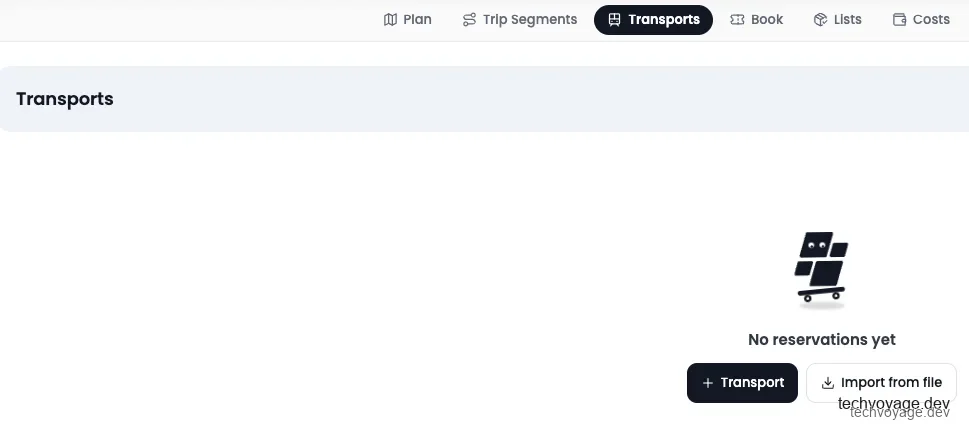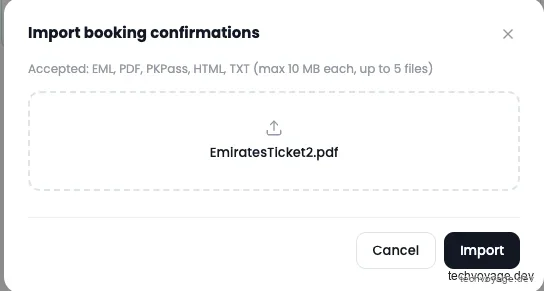 With AI model enabled, booking confirmation PDFs are parsed and extracted into structured reservations. Review the parsed result and click **Add** to commit the booking detail: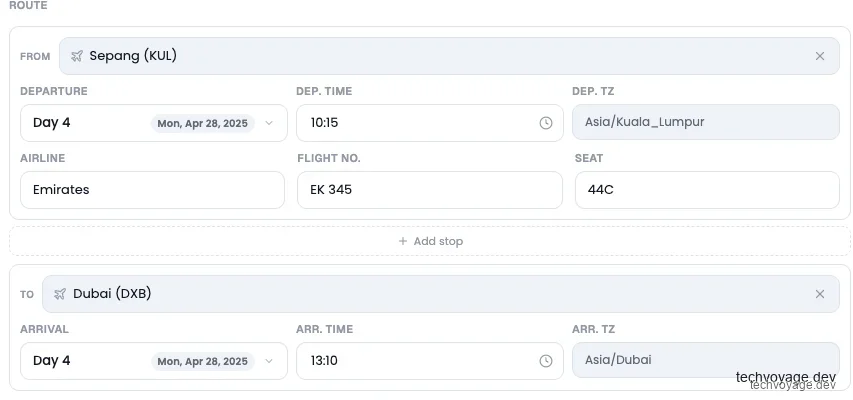 If a booking only exists in an email, export the email as a PDF and dump it in — the same extraction pipeline applies. The following screenshots show how bookings are displayed: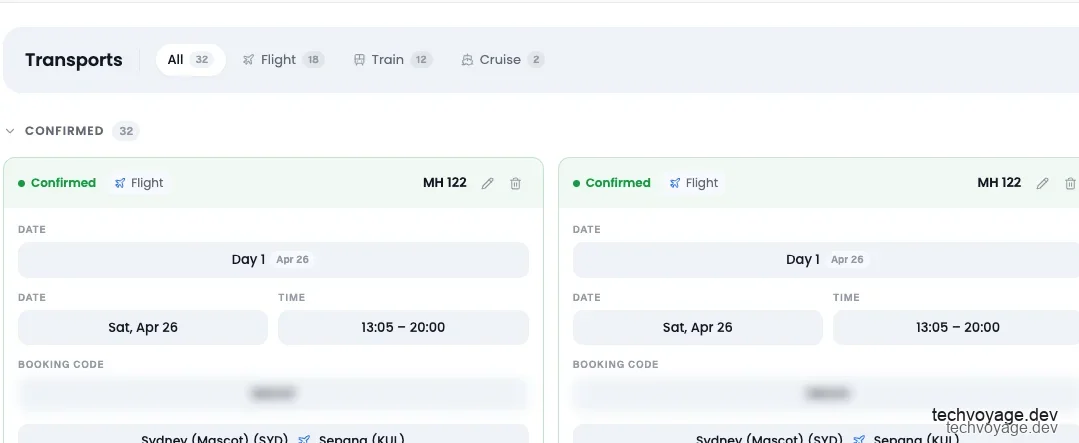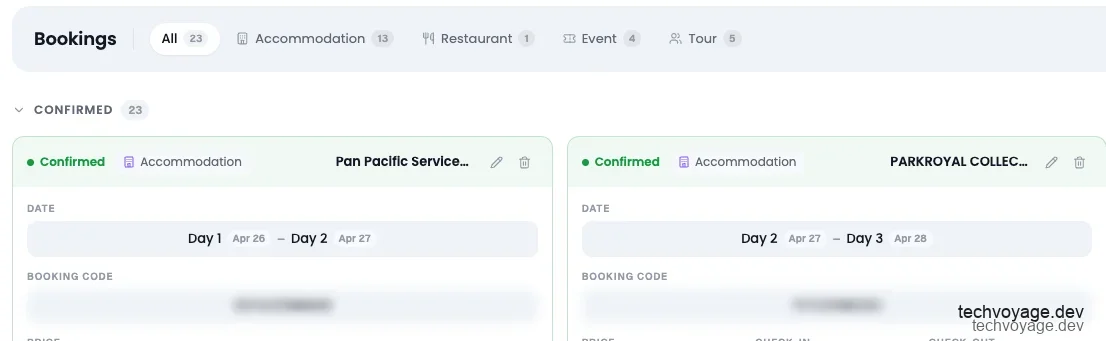 On the **Plan** page, all the accommodations will be displayed on the map: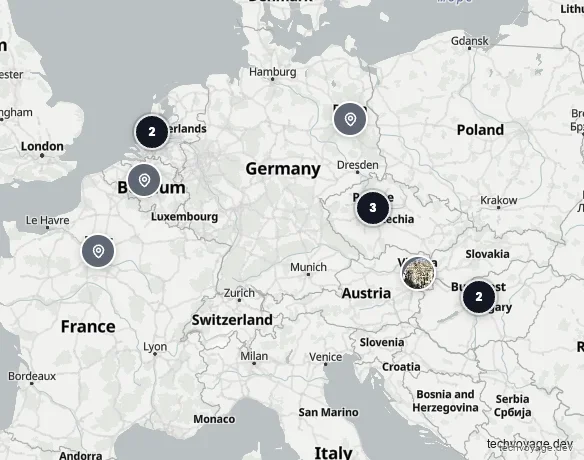 Click **Atlas** on the top menu bar for a list (and map) of every country you've visited: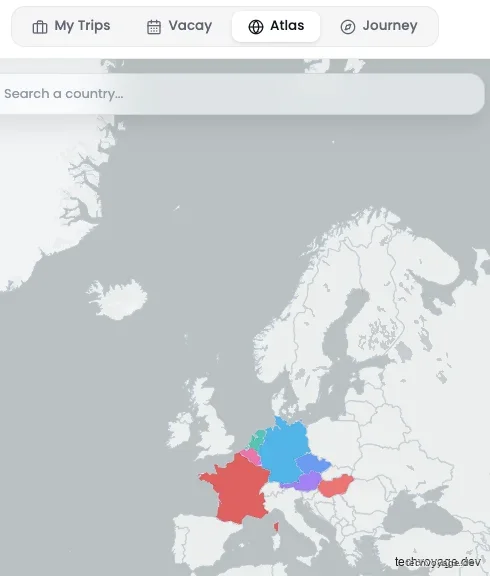 #### 4.3 Add travel companions Click the **Share** button: At the bottom of the dialog, guests can be added: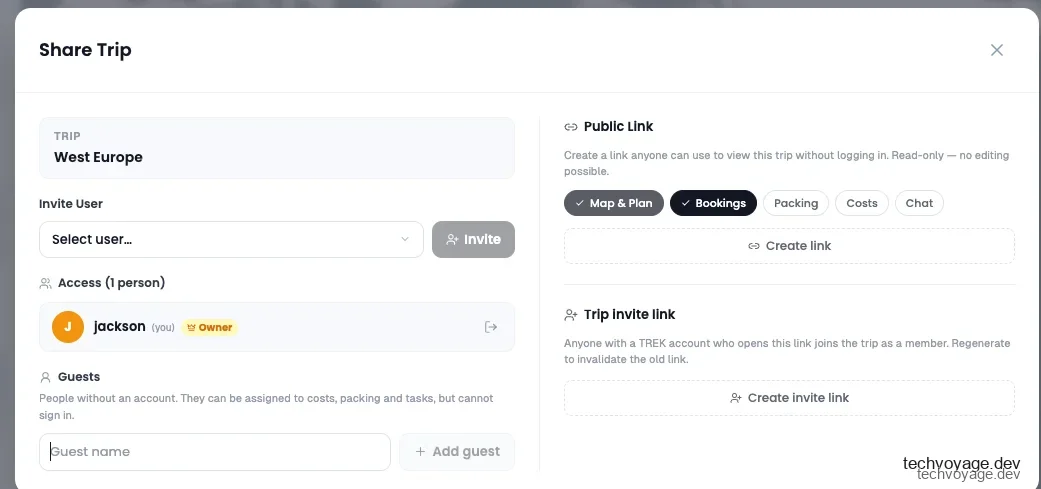 #### 4.4 Record the expenses Click **Add expense** to add costs other than bookings such as health insurance, local transport, SIM cards: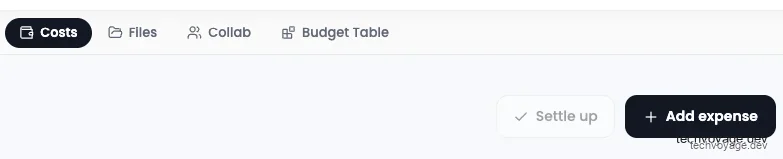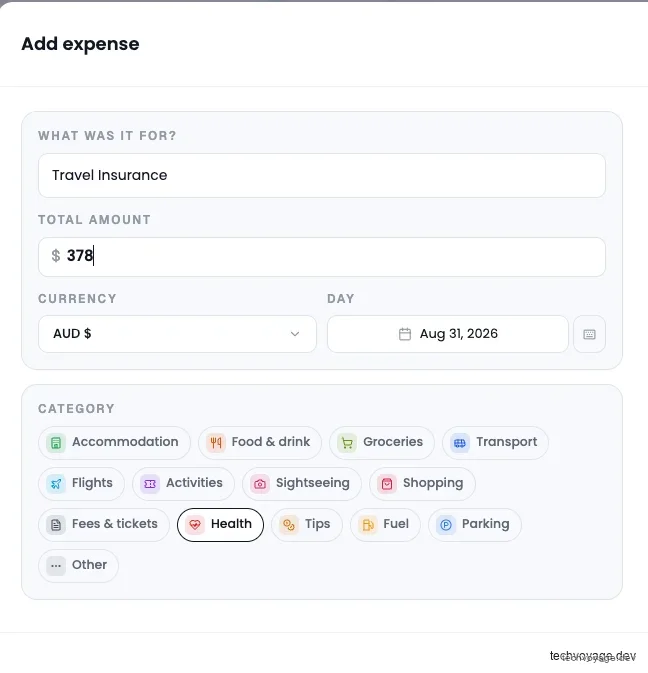 #### 4.5 Trip segments This feature requires the Trip Segment plugin to be installed. Long trips break down into segments nicely, with each leg displaying its own bookings, places, and costs: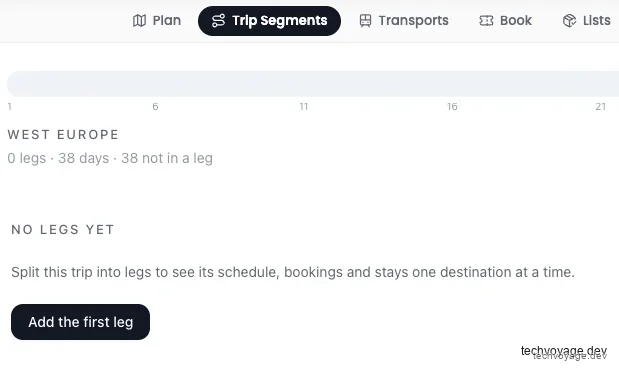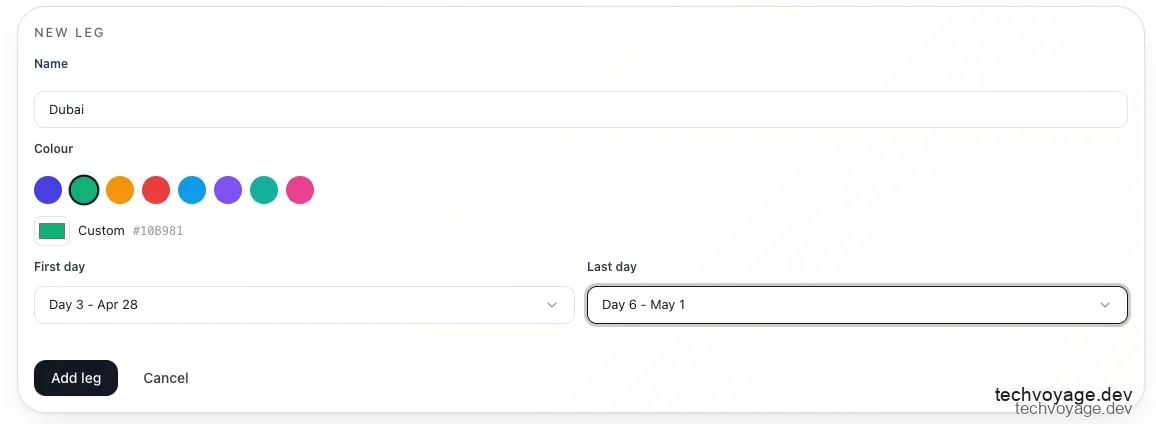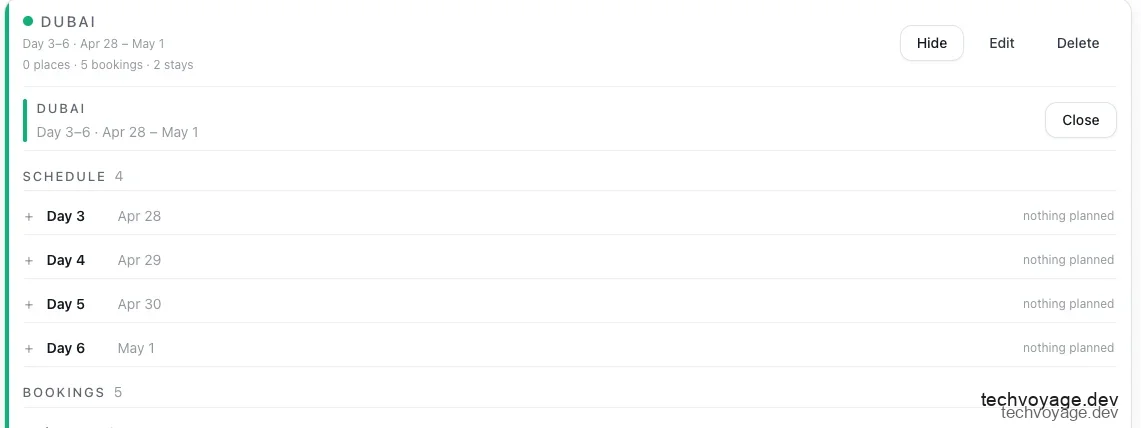 #### 4.6 Create a journey and check your atlas Group trips into a **Journey** and write stories to share the adventure with friends: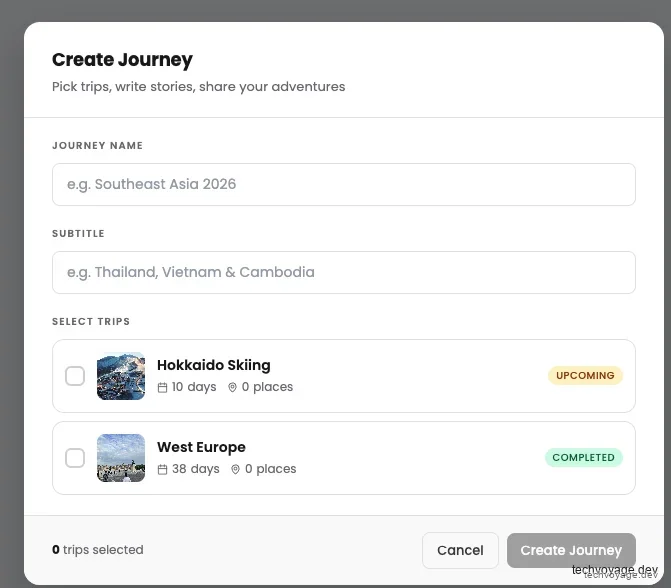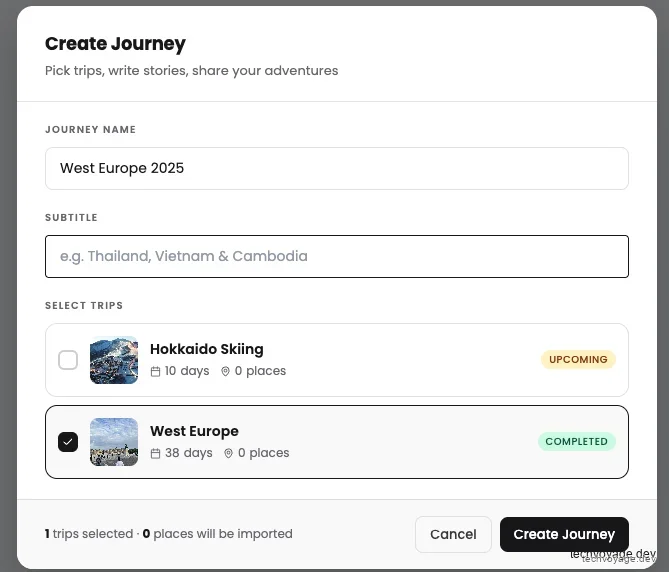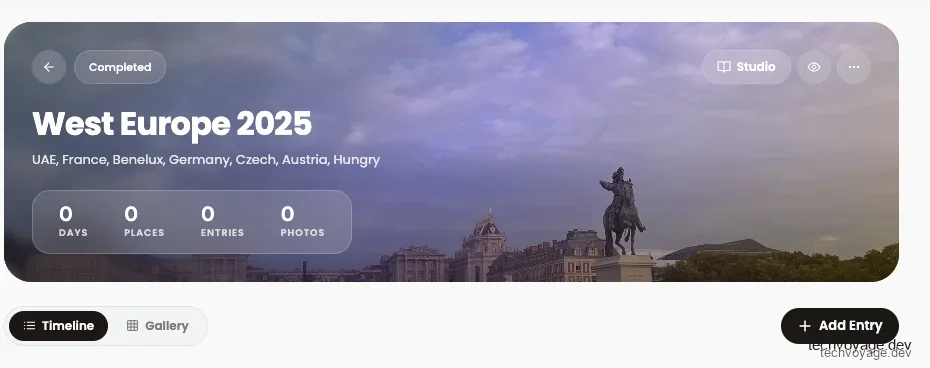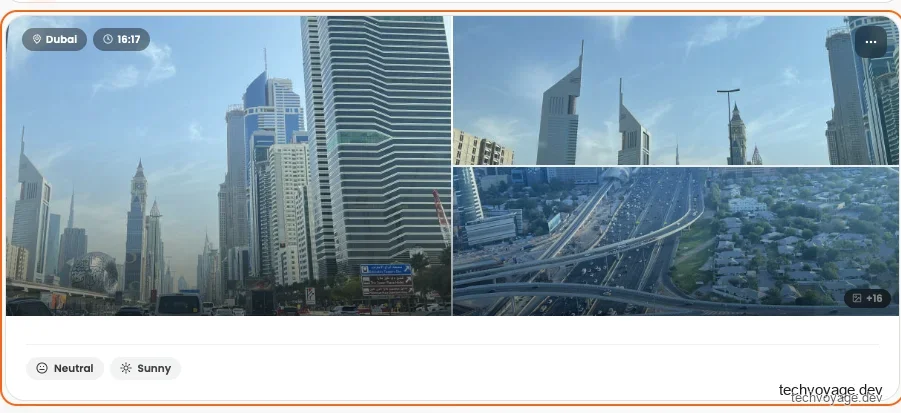 ### 5. Designing Custom Itineraries and Packing Lists Click **+ New Trip**, enter a name, and set the dates: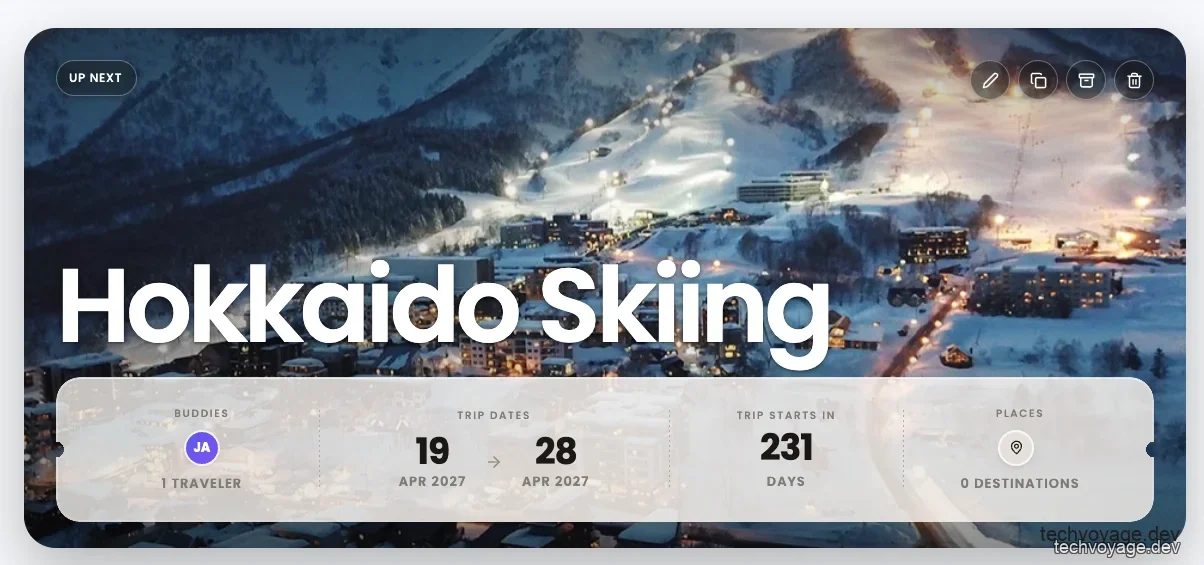**If you haven't fixed the dates yet, leave both empty.** A "number of days" field appears (up to 365). Plan first, schedule later. #### 5.1 Adding places This is the most time-consuming step of any trip planning, and TREK has a couple of ways of doing it: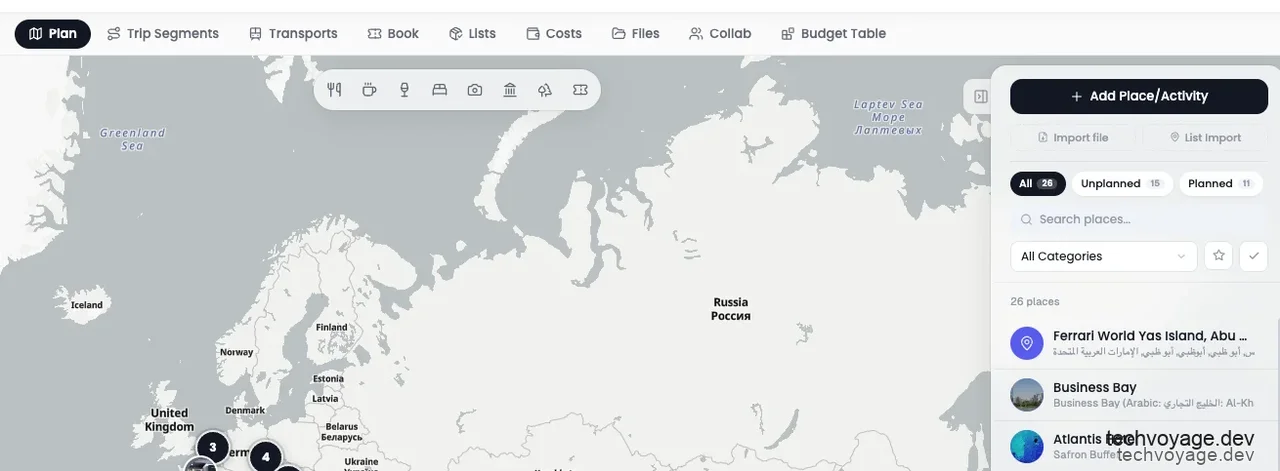**1. Right-click the map** to create a place at that exact location — the address is reverse-geocoded automatically: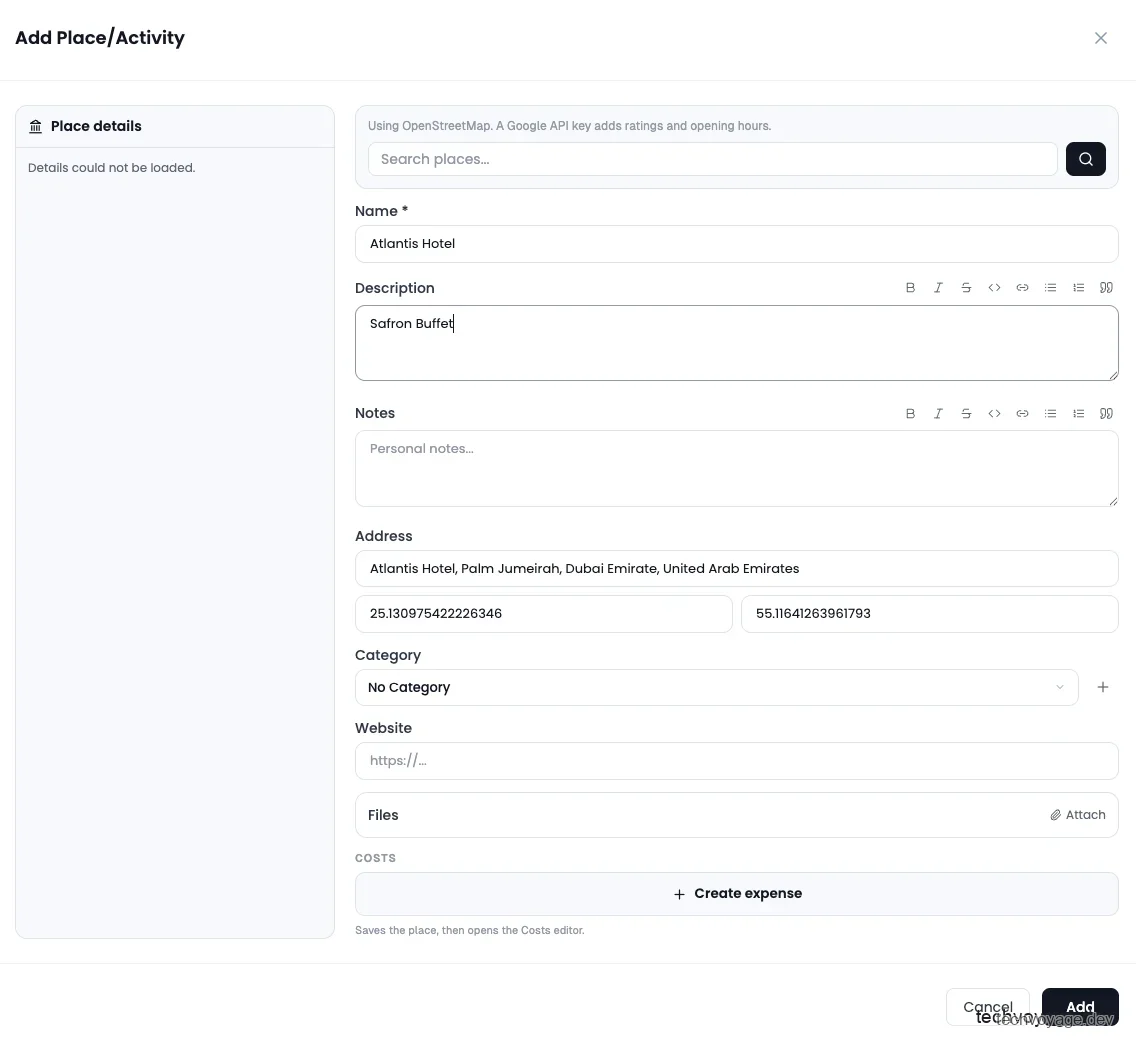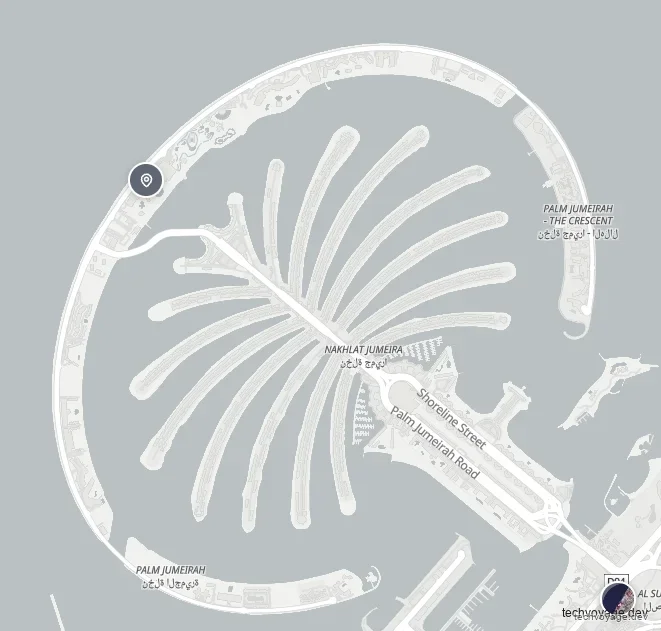**2. Click + Add Place/Activity** and search by name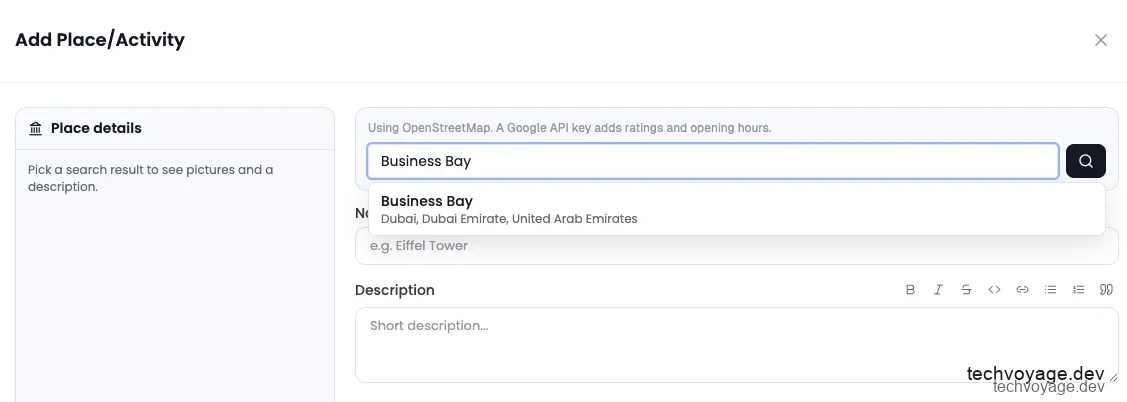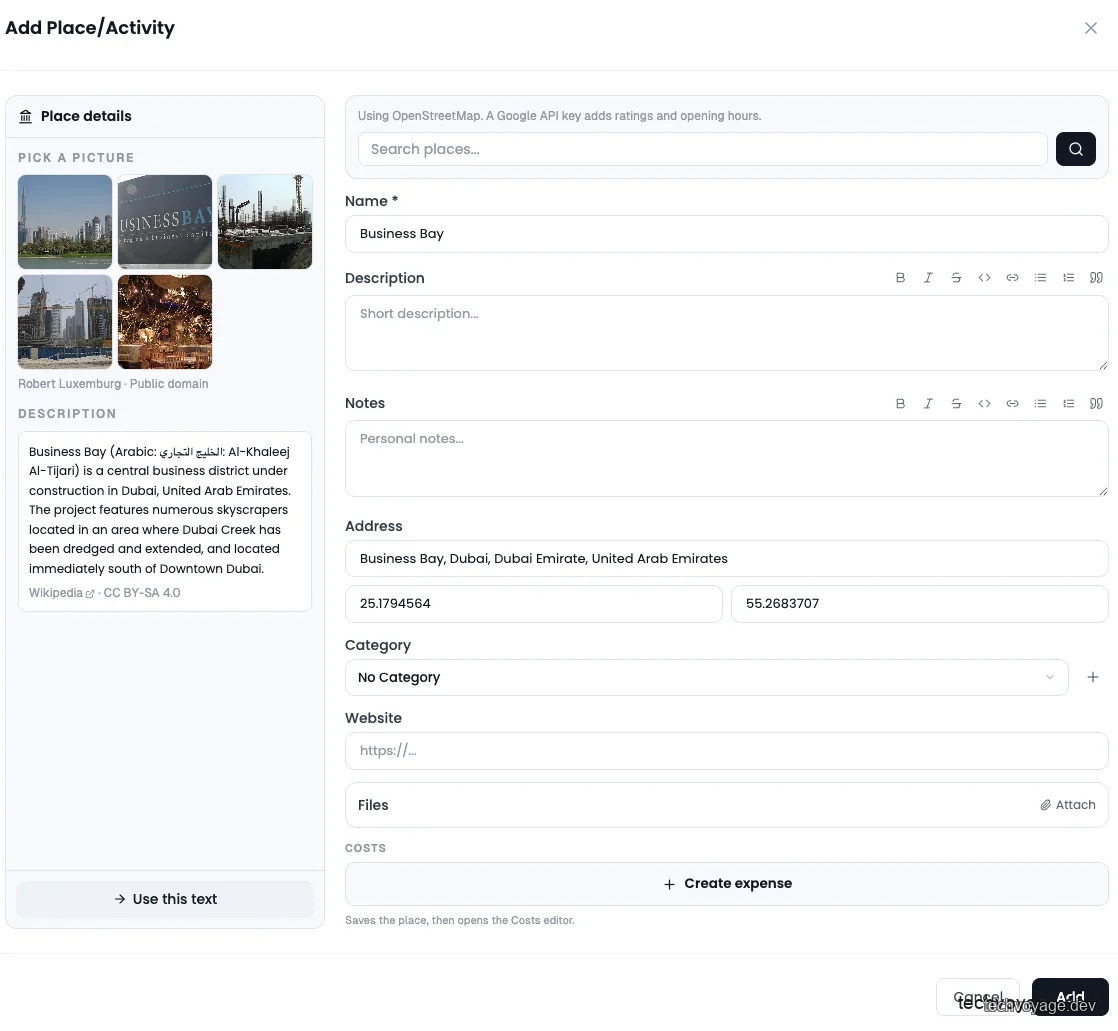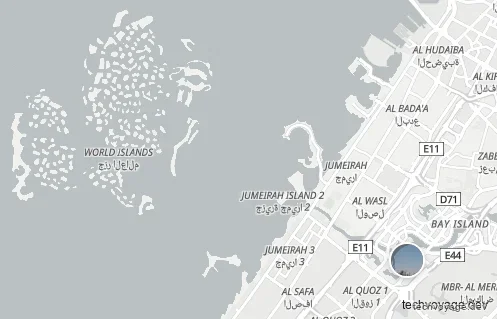**3. Paste a Google Maps URL** (`**maps.app.goo.gl/…**` or `**maps.google.com/…**`) into the search field. TREK parses out the name, address, and coordinates: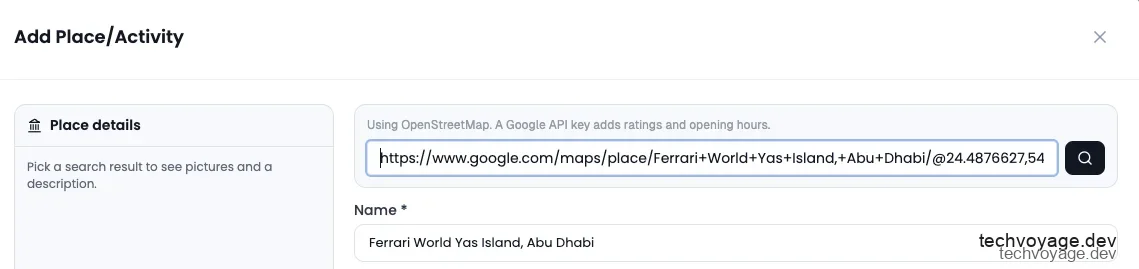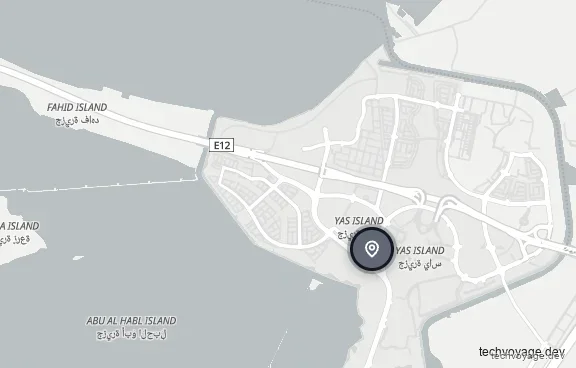**4. Bulk import** — the easiest of all. If you already maintain a "want to go" list on Google Maps, export it as `**.gpx**` (`**.kml**` and `**.kmz**` also work) and click **Import file** on the right panel to pull everything in at once: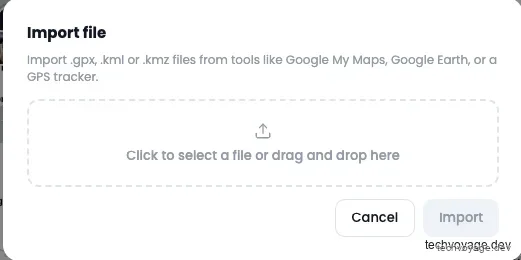 Add everything interesting first, regardless of whether it fits the schedule. Allocate places to days later. #### 5.2 Day plans and notes The Day Plan organises places into days, in order. It's a collapsible list per day, and everything is drag-and-drop: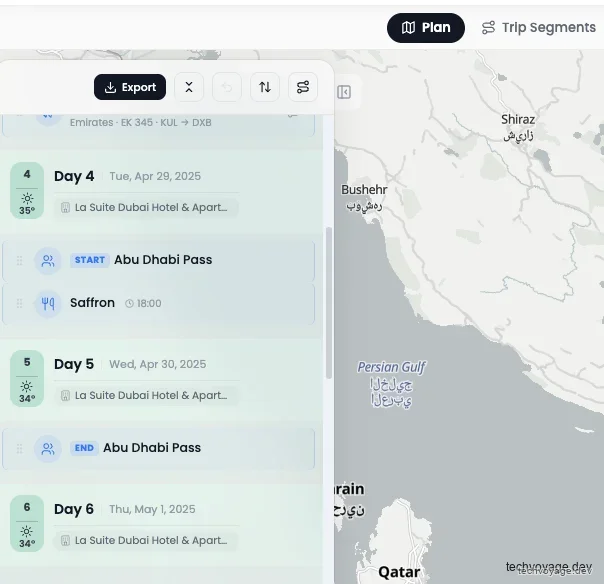 The details that make it useful: - **Transport between stops**: the bus icon at the top left of a day adds commuting transport (train, bus, flight legs within the day): 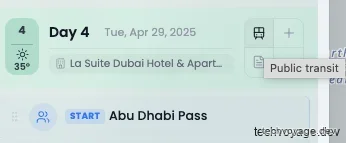 - **Day notes**: the notes icon at the bottom left attaches icon-tagged notes — "early start today", "this museum needs a reservation": 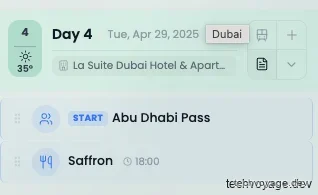 - **Time slots**: drag a place from the right panel into a day, then assign it a time. Places with set times are auto connected on the map: 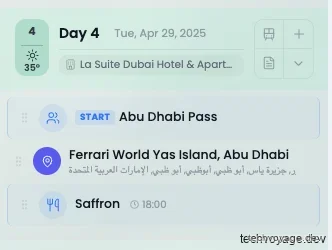 - Please refer to [**Day Plans and Notes wiki page**](https://github.com/liketrek/TREK/wiki/Day-Plans-and-Notes) for **Route optimisation** and **Weather**. #### 5.3 Collections: reusable place lists Collections allows the user to save a list of places outside of any trip. It can be shared with friends, and ready for the next trip. Places are **copied** into trips, so editing a trip entry never mutates your collection and vice versa. Click **Collections** in the top menu bar: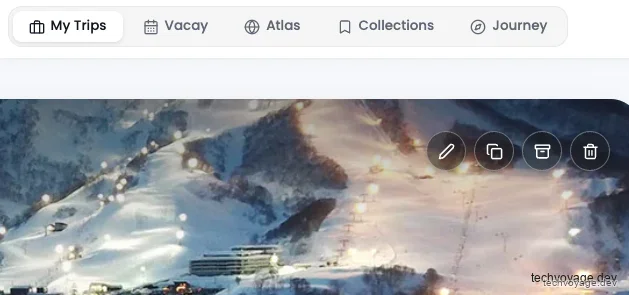 Click **+ New list** to create one: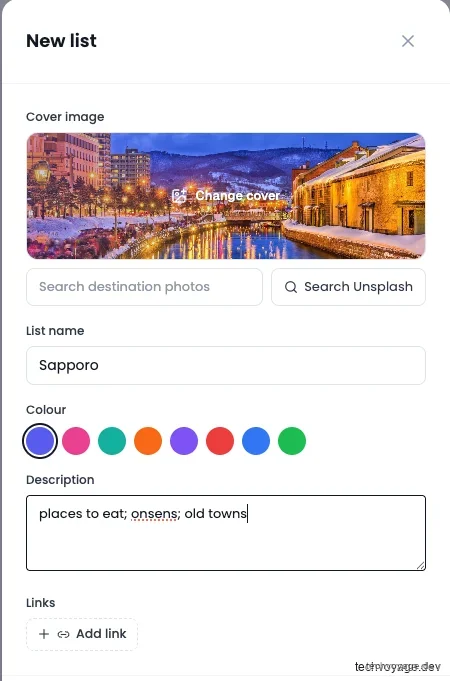 Click **+ Add a place** and fill in the details: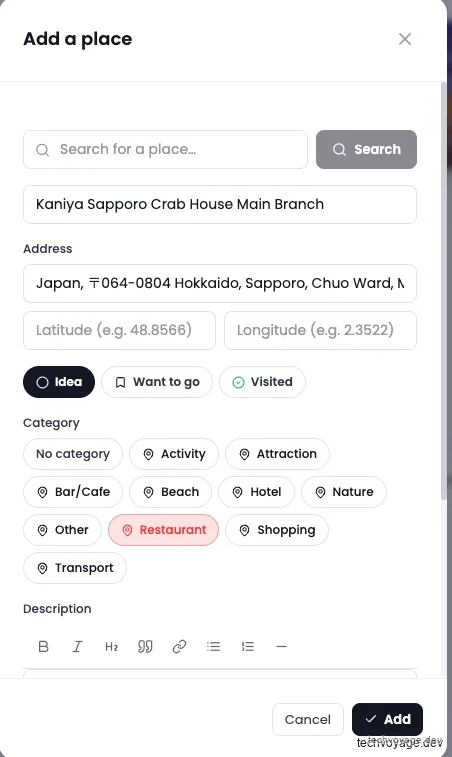**Note:** the search inside the "Add a place" dialog does not seem to work, so you will need to enter details manually. If geo-coordinates of the places are available, the places show up on the map: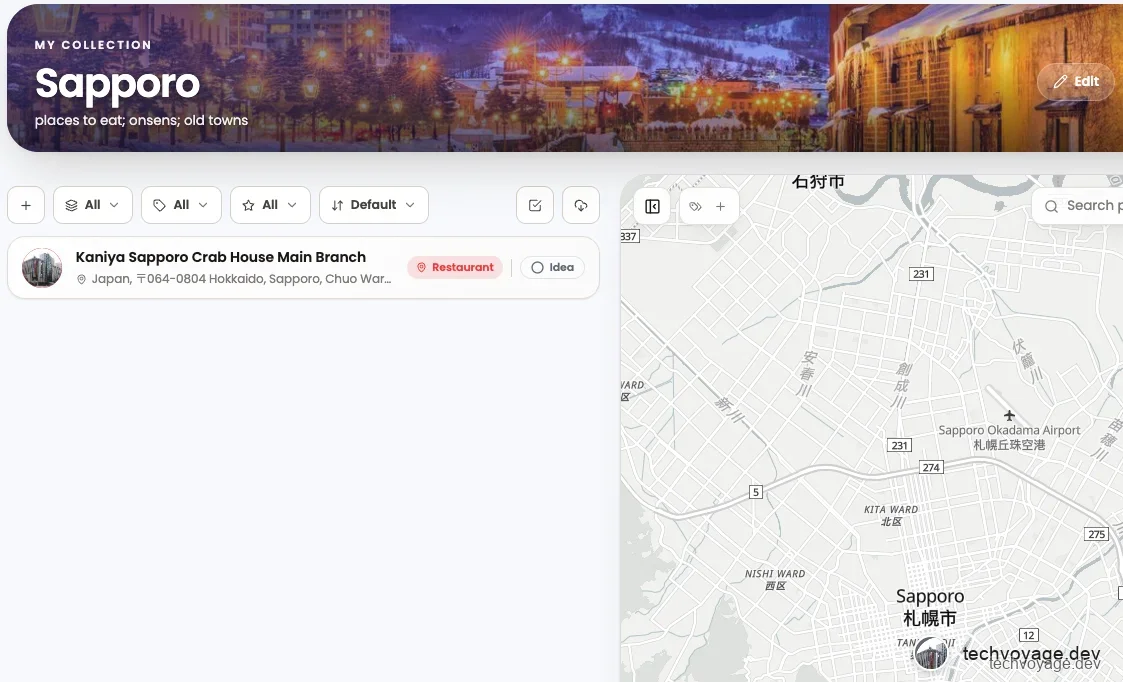 To organise places with labels, click the **tick-box** icon: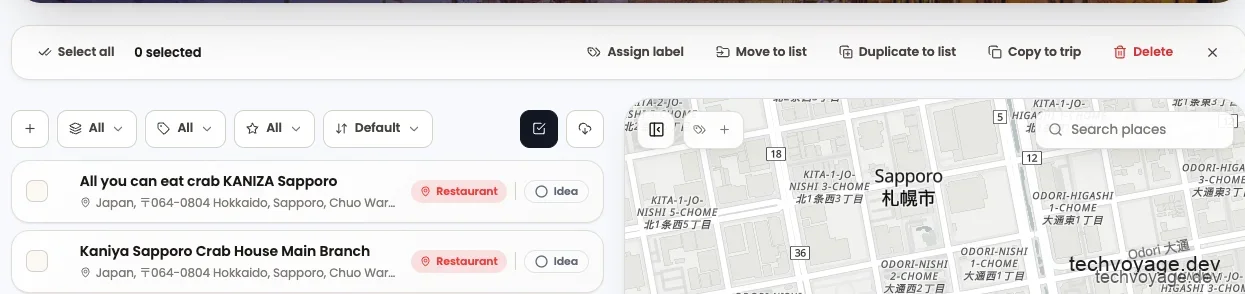 Select the places to group, then click **Assign label**: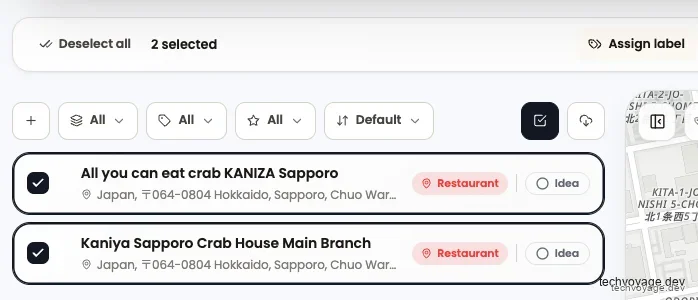 Click **Manage labels** to create labels first: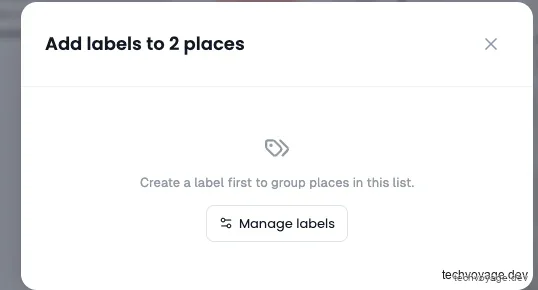 Select a label and click **Assign label**: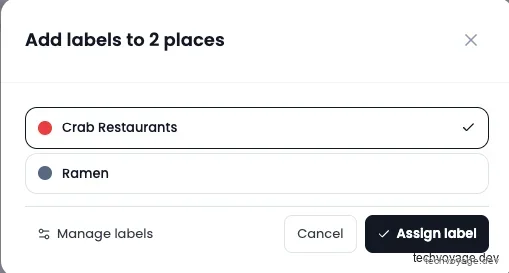 #### 5.4 Costs and budget We can add other expenses for the trip on the 'Costs' page.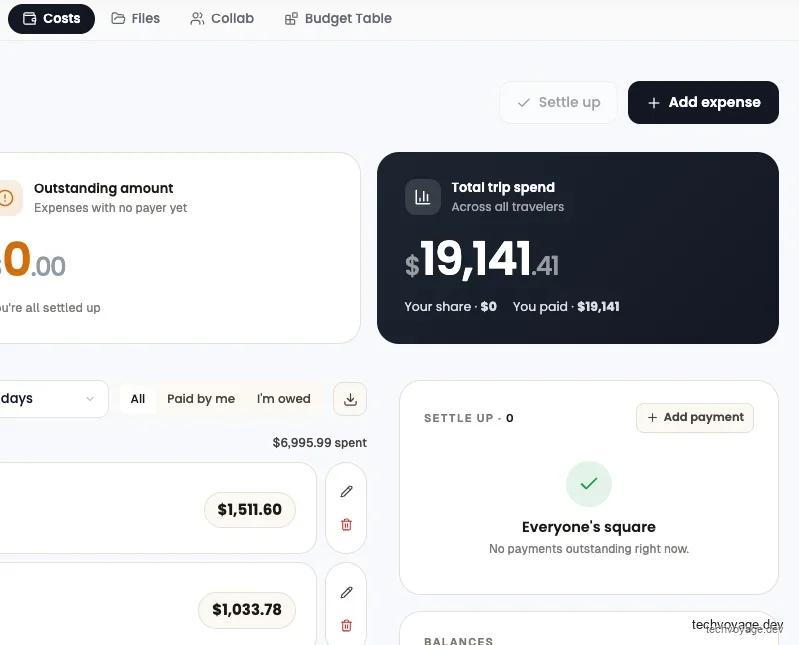 Payments made by travel companions can be added and split on the same page. The settlement panel runs a greedy-matching algorithm to compute the **minimum number of transfers** for who owes whom, and how much. ### 6. Leveraging Model Context Protocol (MCP) for AI-Powered Travel Planning TREK has a built-in **MCP (Model Context Protocol) server**, which lets AI agents read and write your travel data directly — over 150 tools and 30 resources covering trips, places, budgets, packing, bookings, and collaboration. #### 6.1 Cloudflare Zero Trust Because TREK is running behind a [**Cloudflare Zero Trust**](https://techvoyage.dev/article/exposing-hermes-agent-to-private-network-using-cloudflare-warp) network, you will need to add the domain to the split tunnels inclusion list. Otherwise, you will have issues with OAuth authorisation. Please refer to this GitHub issue: [**github issue**](https://github.com/liketrek/TREK/issues/1463). [**Related guide****How to Expose Hermes Agent Privately with Cloudflare WARP**
Learn how to securely expose and access your Hermes Agent globally using Cloudflare WARP and Zero Trust without opening inbound firewall ports.**8 MIN READ **](https://techvoyage.dev/article/exposing-hermes-agent-to-private-network-using-cloudflare-warp)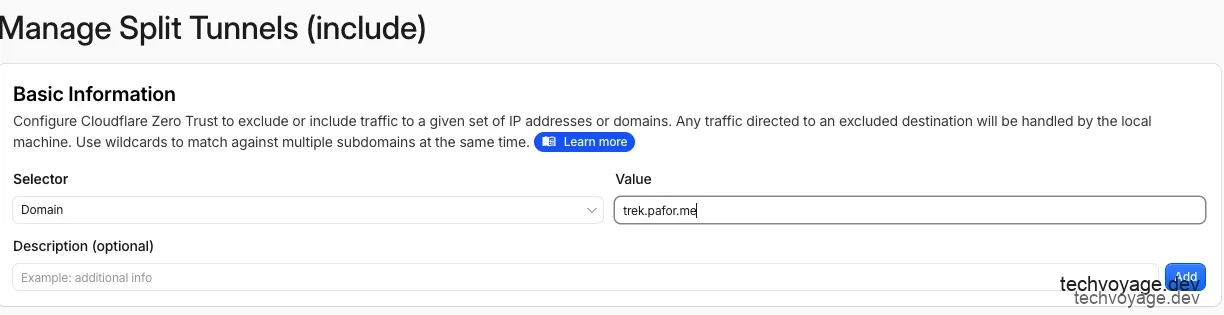 #### 6.2 Claude Desktop Click **+ New Client** to create an AI agent client: 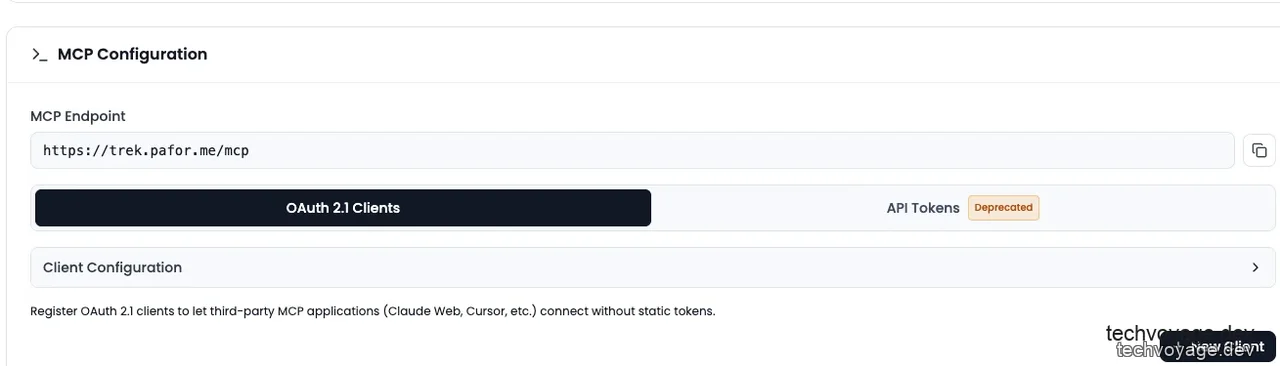 Select the **Claude Desktop** tab and click **Register Client**: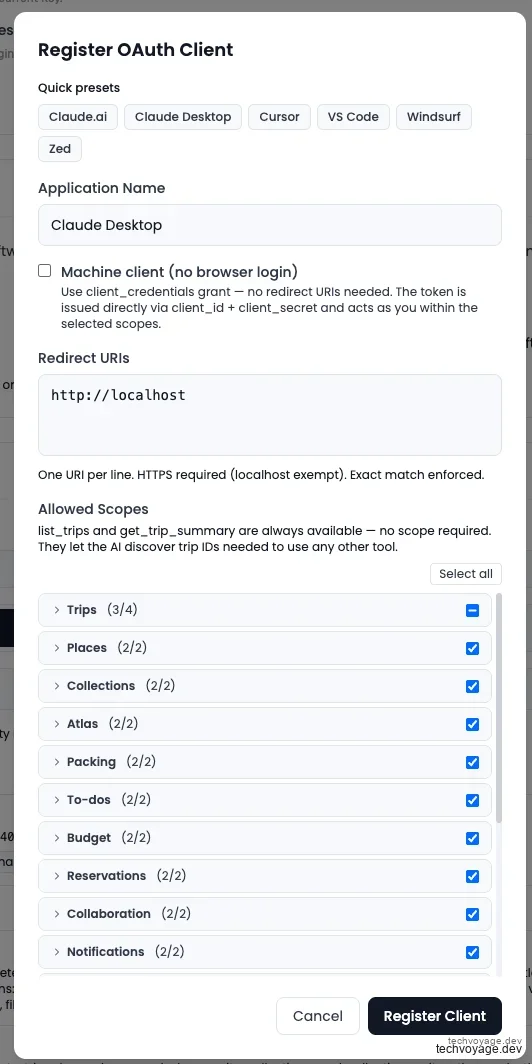 A client ID and client secret pair is displayed. Copy them somewhere safe. Then click **Client Configuration** to show the MCP config: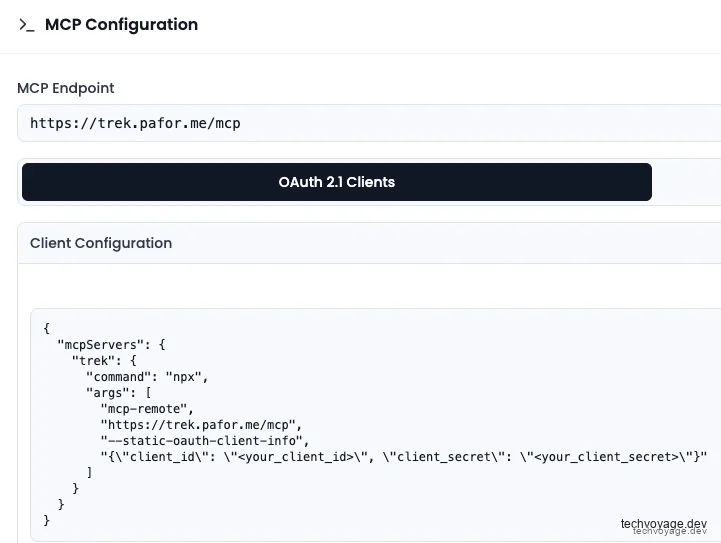 In Claude Desktop, click **Edit Config** to open the local MCP servers configuration file: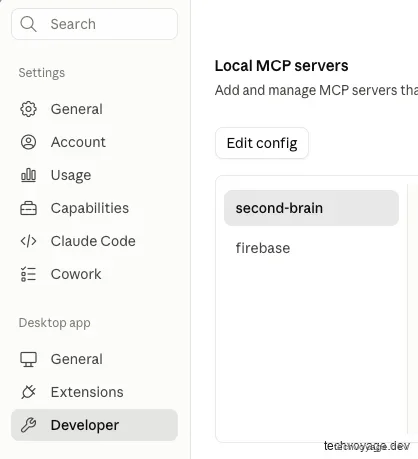 Paste the TREK config, replacing the placeholders with your credentials:```
"mcpServers": {
"trek": {
"command": "npx",
"args": [
"mcp-remote",
"https://trek.pafor.me/mcp",
"--static-oauth-client-info",
"{\"client_id\": \"\", \"client_secret\": \"\"}"
]
}
},
``` Restart Claude Desktop, and the TREK server shows as connected under **Local MCP servers**: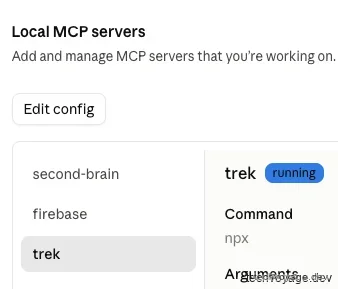 Now run a prompt: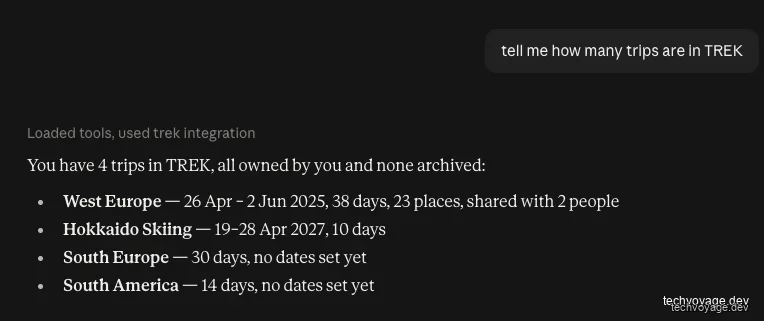 Let's add an expense in natural language:```
For the West Europe trip, the Grab from KLIA1 to the hotel cost RM115.90 on 26/4/2025. Please add it as an expense without split to the trip.
``` Checking the **Costs** page, the expense is created with "No one paid yet", since no payer was mentioned: Adding to the packing list works the same way: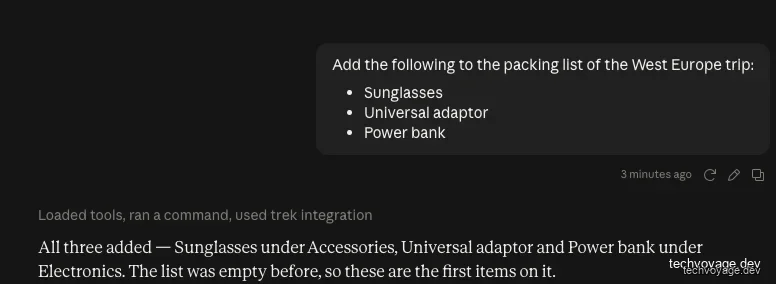 Refresh the **Packing List** page and the three items are there: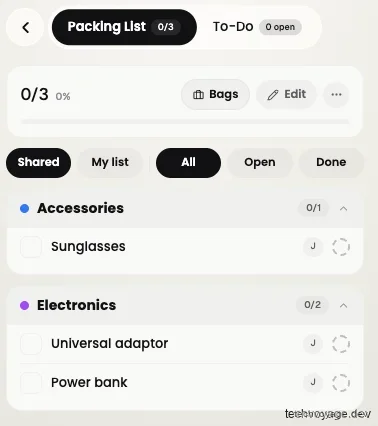 #### 6.3 Gemini CLI (dynamic registration) Gemini CLI supports **dynamic registration**, that is no pre-created client needed. Add this to `**.gemini/settings.json**`:```
"trek": {
"httpUrl": "https://trek.pafor.me/mcp",
"oauth": {
"enabled": true
}
}
``` Run `**gemini**` in the terminal and click **Approve** when the authorisation prompt appears: 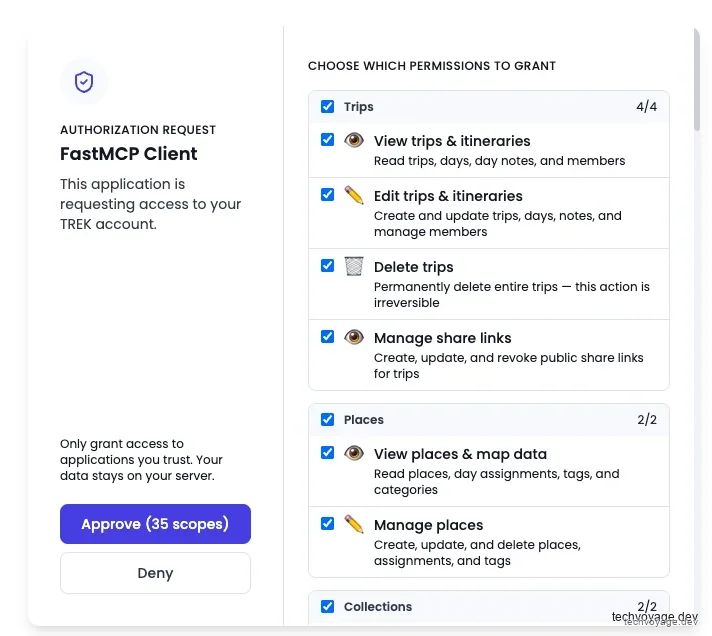 Then start with a simple prompt: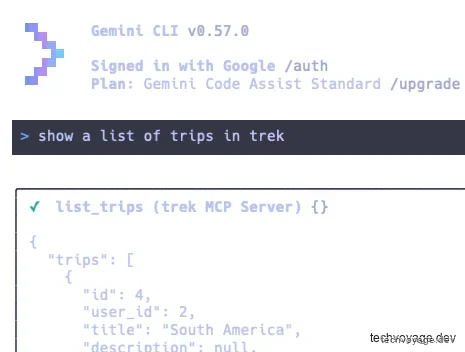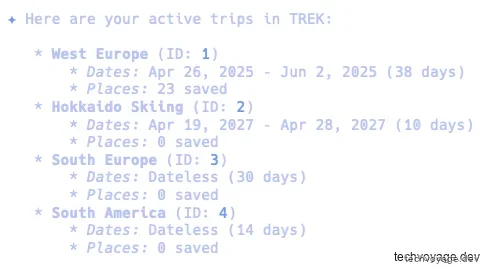 #### 6.4 Kimi CLI (dynamic registration) Same approach — add to `**mcp.json**` in the `**/Users//.kimi/**` folder:```
"trek": {
"type": "http",
"url": "https://trek.pafor.me/mcp",
"auth": "oauth"
}
``` Run `**kimi mcp auth trek**` in the terminal and click **Approve**:  Once authorised, the available tools are listed: ### 7. Mobile Experience TREK is a PWA (progressive web app) on mobile devices. A service worker caches map tiles and API data, so your itinerary remains readable offline. However, push notifications may experience some latency compared to a native app. ### Final Thoughts Connecting AI agents through MCP saves a lot of the tedious work of entering flight and accommodation bookings. In addition, agents can suggest places of interest based on your travel dates and season. A single conversation with an AI agent can cover the entire pipeline, from research and itinerary building to budget tracking and packing. There are some minor technical glitches. For instance, when importing bookings from PDFs, the currency defaults to the trip's base currency rather than the currency actually paid. Also, when creating a new list in Collections, any cover image added during creation disappears on save, though it can be manually added back when editing. There is a slight technical barrier, as you need to host this on your own server. TREK is primarily designed for people who travel frequently and have high expectations of how they organise their travel data. We suggest trying the official demo at [**demo.liketrek.com**](https://demo.liketrek.com/) before considering self-hosting. ### Reference: - [**TREK Quick Start**](https://github.com/liketrek/TREK/wiki/Quick-Start) - [**TREK Troubleshooting**](https://github.com/liketrek/TREK/wiki/Troubleshooting) - [**TREK MCP Scopes**](https://github.com/liketrek/TREK/wiki/MCP-Scopes) [Share](https://api.whatsapp.com/send?text=https%3A%2F%2Ftechvoyage.dev%2Farticle%2Fself-hosted-travel-planner-trek) [Share](https://www.reddit.com/submit?url=https%3A%2F%2Ftechvoyage.dev%2Farticle%2Fself-hosted-travel-planner-trek) [Share](https://www.facebook.com/sharer/sharer.php?u=https%3A%2F%2Ftechvoyage.dev%2Farticle%2Fself-hosted-travel-planner-trek) [Share](https://www.linkedin.com/sharing/share-offsite/?url=https%3A%2F%2Ftechvoyage.dev%2Farticle%2Fself-hosted-travel-planner-trek) [Share](https://x.com/intent/post?url=https%3A%2F%2Ftechvoyage.dev%2Farticle%2Fself-hosted-travel-planner-trek) ## **Related Articles**[**Collaboration****Self-Host Block's Buzz: Shared AI Agent Workspace**
Learn how to self-host Block's Buzz on a Linux VPS behind Cloudflare DNS. Run a secure, Nostr-powered workspace where humans and AI agents collaborate.**16 MIN READ **](https://techvoyage.dev/article/self-hosting-buzz-as-the-workspace-where-ai-agents-become-colleagues) [**Cloudflare****Build a Persistent AI Memory System on Cloudflare**
Learn how to build a persistent, self-hosted AI memory system on Cloudflare using Second Brain and MCP. Share context across Claude, Gemini, and Obsidian.**7 MIN READ **](https://techvoyage.dev/article/use-cloudflare-as-ai-memory) [**AI & Agents****How AI Agent Skills Replace Nuxt App Scaffolding Scripts**
Scaffold Nuxt on Cloudflare Workers easily. Learn why we replaced brittle shell scripts with AI agent skills and how to install them with npx skills.**4 MIN READ **](https://techvoyage.dev/article/how-ai-agent-skills-replace-nuxt-app-scaffolding-scripts) [](https://techvoyage.dev/article/how-ai-agent-skills-replace-nuxt-app-scaffolding-scripts) [](https://techvoyage.dev/article/self-hosting-buzz-as-the-workspace-where-ai-agents-become-colleagues)